Regenious user manual
Regenious is a white-label reporting and monitoring workspace made only for local SEO agencies. You connect Google Search Console, Google Analytics 4, Google Business Profile and Bing once. From then on, every client's results are in one dashboard and their branded reports build themselves.
This manual covers every screen of your agency workspace. It explains what each screen is for, how to use it step by step, what the buttons do and what the usual messages mean. All screenshots come from a demo agency, Brightpath Digital, so your own screens will look the same apart from your data and colours.
Nothing in the manual matches your search. Try another word, e.g. “report”, “Google”, “invite”.
1 Getting started
Sign in, find your way around, and get your workspace from empty to the first branded report in an afternoon.
Sign in
Your workspace has its own address, made from your agency name when you signed up: youragency.regenious.com. Your team signs in there. Your clients use the same address for the client portal (chapter 12).
- Open your workspace address and enter your work email and password.
- If two-step sign-in is on for you (it always is for the owner), a 6-digit code is emailed to you. Type it in. Didn't receive the code? Resend sends a new one.
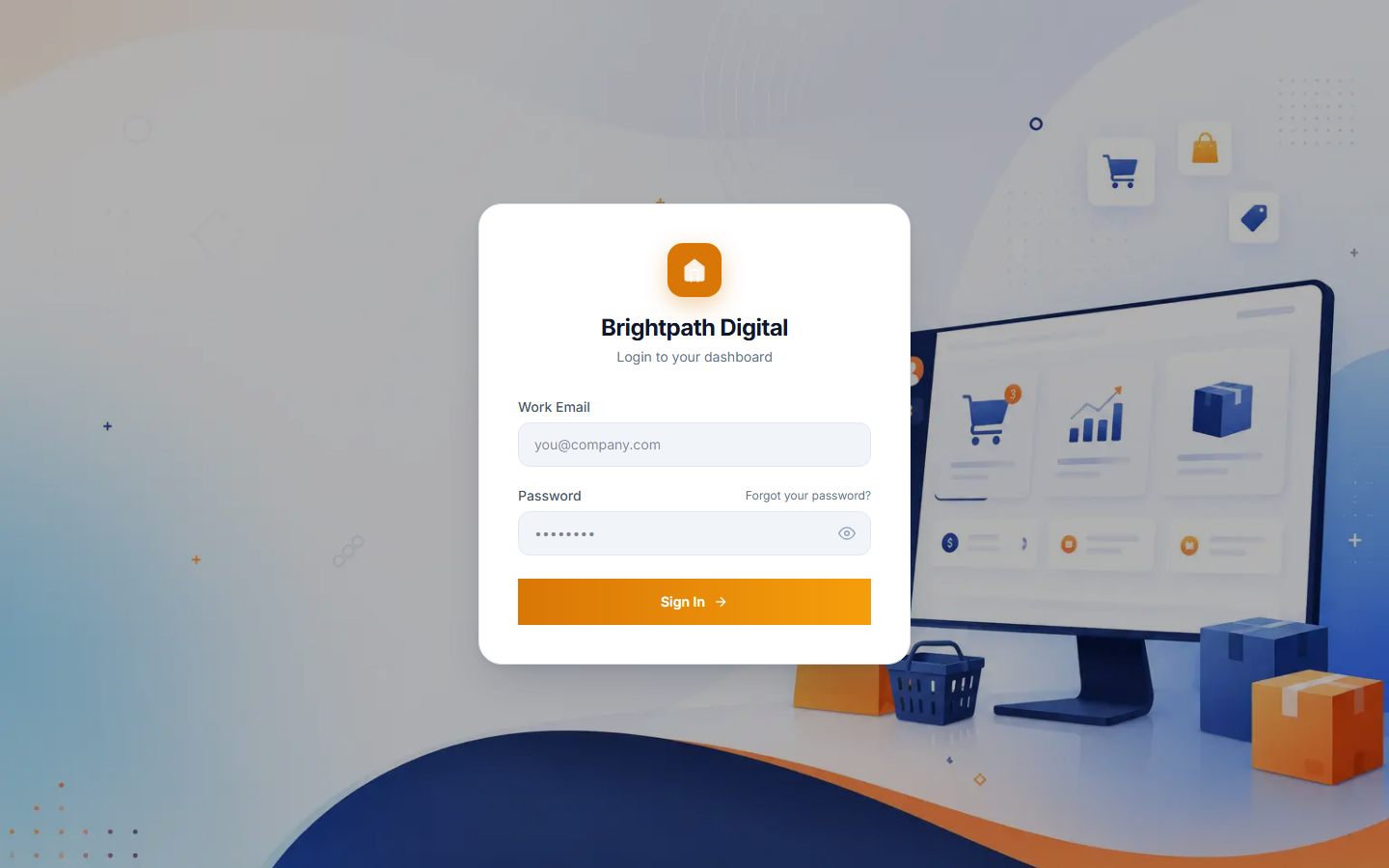
Forgot your password? Use Forgot your password? on the sign-in page. We email you a reset link that works once.
Finding your way around
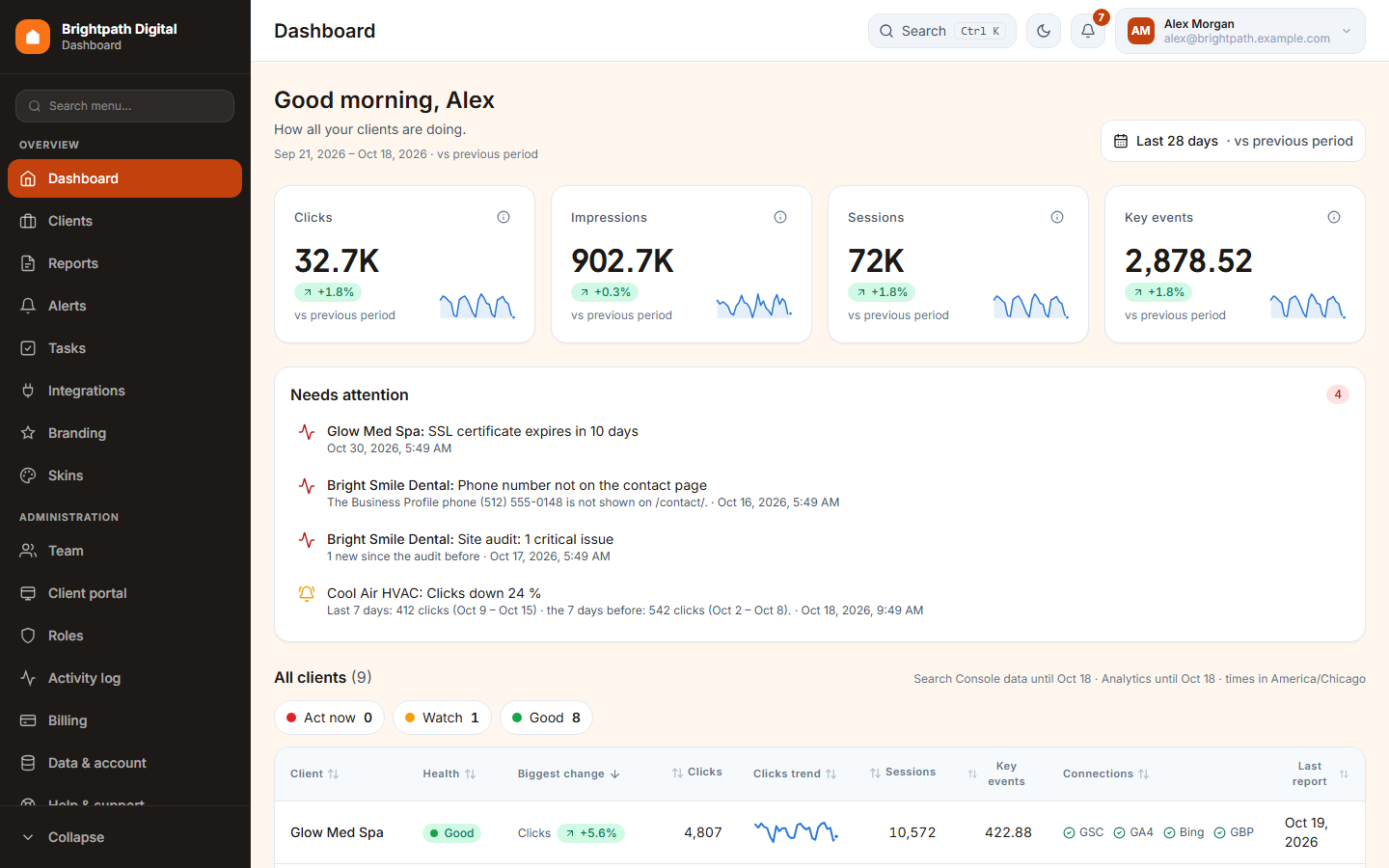
Sidebar
Overview holds the daily work: Dashboard, Clients, Reports, Alerts, Tasks, Integrations, Branding and Skins. Administration holds Team, Client portal, Roles, Activity log, Billing, Data & account and Help & support. Collapse makes it narrow. You only see the pages your role allows.
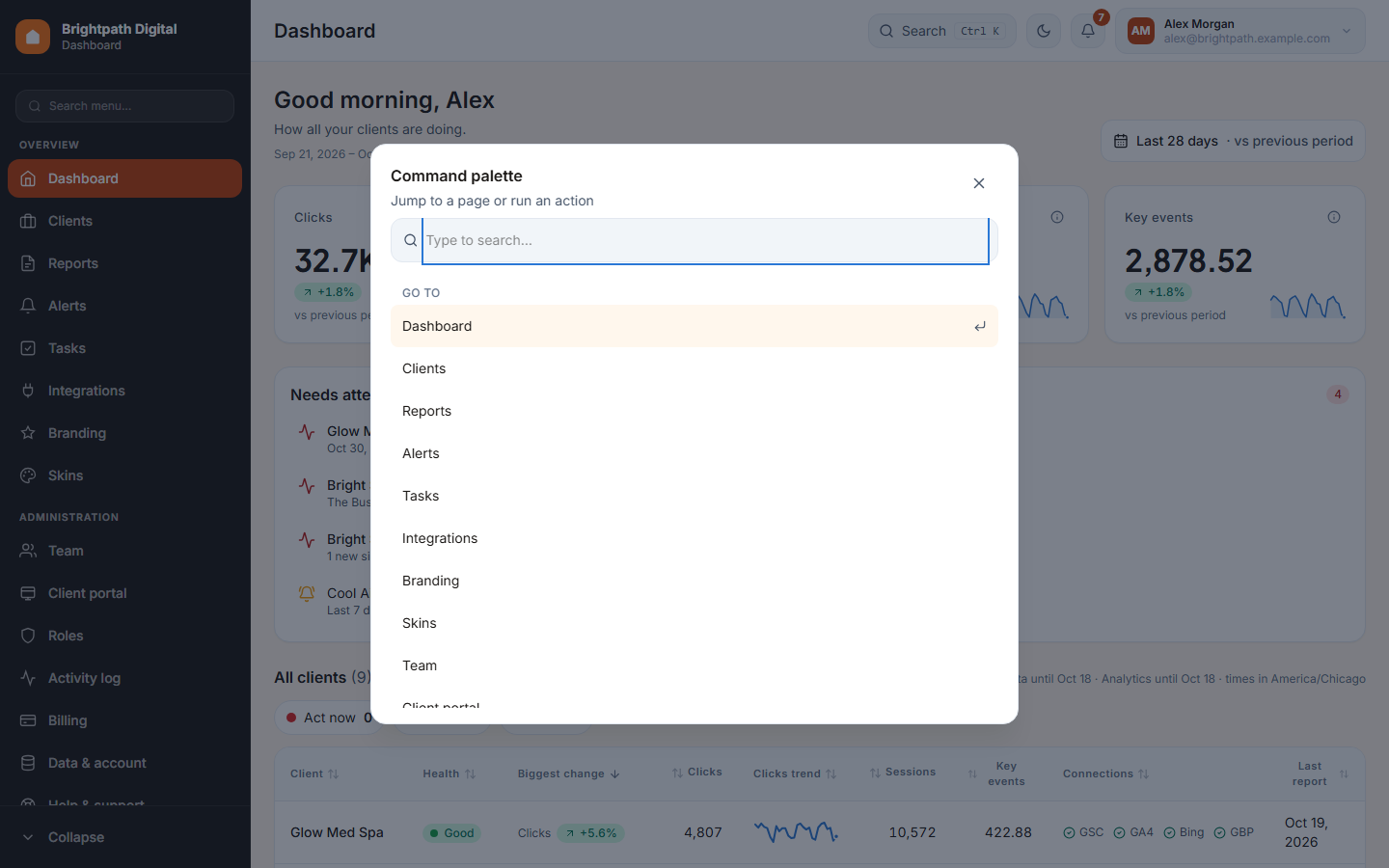
Search Ctrl K
The command palette jumps to any page or client. Start typing a client's name and press Enter. On a Mac, use ⌘ K.
Moon icon
Switches between light and dark mode for you only. Pick your colours in Skins.
Bell
Your notifications: alerts, reports that are ready, tasks given to you, client messages. See Notifications.
Your name
Your profile, security settings (password, two-step sign-in, devices) and Sign out.
Breadcrumbs
The path at the top left (Dashboard › Clients › Bright Smile Dental) shows where you are. Click a part to go back up.
The “Get started” checklist
A new workspace shows a Get started card at the top of the Dashboard. It lists the six steps to your first branded report, with a progress bar. Each row links to the page where you do it, and the next open step is highlighted:
- Add your logo and colours, in Branding.
- Add your first client, in Clients.
- Connect Google, in Integrations.
- Link Google properties to clients, with Map properties.
- Invite your team, in Team. This step is skipped on one-seat plans.
- Create your first report, in Reports.
Press Hide when you no longer need the card.
On a phone
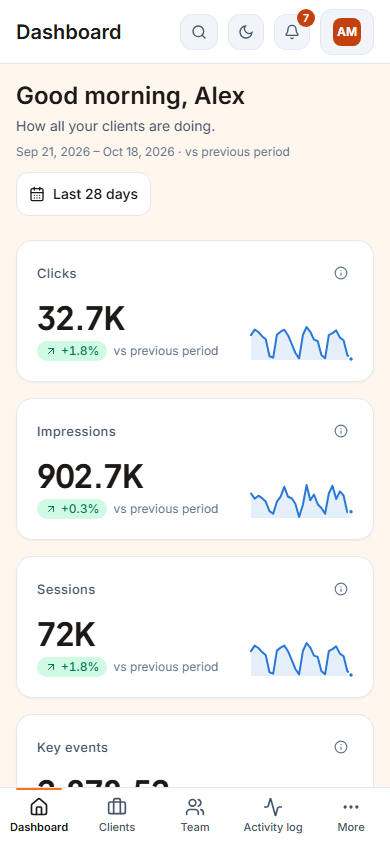
Every page works on a phone. The sidebar becomes a bar at the bottom of the screen, tables become cards, and dialogs open full screen.
2 The Dashboard
One screen with all your clients together: the totals, what needs your attention today, and how each client is doing.
Date range and comparison
The button at the top right (Last 28 days · vs previous period) sets the period for every number on the page. Choose last 7 / 28 / 90 days, last month, this month or your own dates. Then choose what to compare with: the previous period or the same days last year. The choice is stored in the page address, so you can send the link to a colleague and they see the same thing. Client pages keep the same range when you open them.
Local businesses are seasonal. For a roofer or an HVAC company, compare with the same period last year so a normal winter dip doesn't look like a problem.
The four totals
Clicks and Impressions come from Google Search Console. Sessions and Key events (conversions such as calls, form fills and bookings) come from Google Analytics 4. Each card shows the change against the comparison period and a small trend line. The ⓘ next to a number explains what it is and how it is counted.
If you can only see the clients assigned to you, the totals only include your clients.
Needs attention
The list of things to look at today, with the most urgent first. Each line links to the page where you fix it.
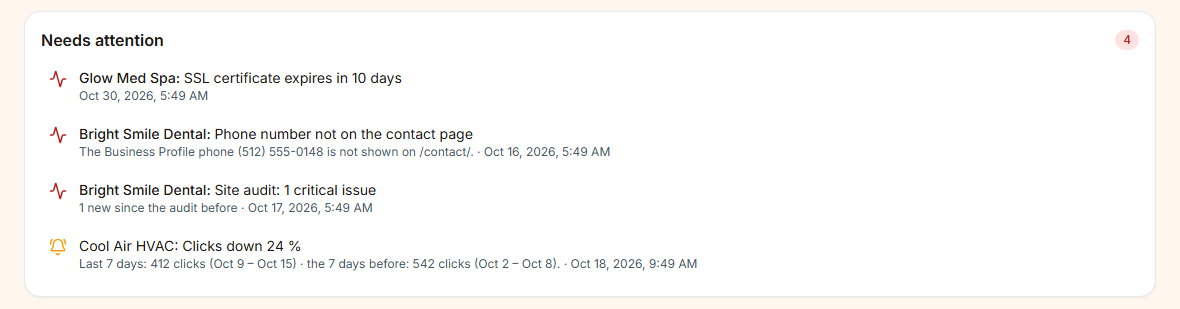
- Drops of 20% or more in clicks or sessions.
- Google, Bing or Business Profile connections that need to be reconnected, and properties that failed to sync or were lost.
- Websites that are down, SSL certificates or domains that expire within 14 days, critical site checks and site-audit issues.
- Open alerts from your alert rules.
When everything is fine it says “All clear — no big drops, broken connections or open alerts.”
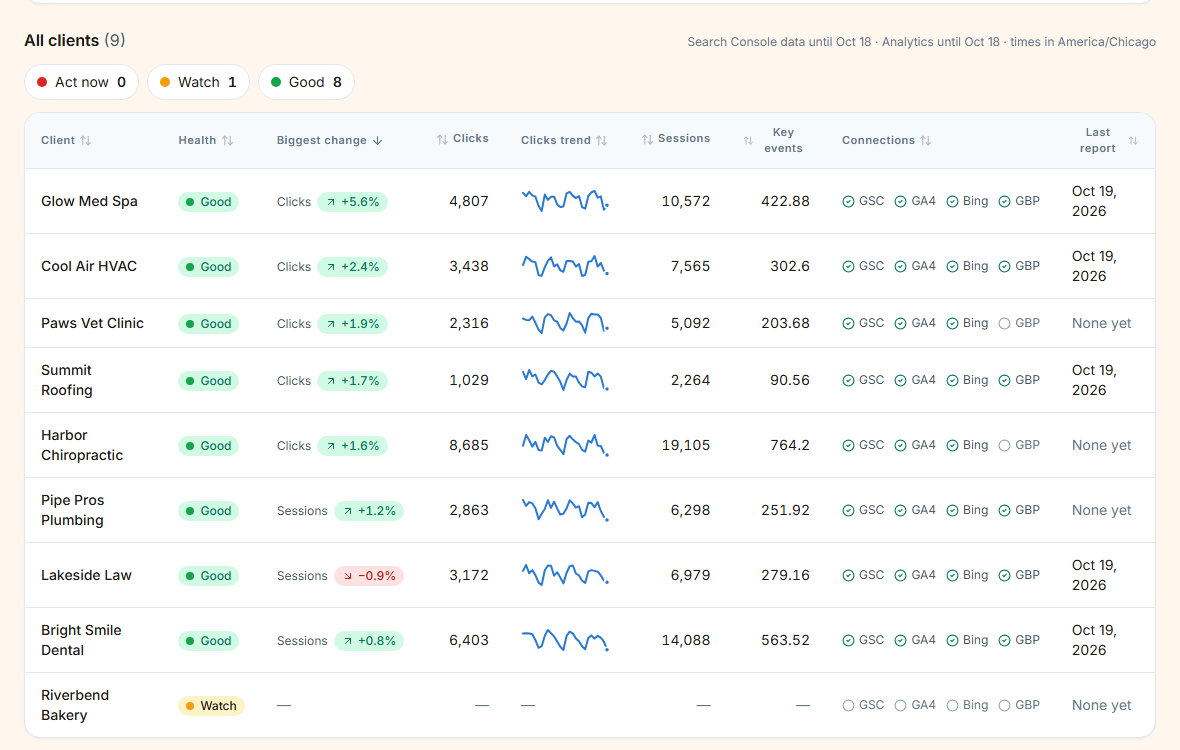
All clients
Every client in one table, sorted by the biggest change. The chips above it (Act now, Watch, Good) filter by health. The columns show the clicks trend, sessions, key events, which sources are connected (GSC, GA4, Bing, GBP) and the date of the last report. Click a client to open it. Click a column header to sort.
3 Clients
Add the businesses you work for, group them with tags, give them to team members and keep their details up to date.
The client list
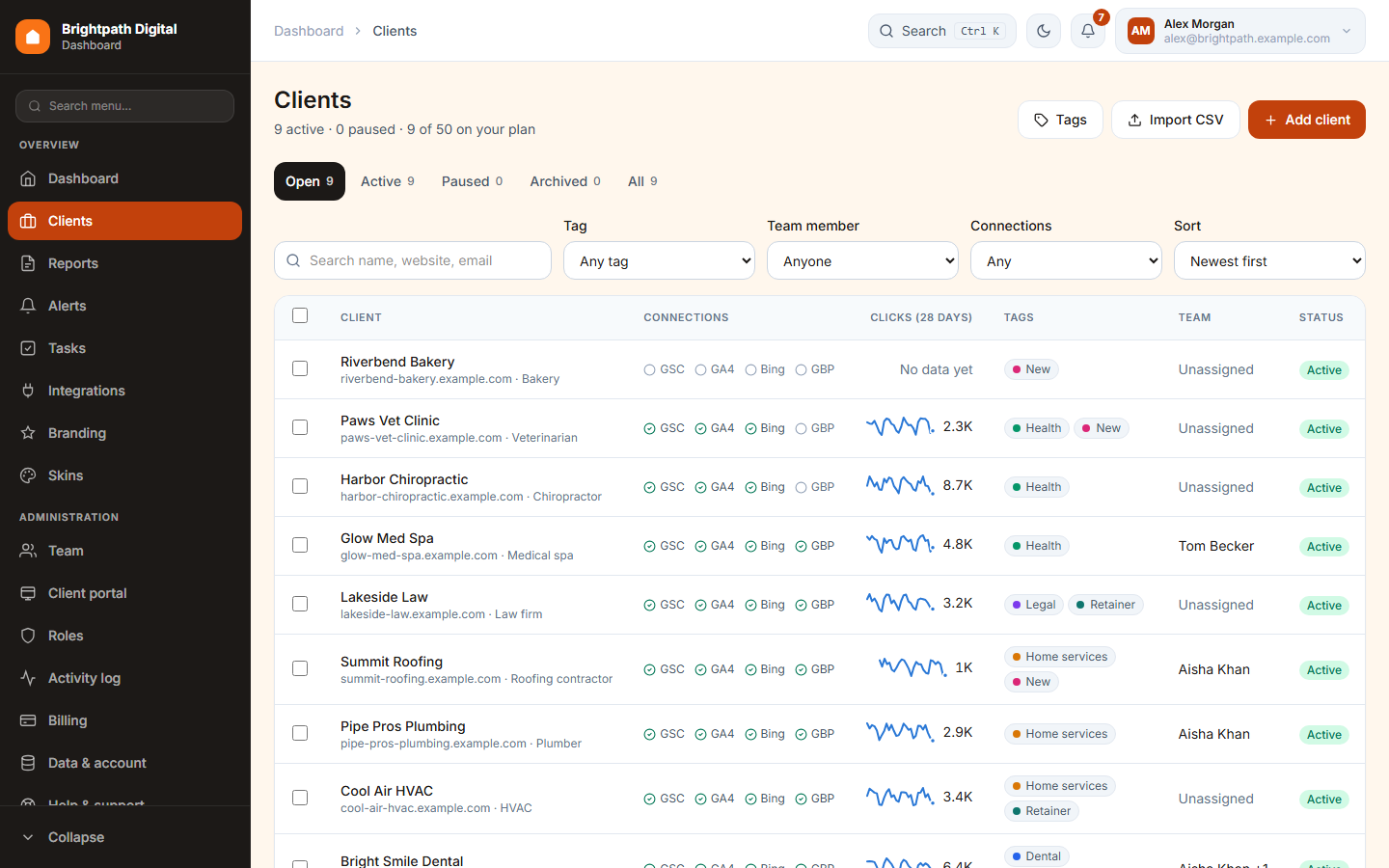
- Tabs: Open (active + paused), Active, Paused, Archived, All. The line under the title shows how many clients your plan allows (“8 of 50 on your plan”). Archived clients don't count.
- Search by name, website or email. Filter by Tag, Team member or Connections (for example “Needs reconnect”). Sort with Sort.
- Bulk actions: tick several clients to pause, archive, tag or assign them in one go. Every bulk action can be undone right after.
- Shortcut: press n on the Clients page to add a client.
Add a client
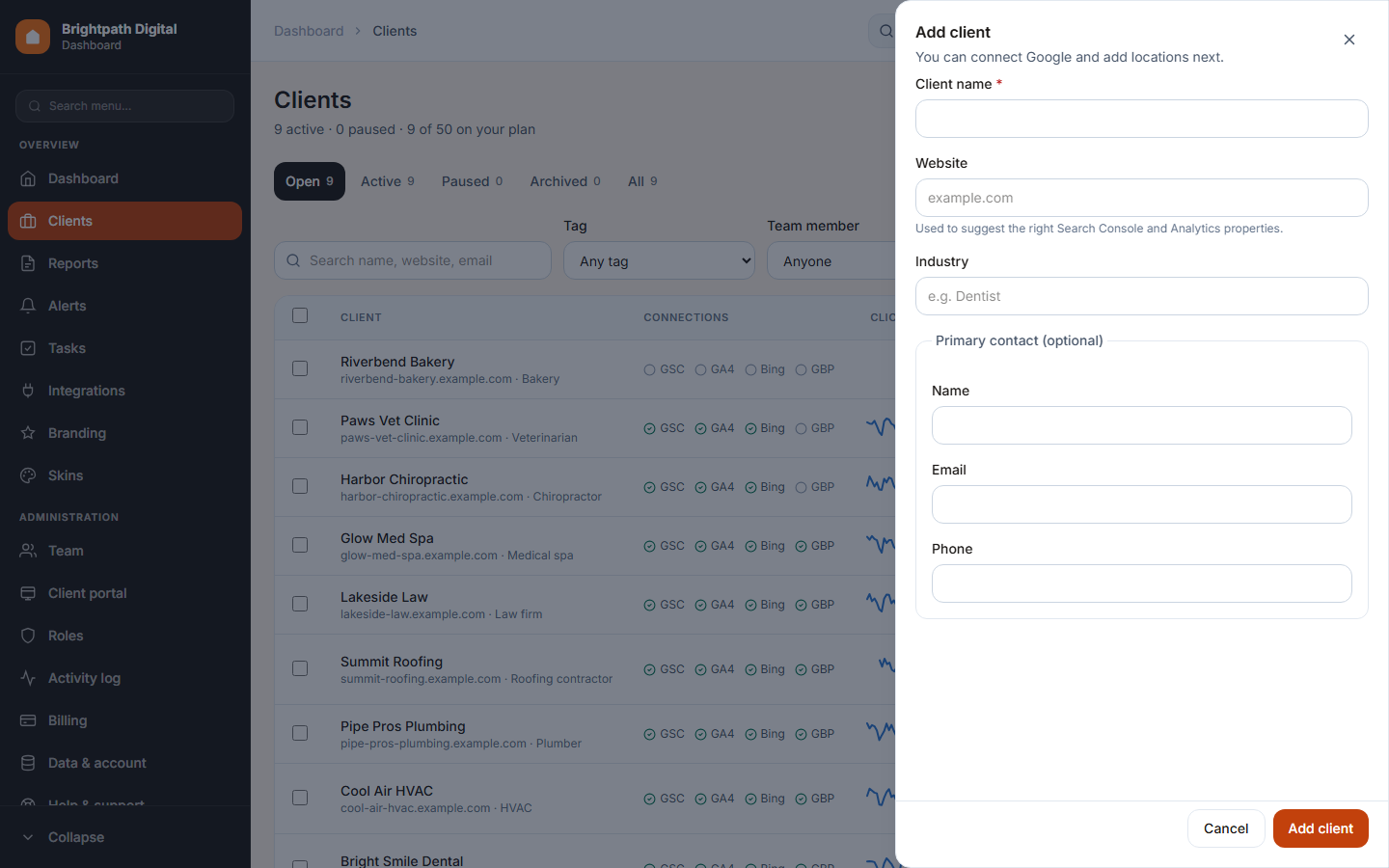
- Press Add client.
- Type the Client name (required). The client's web address in your workspace is made from it.
- Add the Website. We use it to suggest the right Search Console and Analytics properties, and to check the website's health.
- Optional: Industry and a Primary contact (name, email, phone).
- Press Add client. Next, connect Google and add locations.
“You've reached your plan's client limit”: archive a client you no longer work for, or move to a bigger plan in Billing.
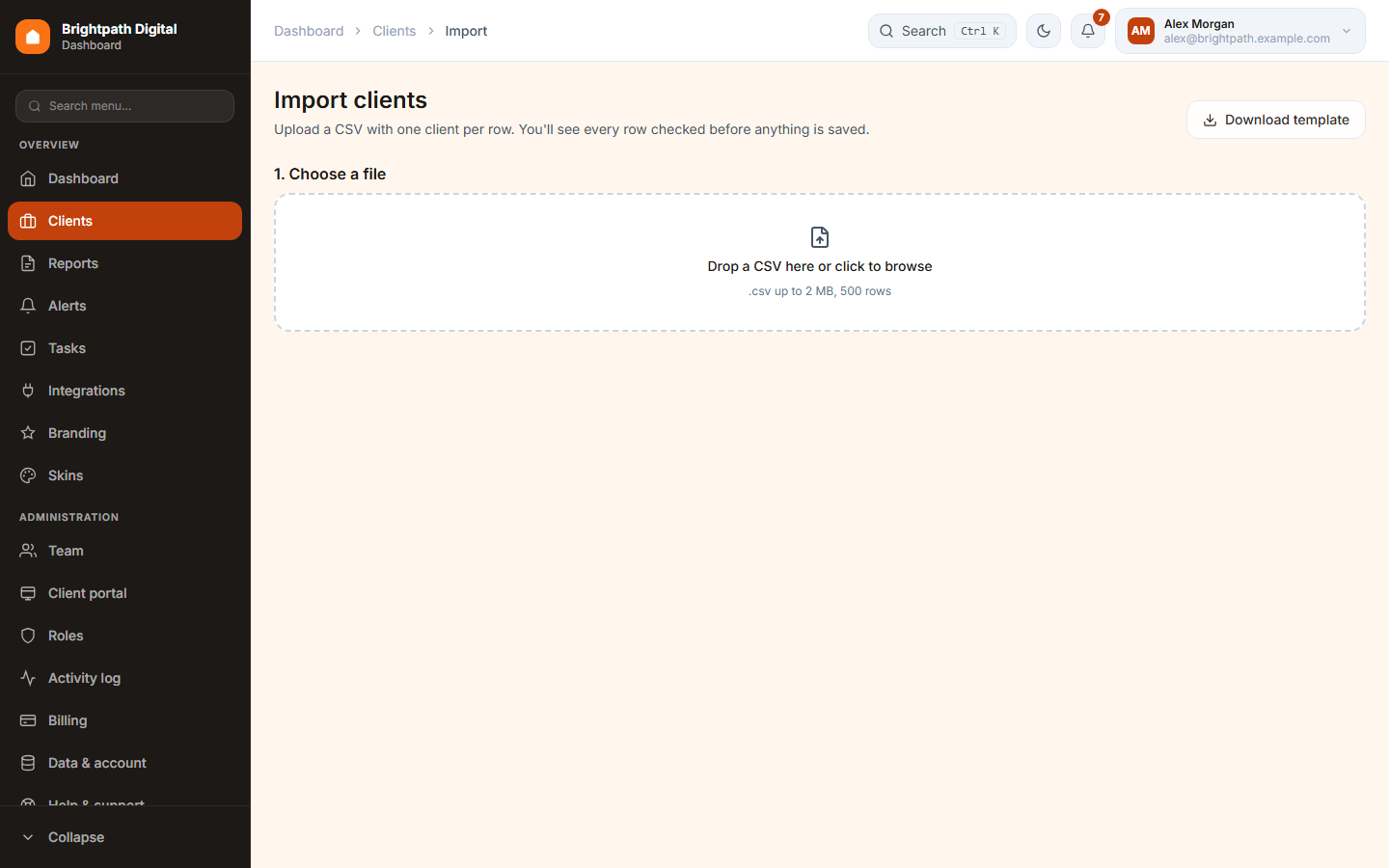
Import clients from a CSV file
- On Clients, press Import CSV. Download template gives you a file with the right columns.
- Drop your CSV (up to 2 MB, 500 rows) on the page. Columns are matched automatically and you can change the matching.
- Every row is checked before anything is saved: missing names, bad websites and duplicates are flagged. Fix them or leave those rows out.
- Confirm. The clients are added in one go.
Tags
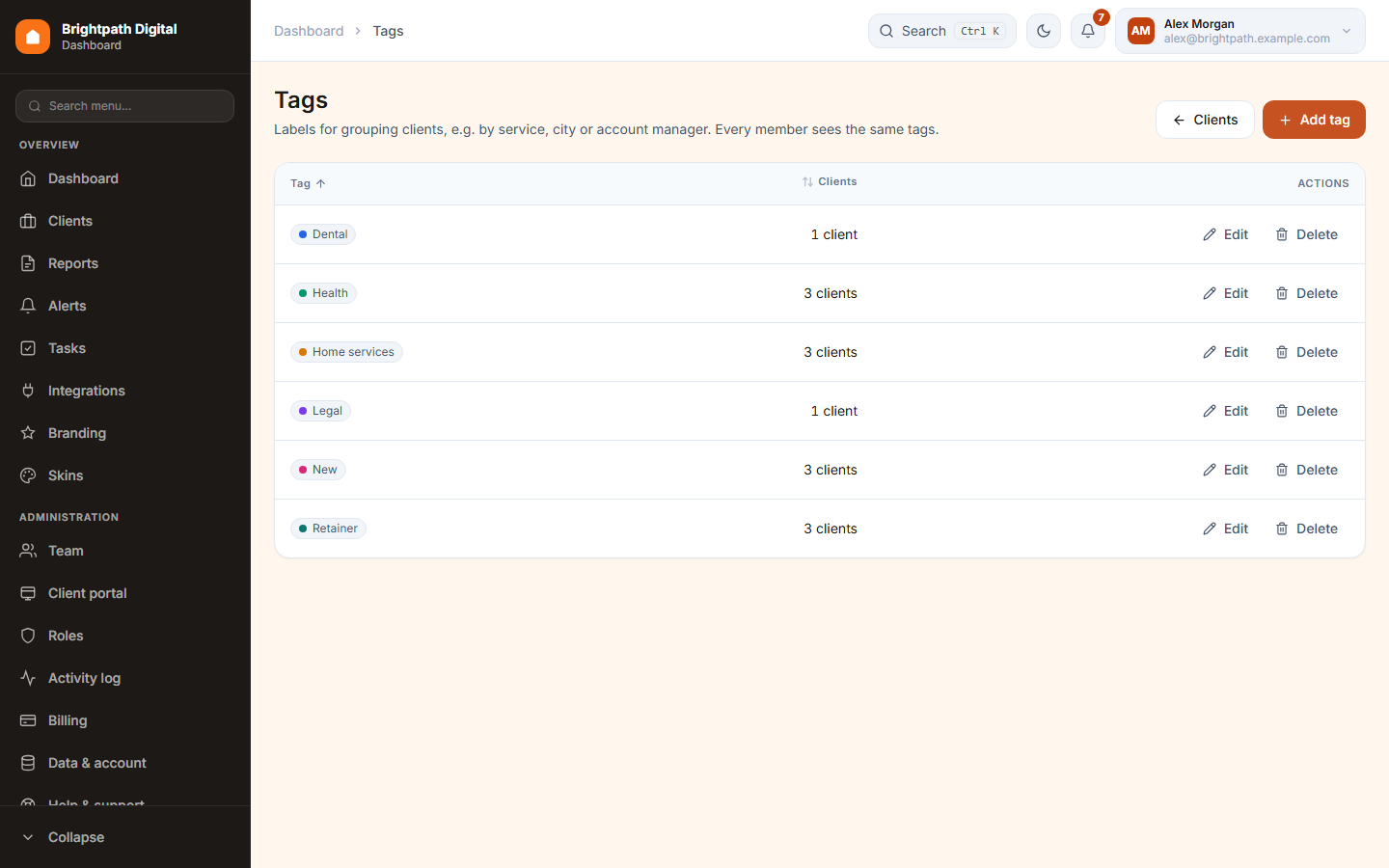
Tags group clients, for example by service, city or account manager. You add them to a client on its Settings tab, or with a bulk action. Tags on the Clients page opens the tag list. There you can add, rename or recolour a tag (one dialog) or delete one. Deleting tells you how many clients lose the tag. Click the client count to see those clients.
A client's Settings tab
Open a client, then Settings. Every field saves itself when you leave it, and “Saved” appears.
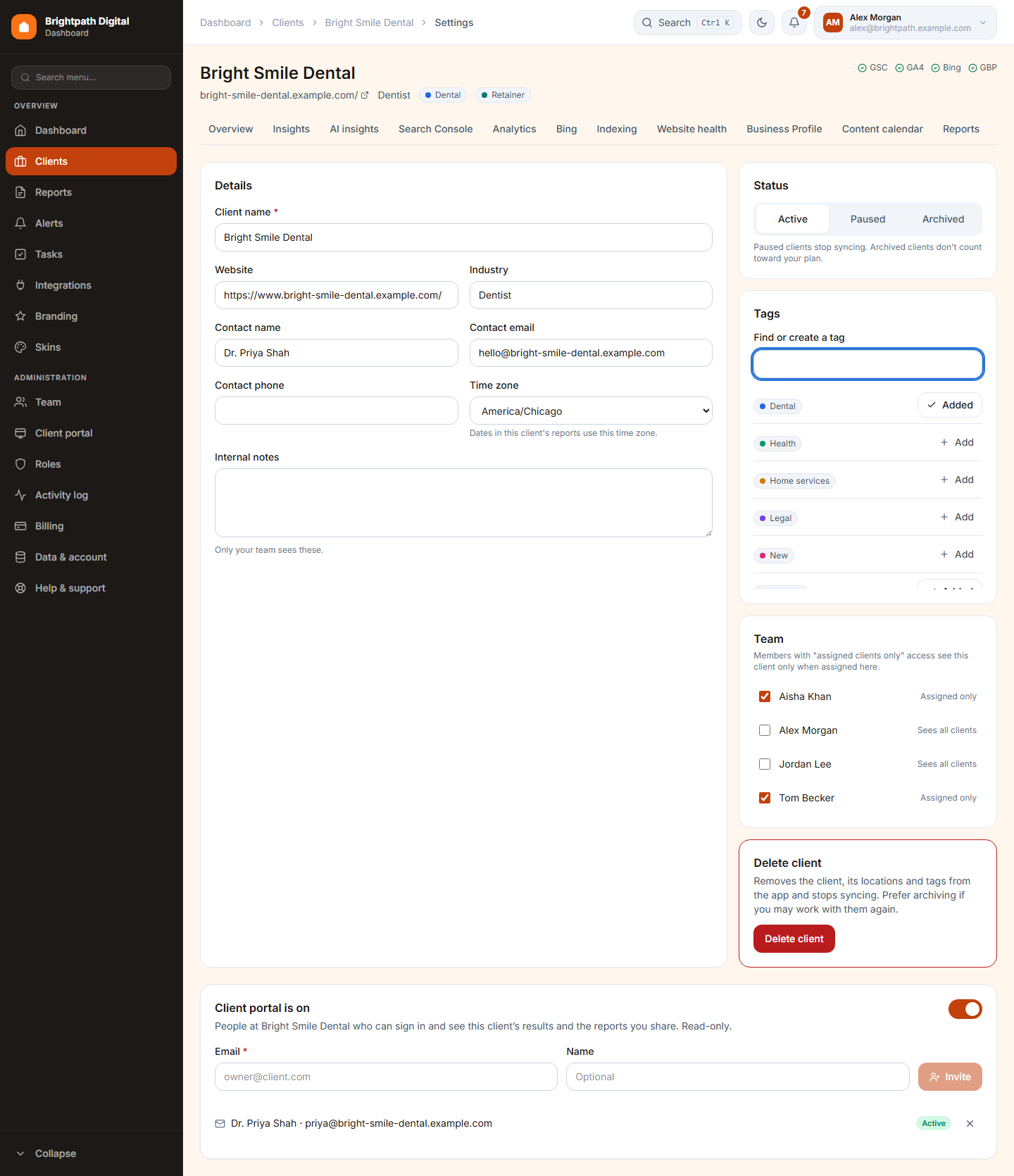
| Part | What it does |
|---|---|
| Details | Name, website, industry, contact, time zone (dates in this client's reports use it) and internal notes that only your team sees. |
| Status | Active, or Paused: syncing and scheduled reports stop. Or Archived: read-only and not counted toward your plan. |
| Tags | Find or create a tag and add it. |
| Team | Tick the members who work on this client. Members with “Assigned clients only” access see this client only when they are ticked here. |
| Client portal | Switch the portal on for this client and invite the people who may sign in. See chapter 12. |
| Delete client | Removes the client, its locations and tags and stops syncing. You type the name to confirm and enter your password. Delete permanently also removes all of its imported data. Archive instead if you may work with them again. |
Locations
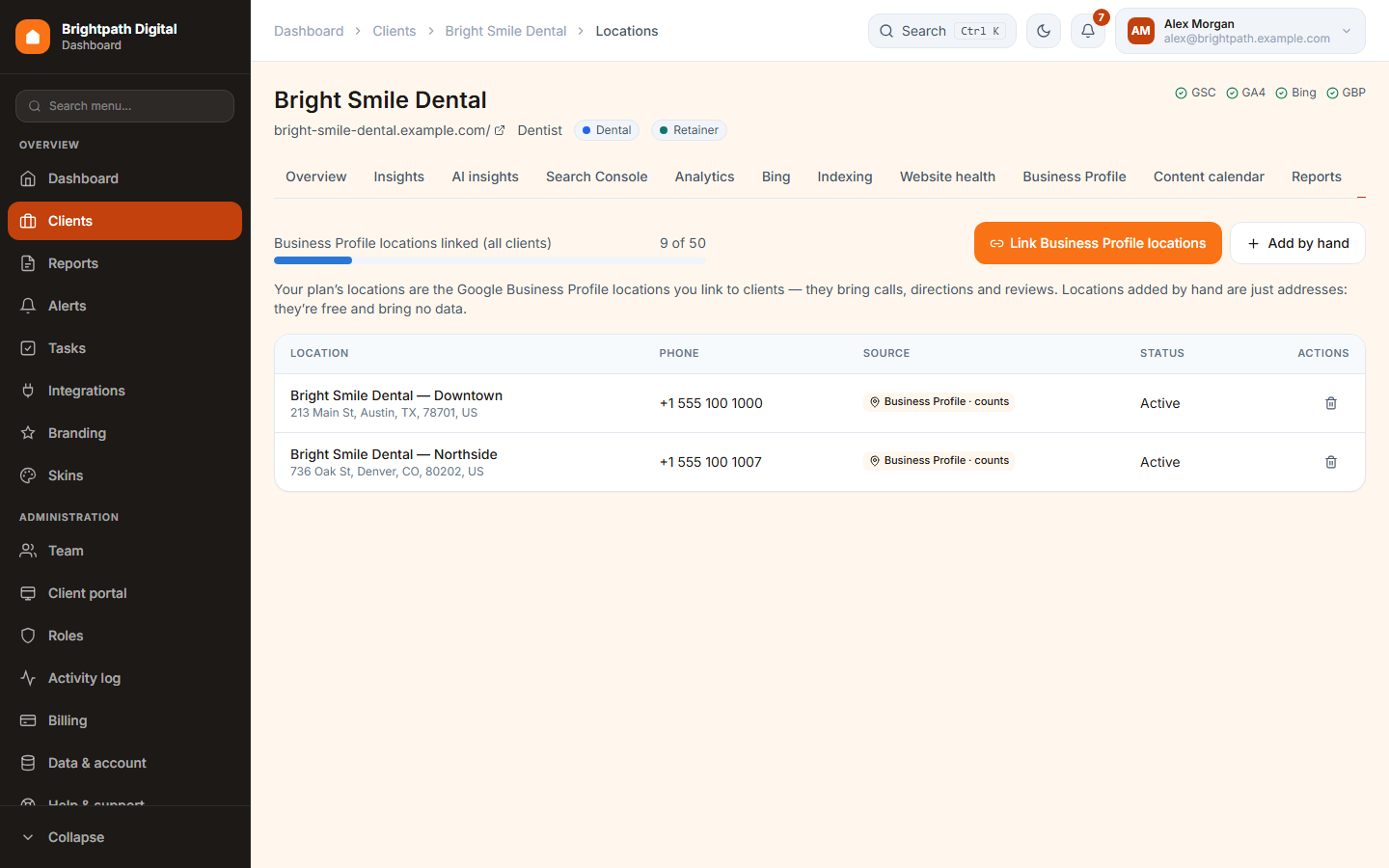
The Locations tab lists a client's branches. Locations linked from Google Business Profile come in automatically and follow Google. You can't edit them by hand, and only they count toward your plan's location limit. You can also type in extra addresses as an address book.
4 Connect Google, Bing and Business Profile
Connect your agency's accounts once. Every client's data then imports by itself, with 16 months of history.
Connect an account
- Open Integrations in the sidebar.
- Press Connect Google and sign in with the Google account that has access to your clients' Search Console sites and Analytics properties. We only ask for read-only access to those.
- Press Connect Business Profile and sign in with the Google account that manages your clients' Business Profiles.
- Press Connect Bing to add Bing Webmaster Tools (Growth and Agency plans).
- We list everything the account can see. Then link each property to a client (next section).
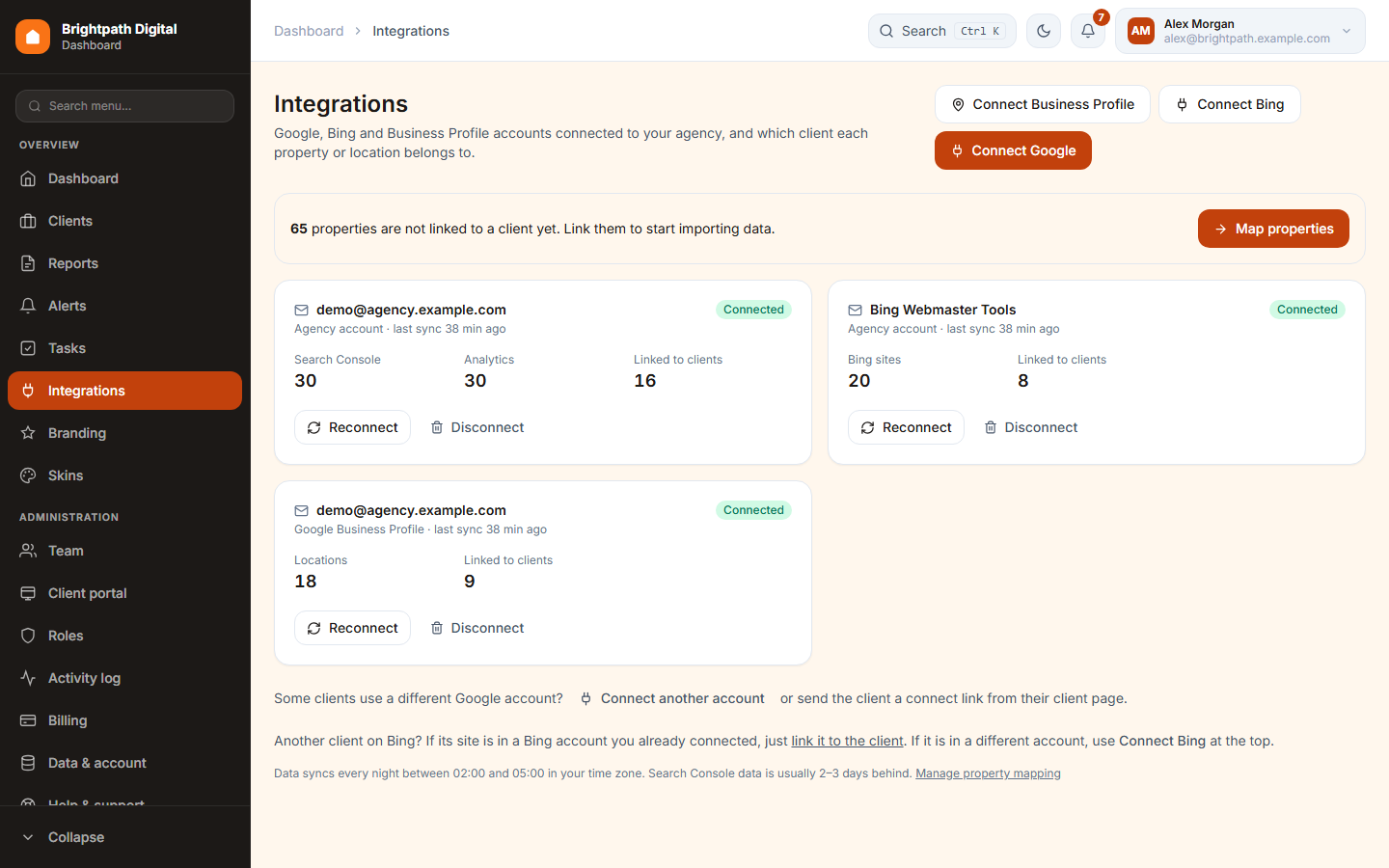
- Reconnect: signs in again with the same account, for example after a password change. Nothing is lost.
- Disconnect: stops syncing that account and deletes our access. The data already imported is kept. You confirm with your password.
- Connect another account: for clients whose properties live in a different Google account.
Bing has no account picker. It connects whichever Microsoft account is signed in to Bing Webmaster Tools. To add a second Bing account, sign out there first (or use a private window).
Map properties to clients
Each Search Console site, Analytics property, Bing site and Business Profile location must belong to a client before its data is imported. Map properties suggests the right client for every property: same website, same domain or a similar name.
- Open Integrations → Map properties.
- Check the suggestions. Change a client with its picker, or leave a property unlinked.
- Press Link N to confirm all of them at once. Undo is there if you change your mind.
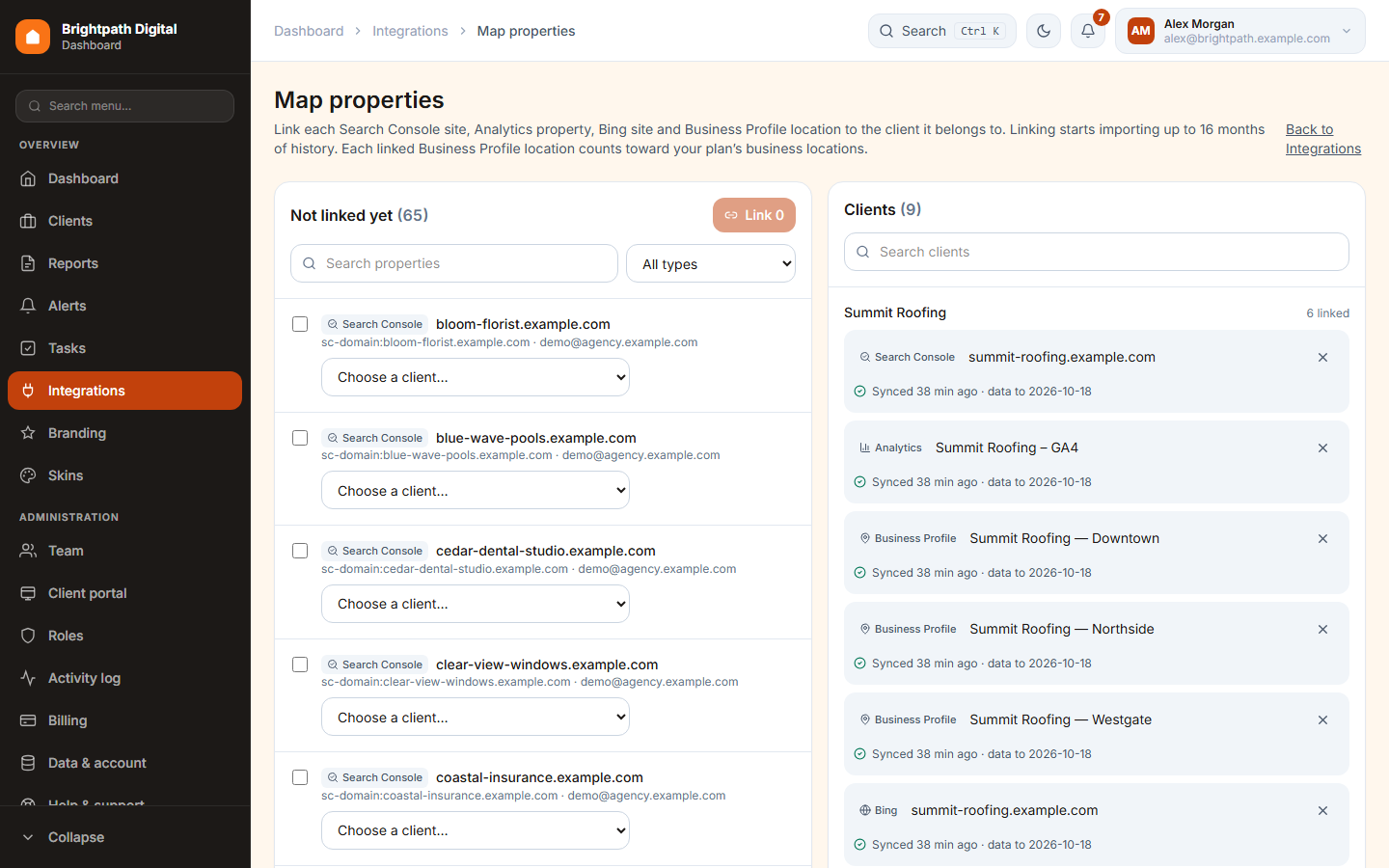
A client can have one Search Console property, one GA4 property and one Bing site, but any number of Business Profile locations. Linking a second one is refused with the reason. Unlink the first, or swap both in one save.
Ask a client to connect their own Google account
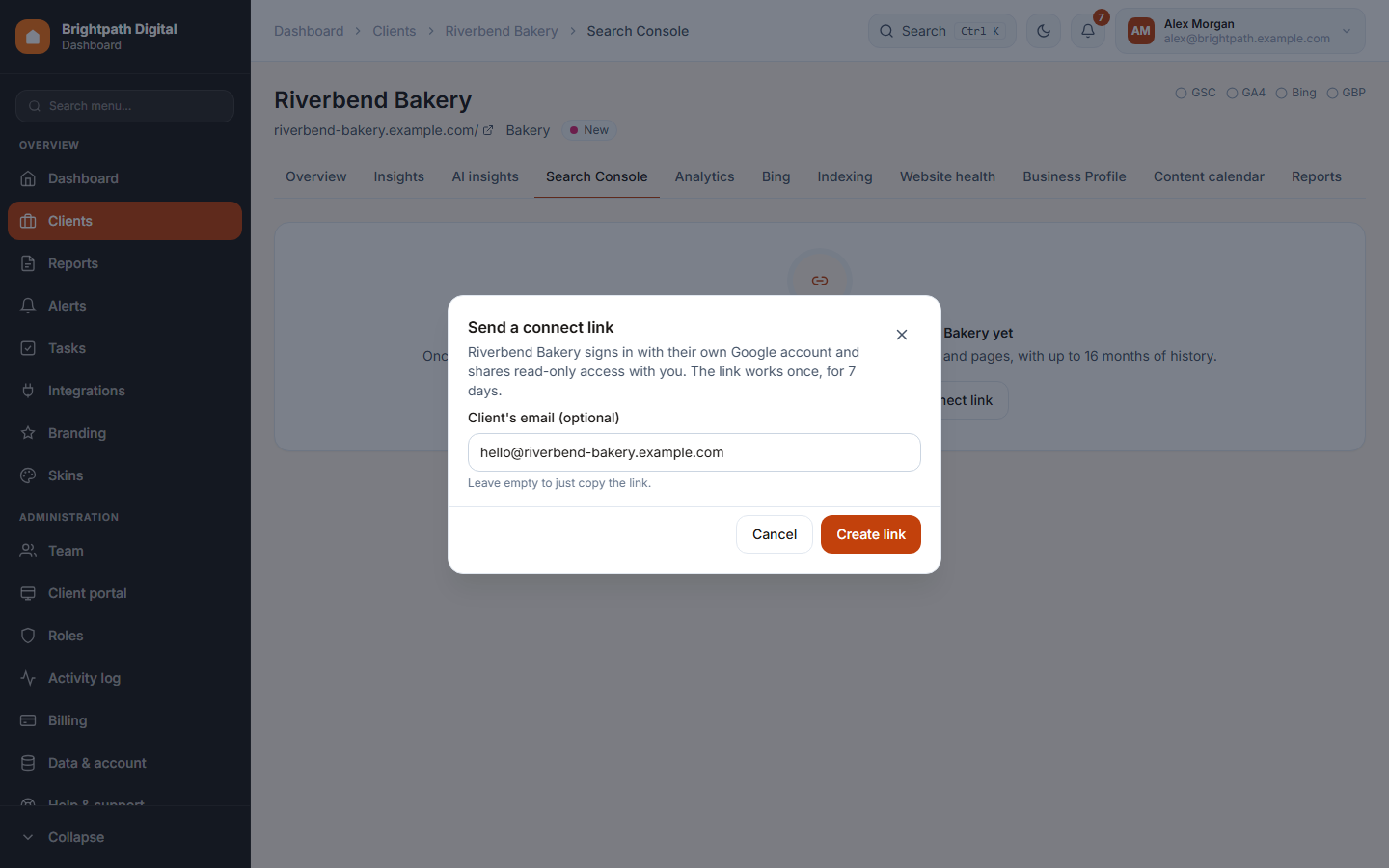
If you don't have access to a client's Google account, open the client's Search Console tab and press Send client a connect link. Then Create link and send it to the client. The link works once, for 7 days. The client signs in with Google, and their properties are linked to them automatically.
When data arrives
- After linking, 16 months of history import in the background, newest month first. The client's pages show “Importing 16 months… 7/16”.
- After that, a nightly sync runs between 02:00 and 05:00 in your time zone. It also fills any gaps.
- Search Console data is 2–3 days behind, and Business Profile data 3–5 days. That's Google, not us. Every card says how recent its data is.
- Sync now at the bottom of a client's data tab fetches the latest data on demand. It is rate-limited.
- If Google access stops working, the connection shows Needs reconnect, you get one alert, and a banner with Reconnect appears. Reconnecting resumes everything.
5 A client's dashboards
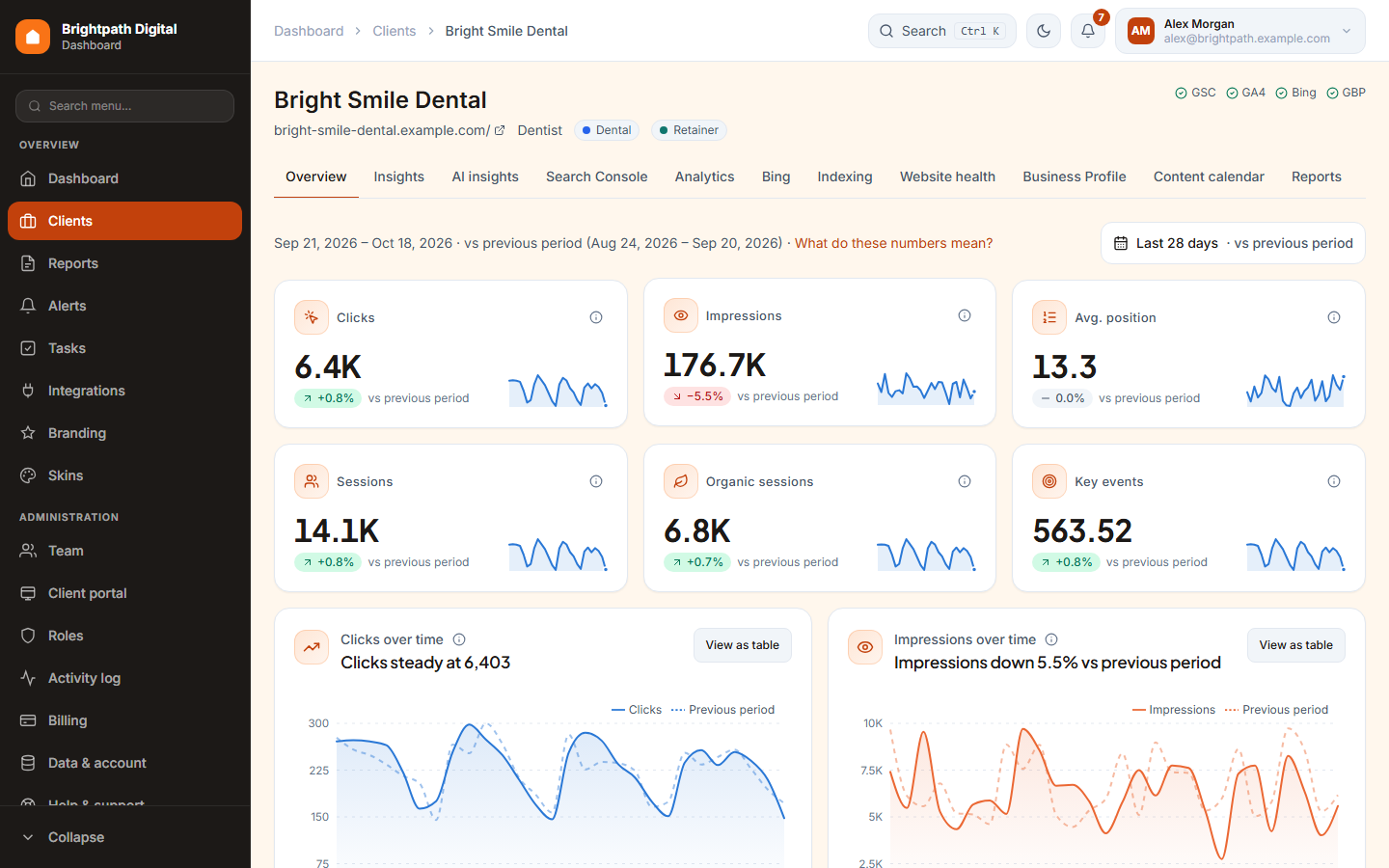
Open a client to see everything about them, one tab per source. Every chart and table says in plain words what the numbers mean.
| Tab | What you find there |
|---|---|
| Overview | Six key numbers, clicks and impressions over time, notes on the charts, sessions by channel, month-by-month bars, top searches and pages, the client's details and team. |
| Insights | Quick wins, local searches, Google search → leads, new and lost searches, pages losing clicks, visitors by city. |
| AI insights | An in-depth monthly review and strategy written by AI from the client's data (chapter 8). |
| Search Console | Searches, pages, devices, positions, why clicks changed, opportunities. |
| Analytics | Sessions, organic sessions, key events, channels, landing pages. |
| Bing | Bing clicks, impressions, searches and top pages. |
| Indexing | Whether the client's important pages are in Google's index, and why not. |
| Website health | Uptime, SSL, domain, site checks, page speed and site audit (chapter 7). |
| Business Profile | Calls, directions, website clicks, views, posts, search keywords and reviews (chapter 6). |
| Content calendar | The client's planned posts, articles and backlinks (chapter 11). |
| Reports | This client's reports and schedules (chapter 9). |
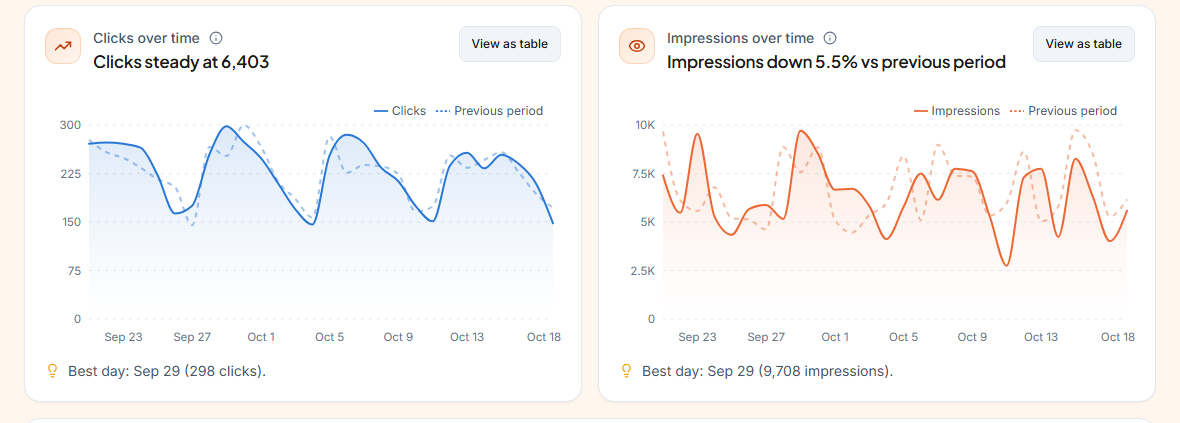
Every section explains itself. The line under each title is the result in words (“Impressions down 5.5% vs previous period”). The bulb line below a chart is the “so what”, often with a next step. The ⓘ explains how a number is calculated. What do these numbers mean? opens the glossary.
Overview and chart notes
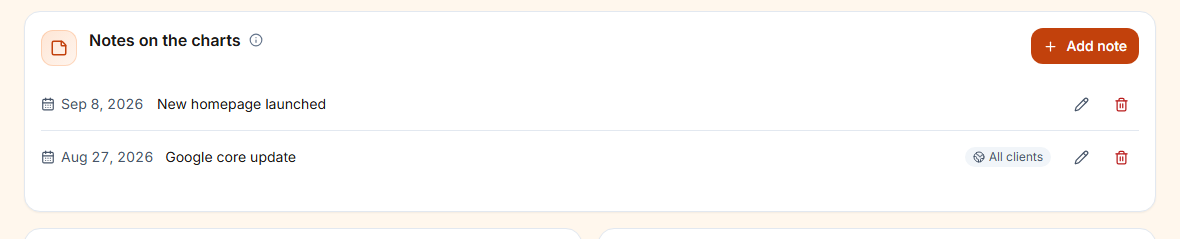
Notes on the charts put a dated marker on every trend chart and in reports. Use them for changes such as “New homepage launched” or “Google core update”. Press Add note, pick the date, write the label and choose whether it is for this client or all clients.
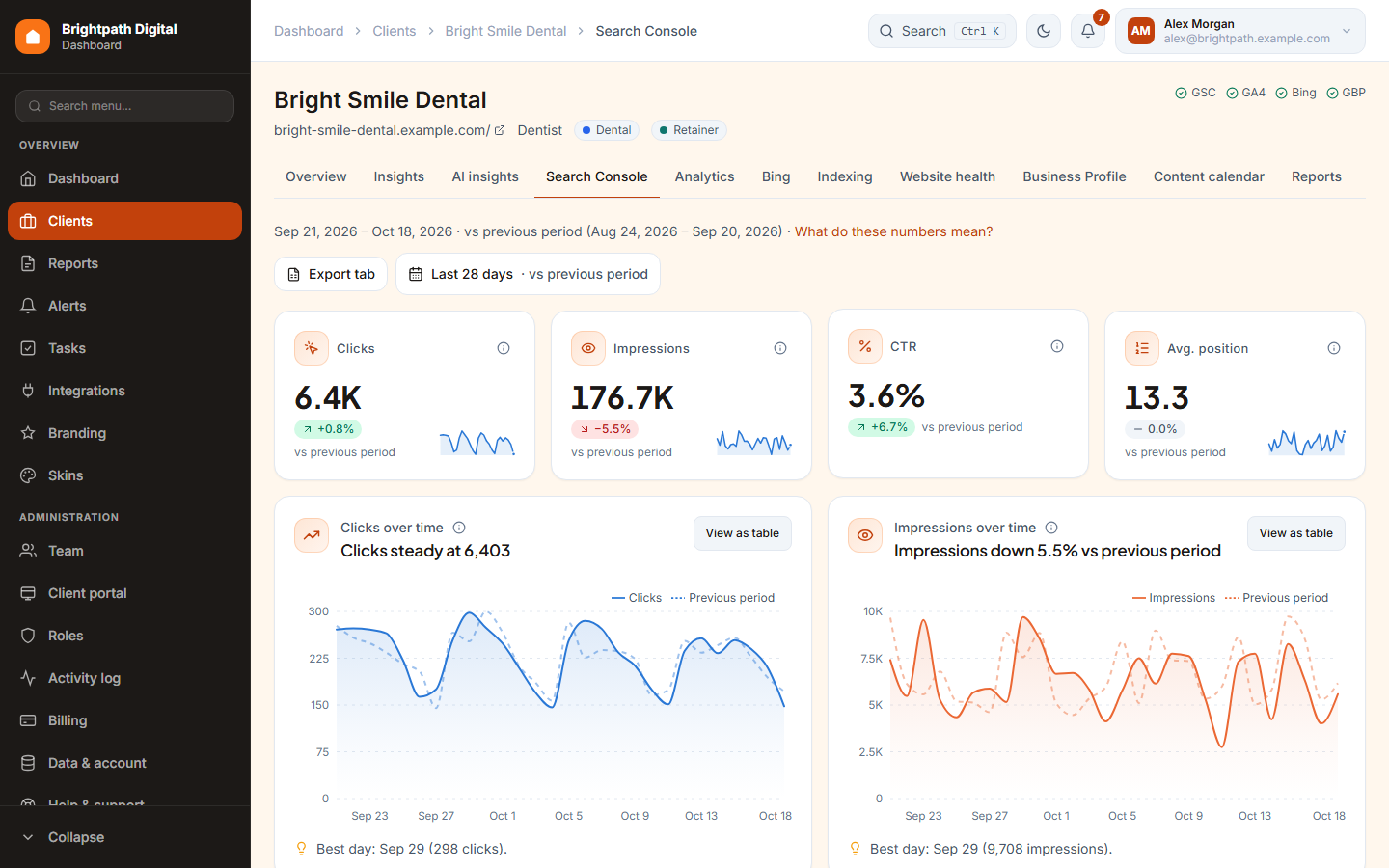
Search Console
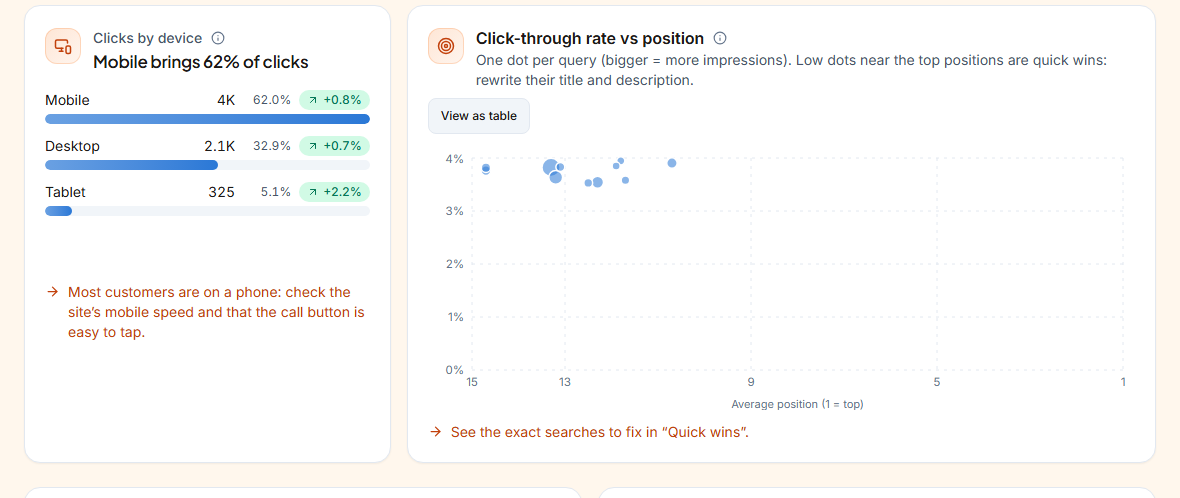
Devices, CTR vs position, keyword positions, branded searches
Why clicks changed
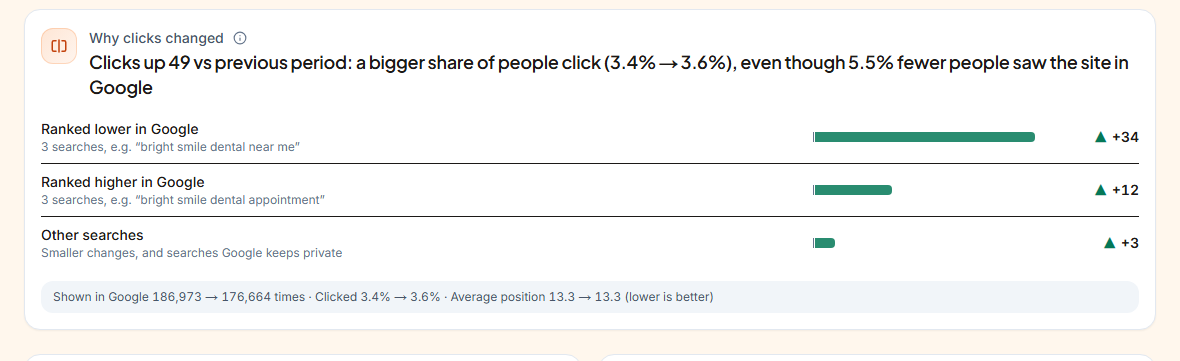
This card splits the change in clicks into its causes, in one plain sentence, followed by up to three gains and three losses with an example search for each. Causes are: ranking higher or lower, searched more or less often, more or fewer clicks per view, new searches, or searches the site no longer shows for. “Other searches” covers smaller changes and the searches Google keeps private, so the rows always add up to the real change.
Biggest movers and opportunity keywords
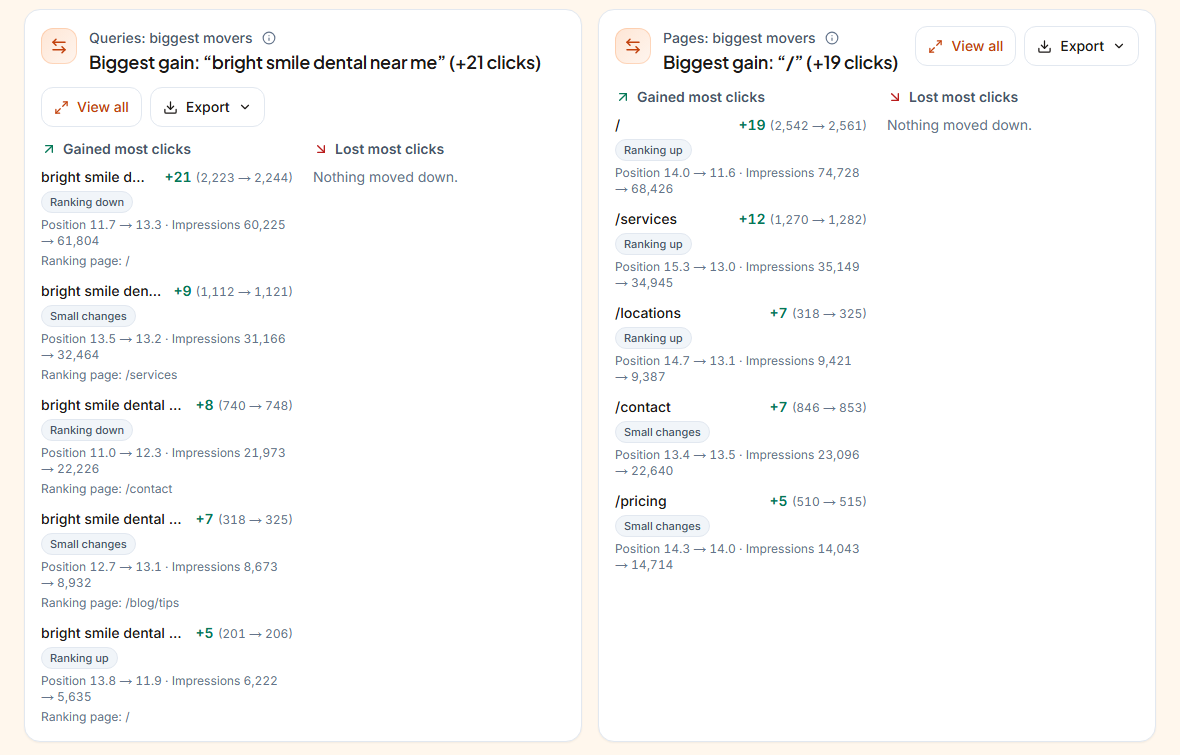
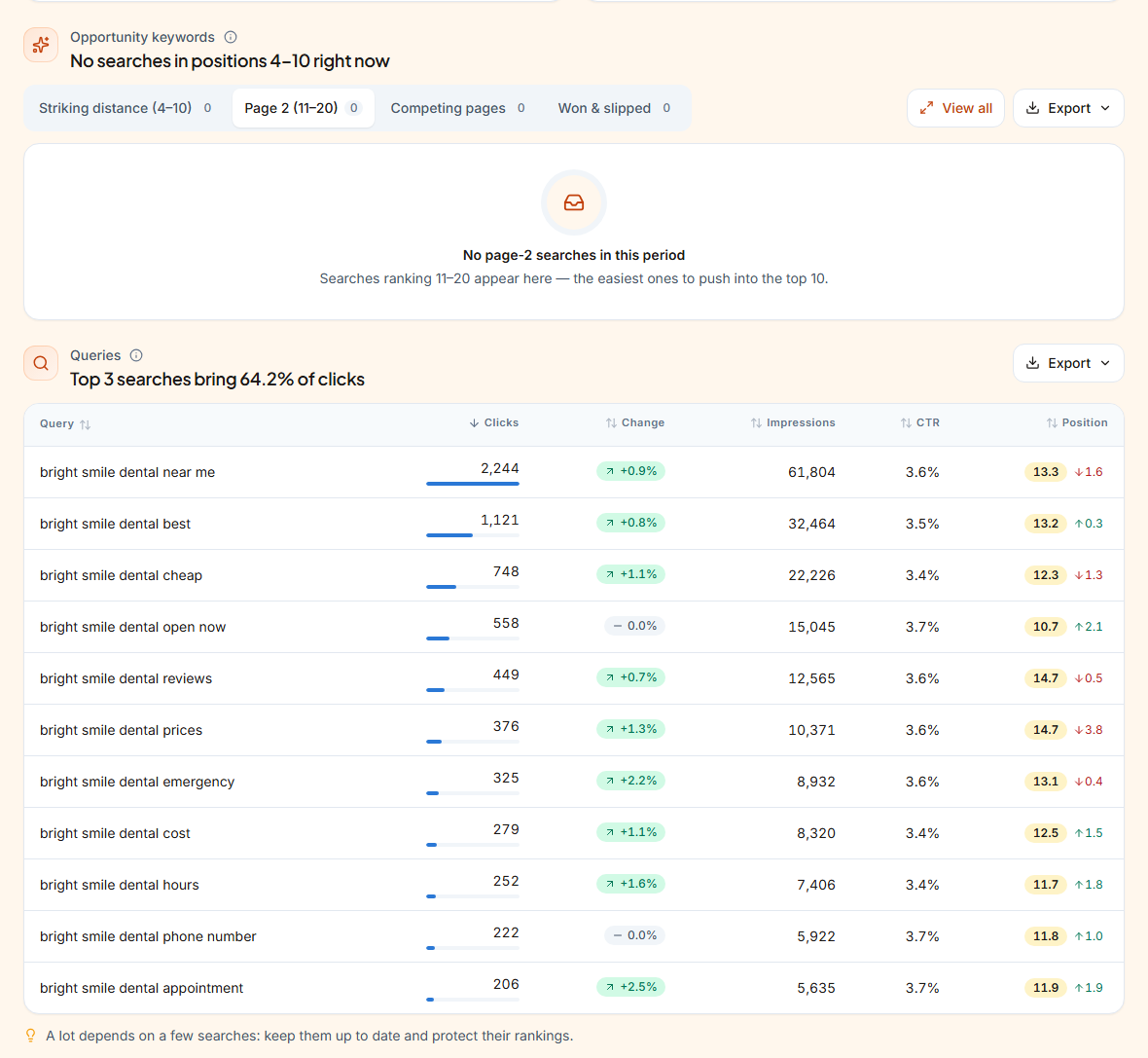
- Striking distance (positions 4–10) and Page 2 (11–20): the searches closest to more clicks, with the page that ranks and an 8-week position line.
- Competing pages: searches where two or more of the client's pages compete with each other.
- Won & slipped: searches that moved into or out of the top 10 or top 3.
- + Task at the end of a row turns it into a task for your team, with the numbers at that moment (chapter 11).
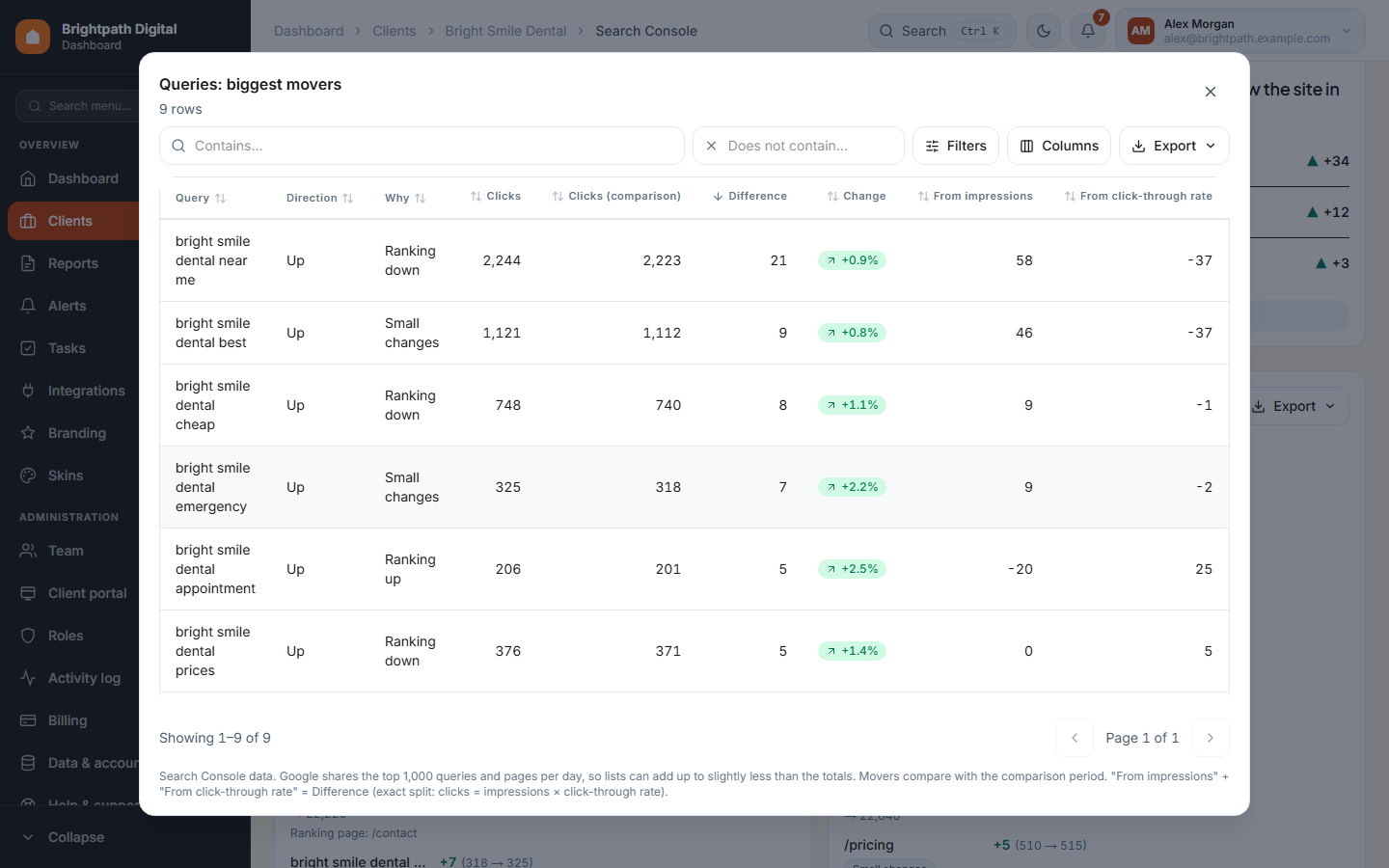
View all and Export
Every table shows its top rows. View all opens every row, 50 per page. You can filter (contains / does not contain, position range, minimum impressions, branded or not), sort and pick columns. The view is kept in the link. Export downloads Excel or CSV, or copies the table, always with every row and your filters. Export tab next to the date range makes one Excel workbook with every table of the tab plus a notes sheet.
Exporting needs the Export data (CSV / Excel) permission. Owners, Managers and Specialists have it; Viewers don't.
Analytics
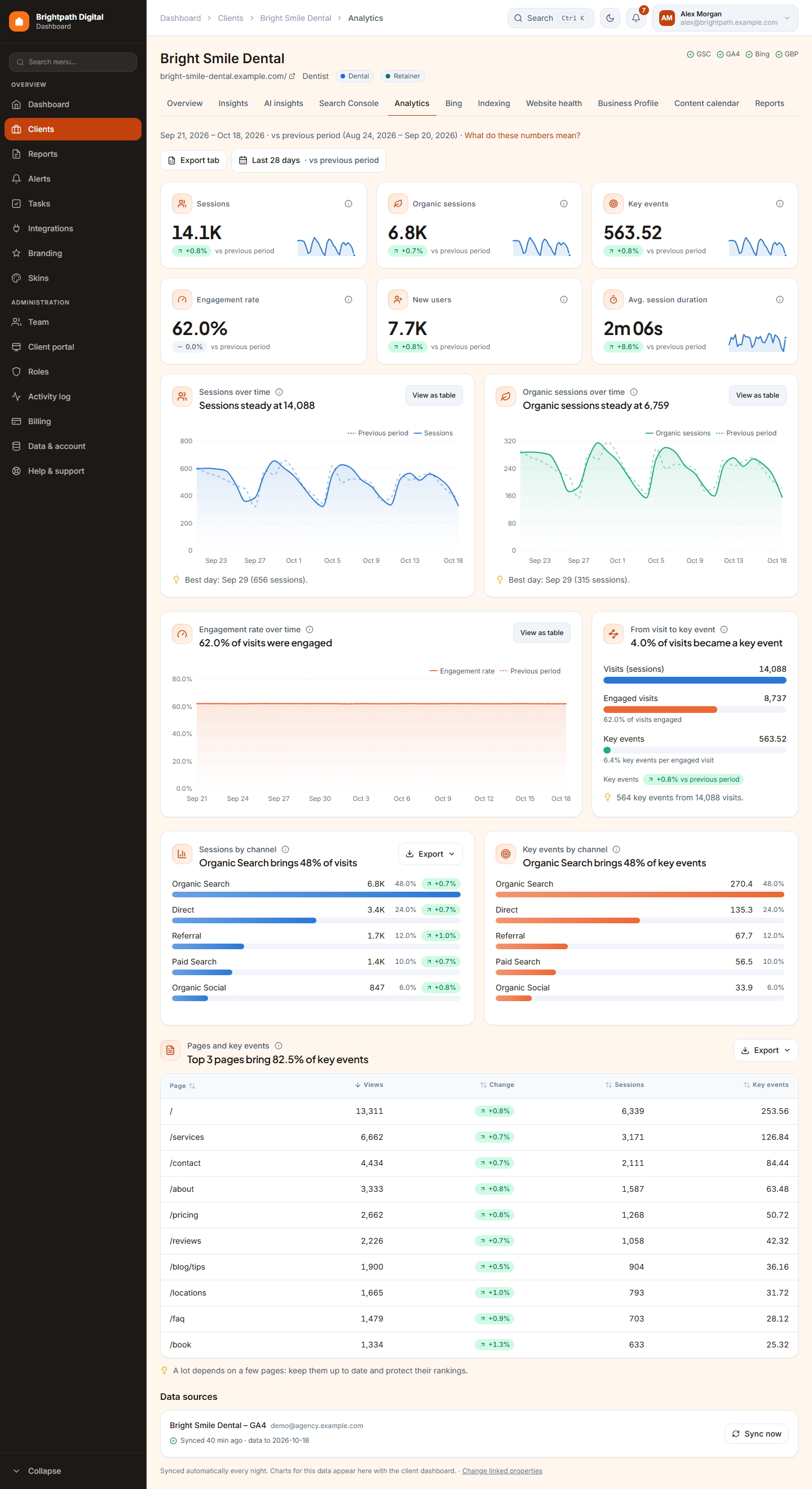
Sessions, organic sessions, key events, engagement rate, new users and views, with trends. Below that: sessions and key events by channel, and the pages that bring key events.
Bing
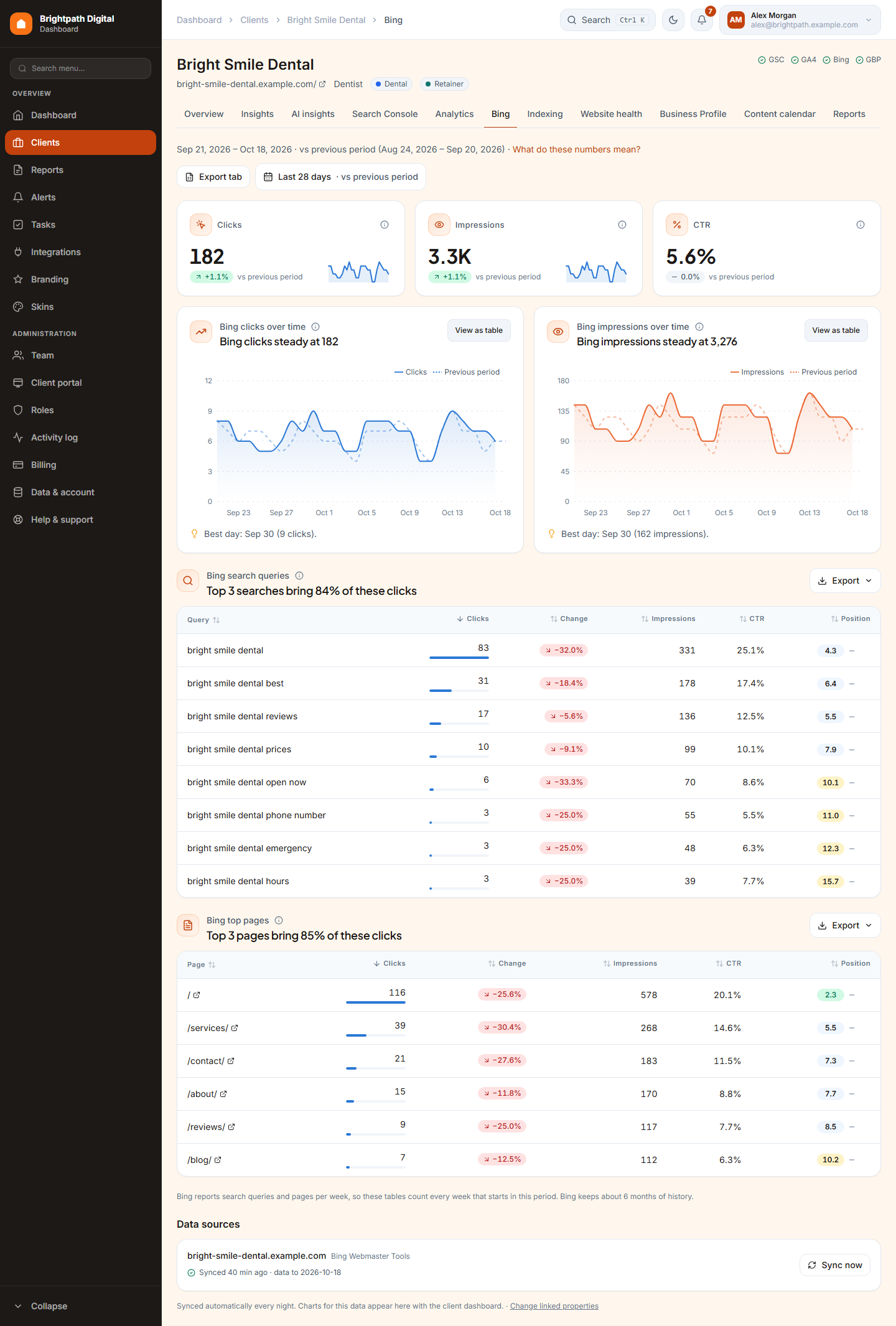
Bing clicks, impressions and CTR with their trends, the Bing searches table and the top pages. Bing reports searches per week, and the tab says so.
Insights
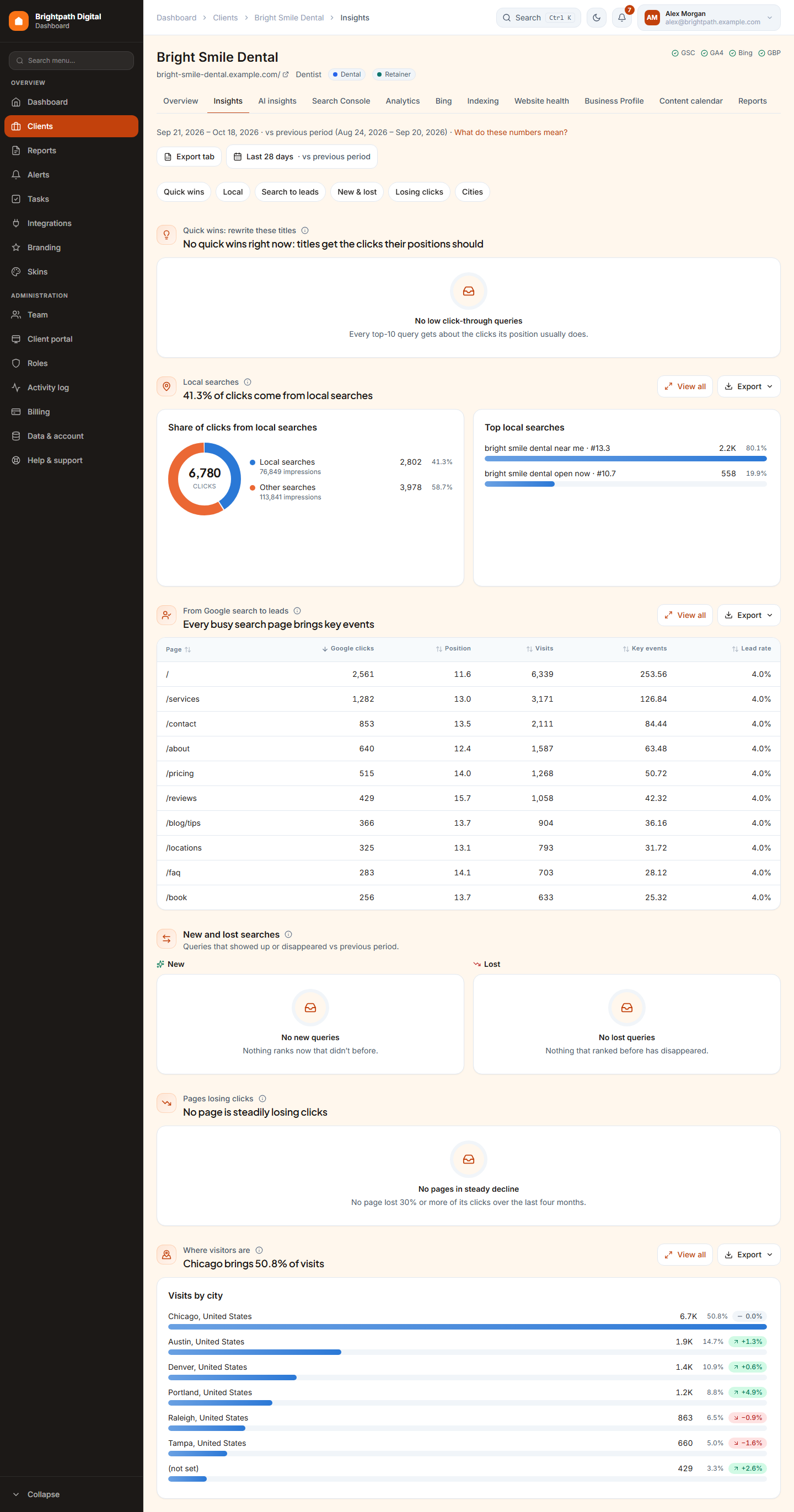
The Insights tab finds things worth doing from the data you already have. The chips at the top jump to each part:
- Quick wins: top-10 searches that get far fewer clicks than their position normally does. Rewrite their titles.
- Local searches: the share of clicks from “near me”, “open now” and city searches.
- From Google search to leads: each top page's Google clicks next to its visits and key events. Pages with traffic but no leads are flagged.
- New and lost searches and Pages losing clicks (four months in a row).
- Where visitors are: visits by city.
Indexing
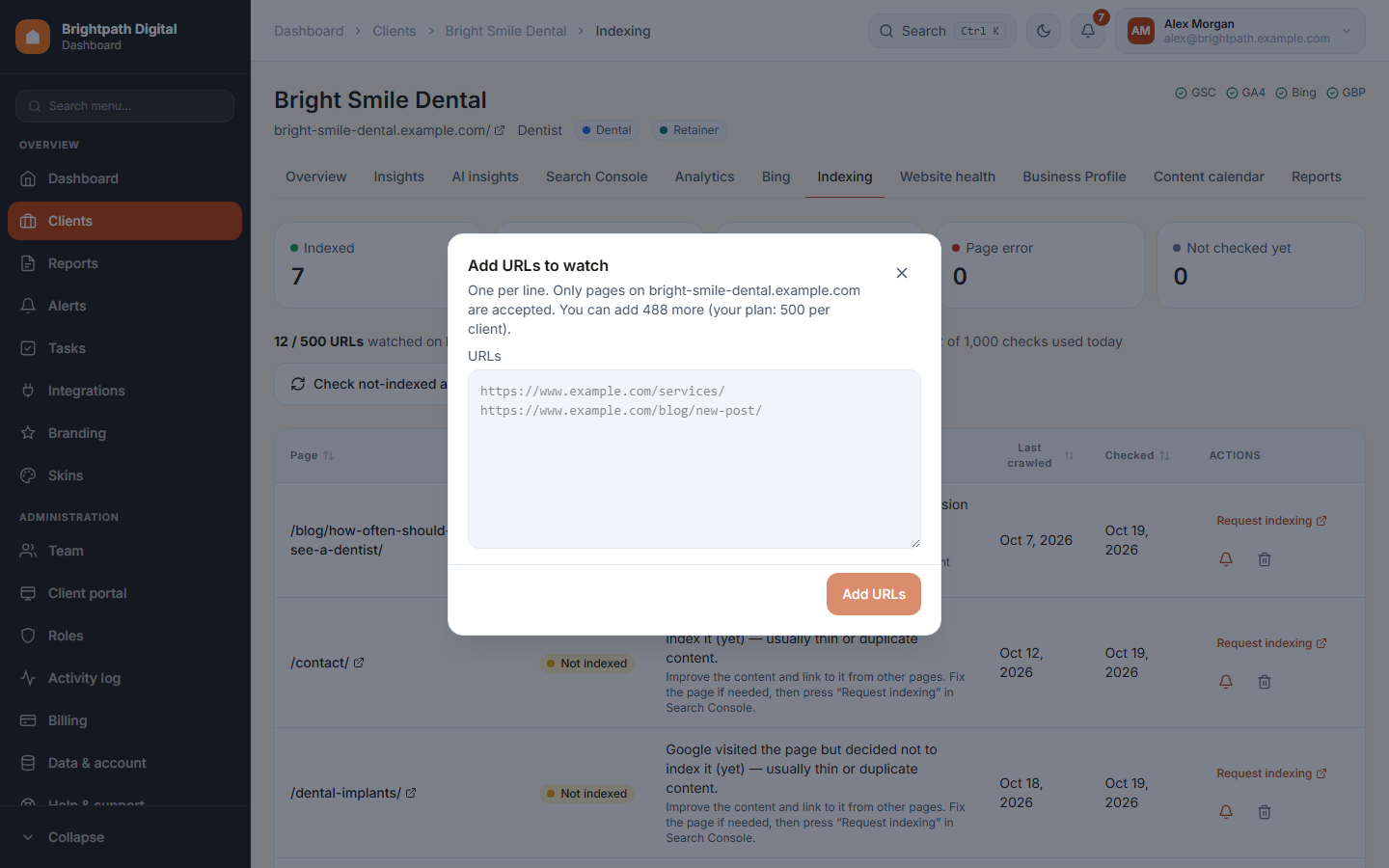
Shows whether the client's important pages are in Google's index. If a page isn't, it says why and what to do, in plain words: noindex tag, blocked by robots.txt, 404, canonical elsewhere, or “Google visited the page but decided not to index it”.
- Press Add URLs and paste the pages to watch, one per line. Only pages of the client's Search Console site are accepted, up to your plan's limit per client.
- We check them with Google's URL Inspection: indexed pages weekly, the others daily.
- The status cards at the top double as filters. Request indexing opens the page in Search Console (Google has no other way to do it).
- Turn on the bell on a page to get an alert when it drops out of the index.
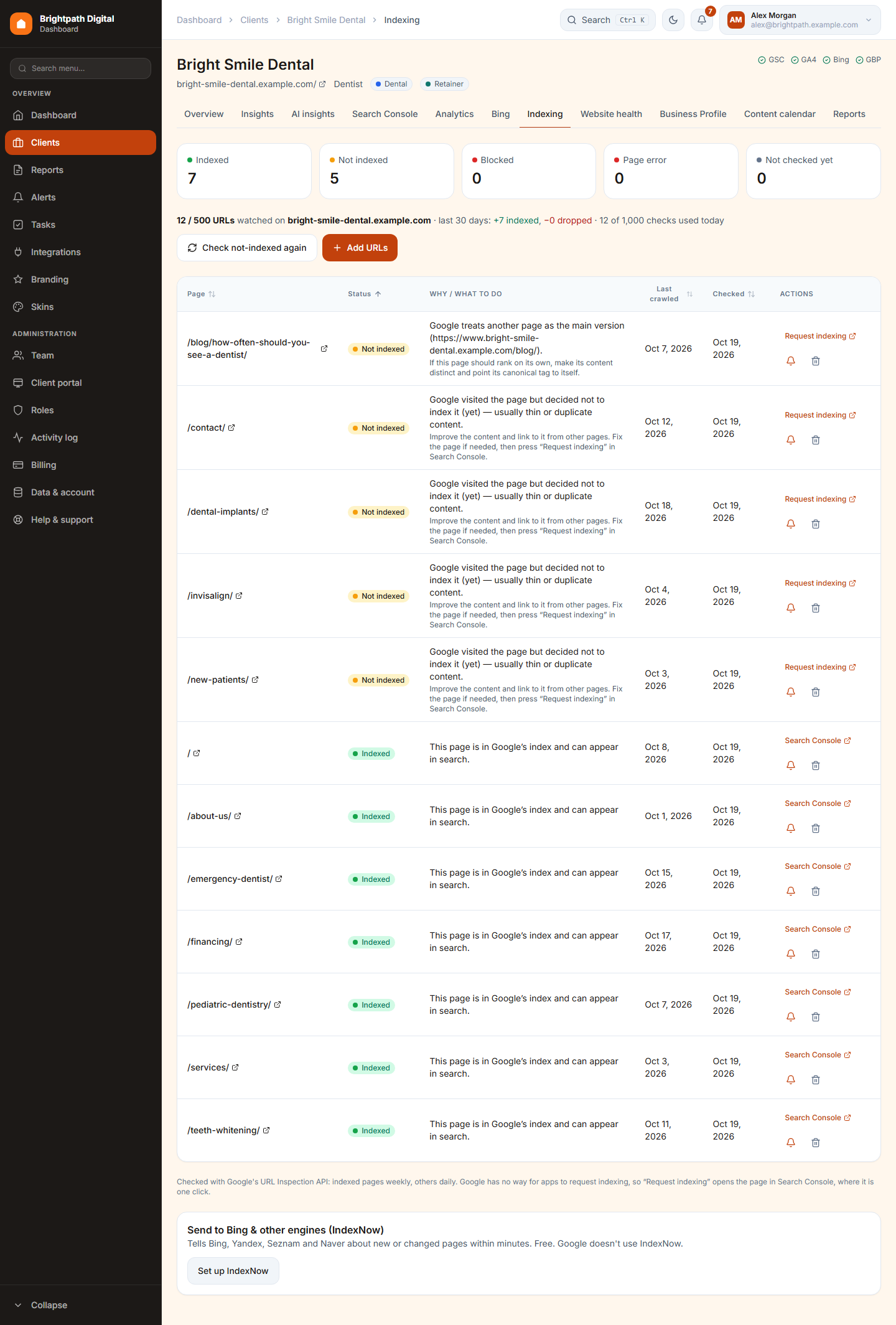
IndexNow, on the same tab, tells Bing, Yandex, Seznam and Naver about new or changed pages at once. Upload the small key file to the client's website one time, then paste URLs.
6 Google Business Profile
What happens on the client's Google listing (calls, directions, website clicks and reviews), plus replying to reviews and publishing posts without logging in to each profile.
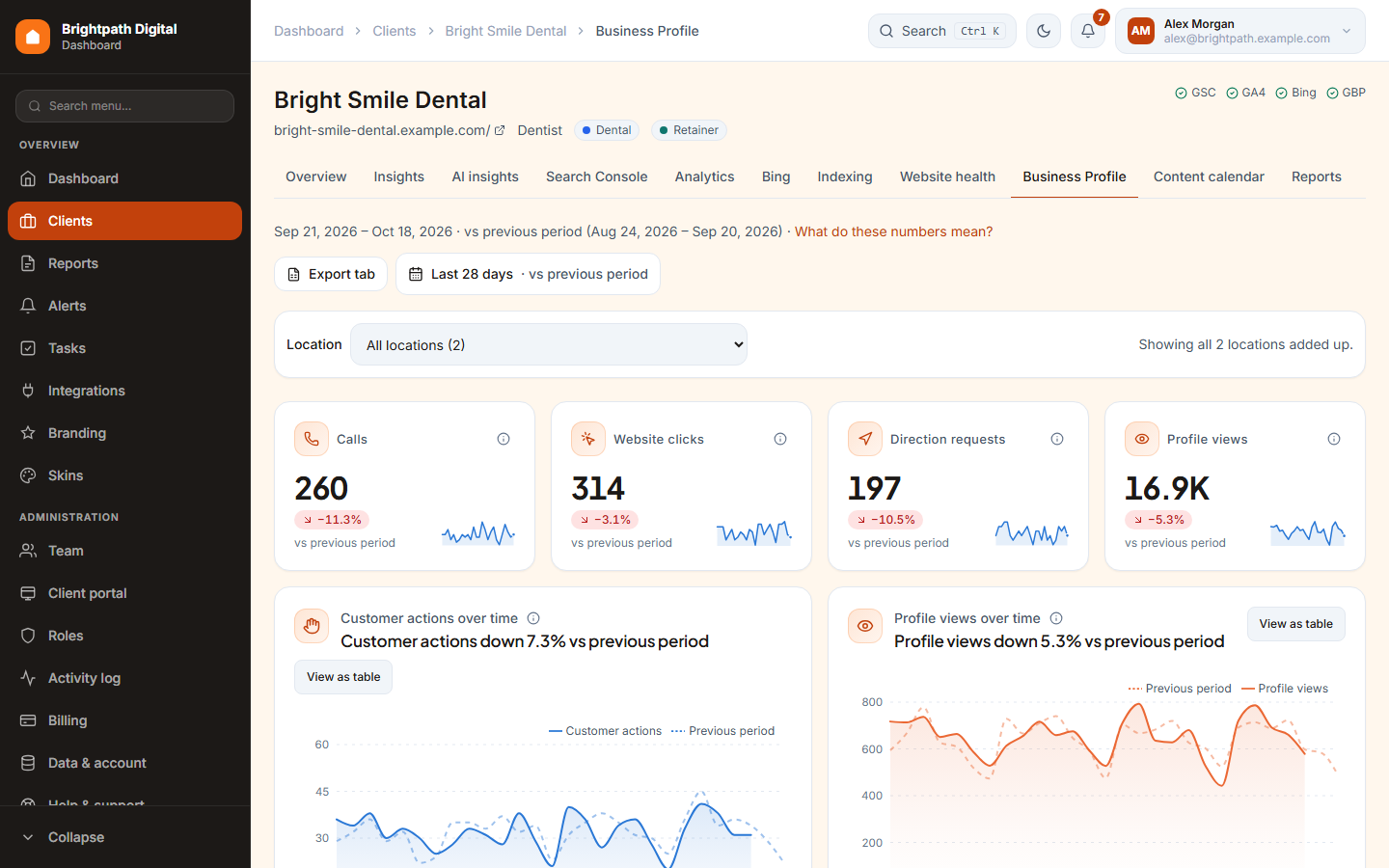
- Location picker (top): All locations adds up every branch. Or pick one branch. A click on a row in the locations table does the same.
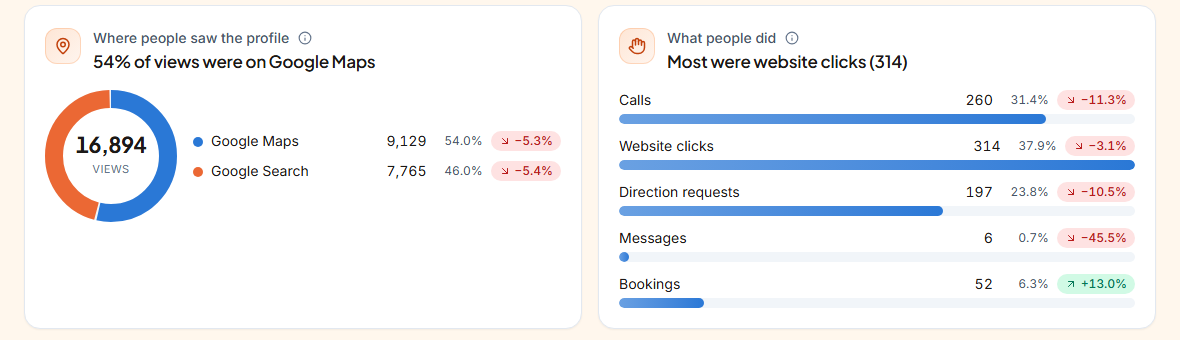
- Where people saw the profile: Google Maps vs Google Search. What people did: calls, website clicks, directions, messages and bookings.
Posts
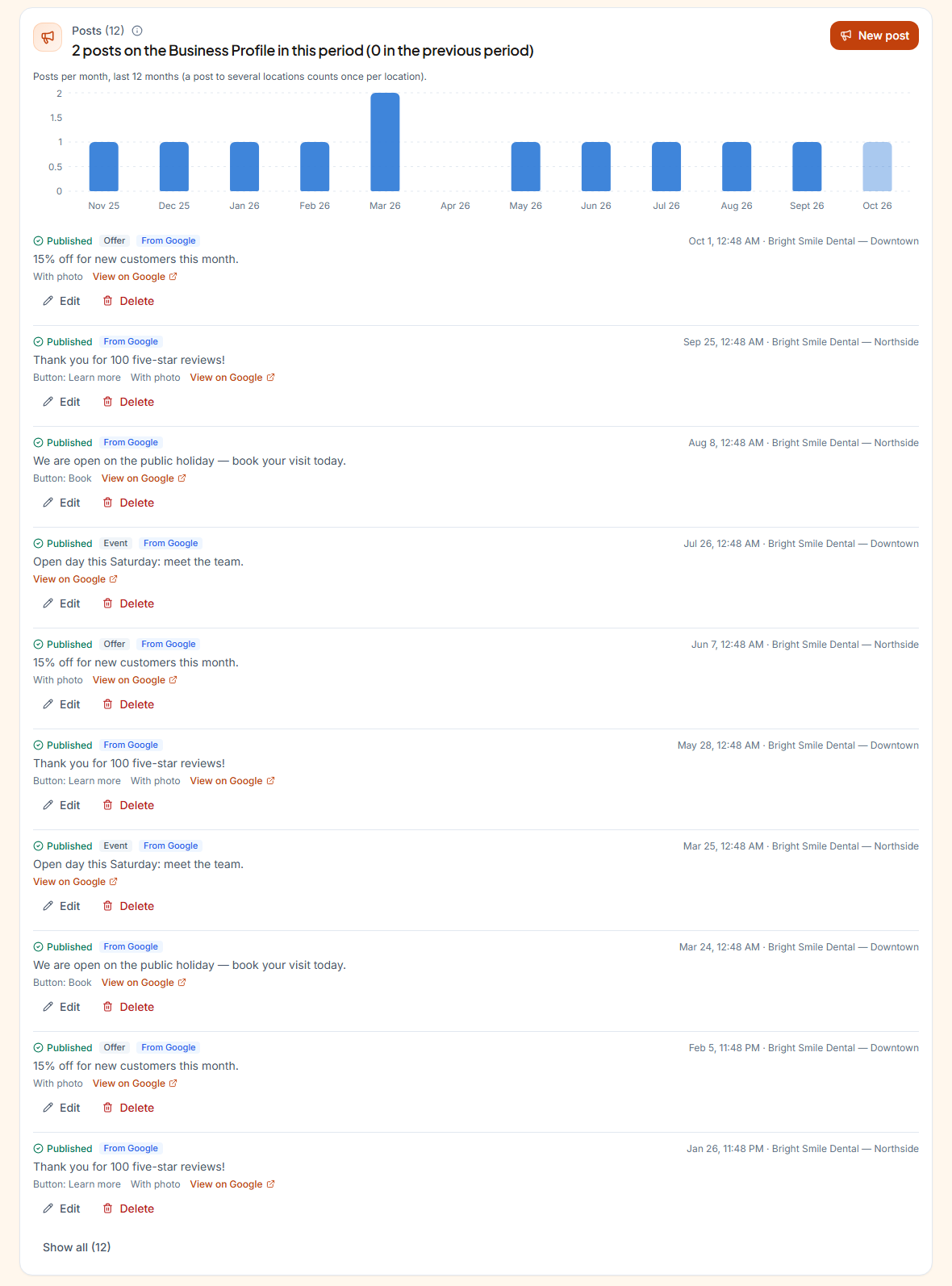
The Posts section shows how many posts went out this period (with a 12-month bar chart) and the latest posts. That includes posts made here and posts made on Google or with another tool (tagged From Google).
- Press New post.
- Write the text (up to 1,500 characters). Optional: add a button (Book, Order online, Buy, Learn more, Sign up, Call now) with its link, and a JPG or PNG photo up to 5 MB.
- Pick the locations: all, or the one chosen on the tab.
- Publish. The list shows Waiting → Publishing → Published (with View on Google), or Not published with the reason.
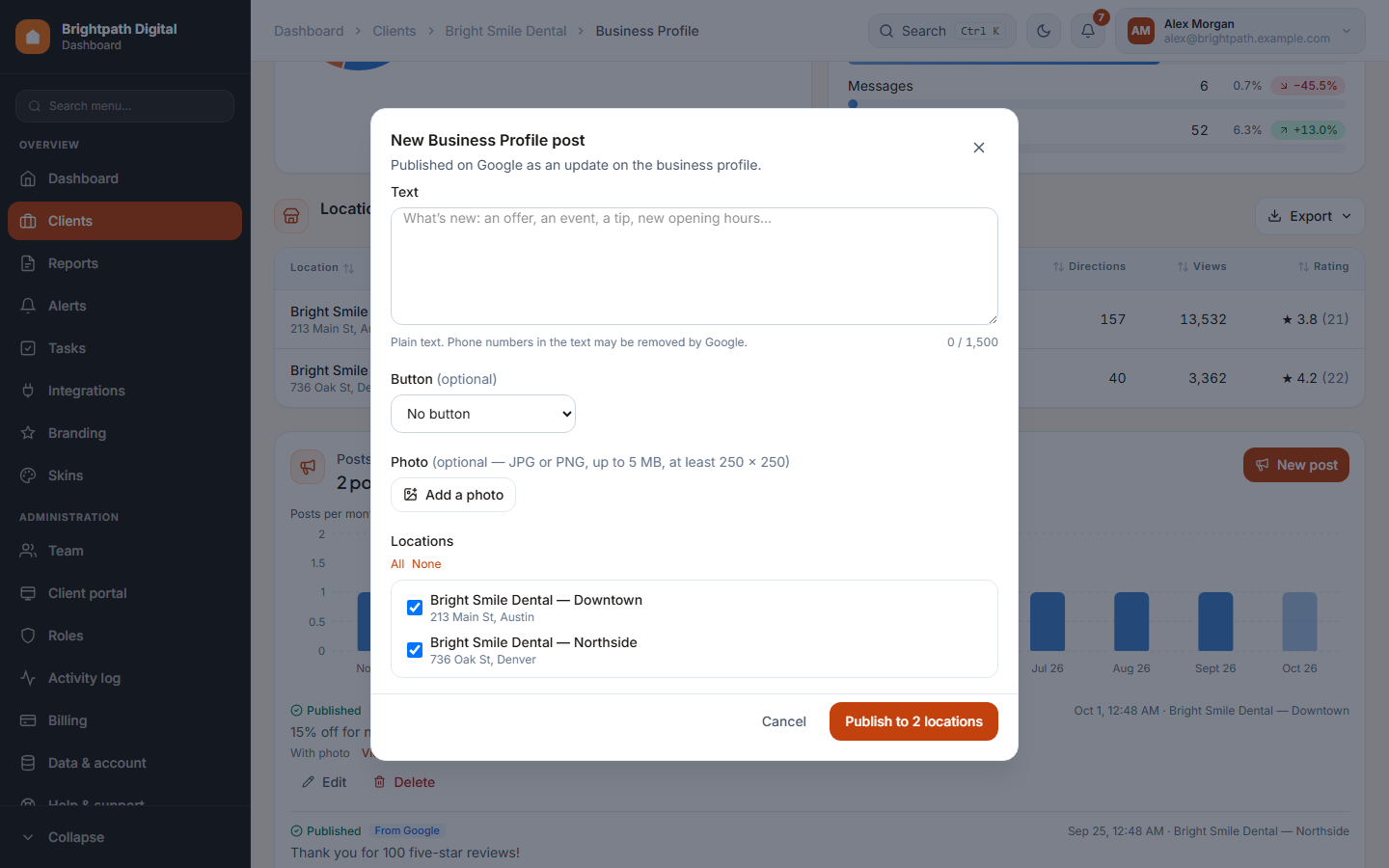
Edit changes the text and button of a published post (the photo stays). Delete removes it from Google after you confirm. You can also plan posts in the content calendar and have them publish automatically.
Search keywords and reviews
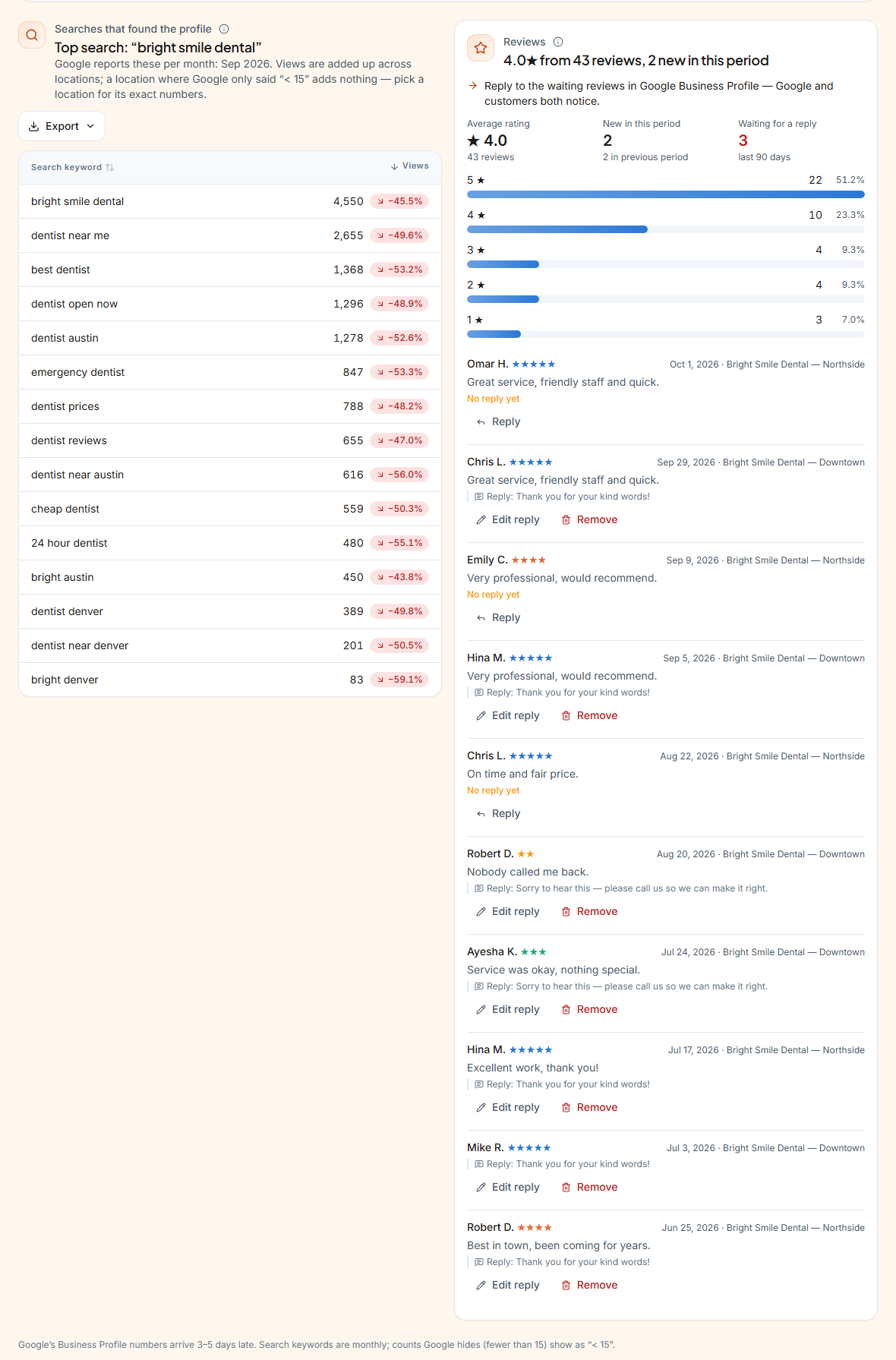
Searches that found the profile lists the words people typed, per month. Google shows “< 15” for small numbers. Reviews shows the average rating, the stars, new reviews this period, how many wait for a reply, and the latest reviews with their replies.
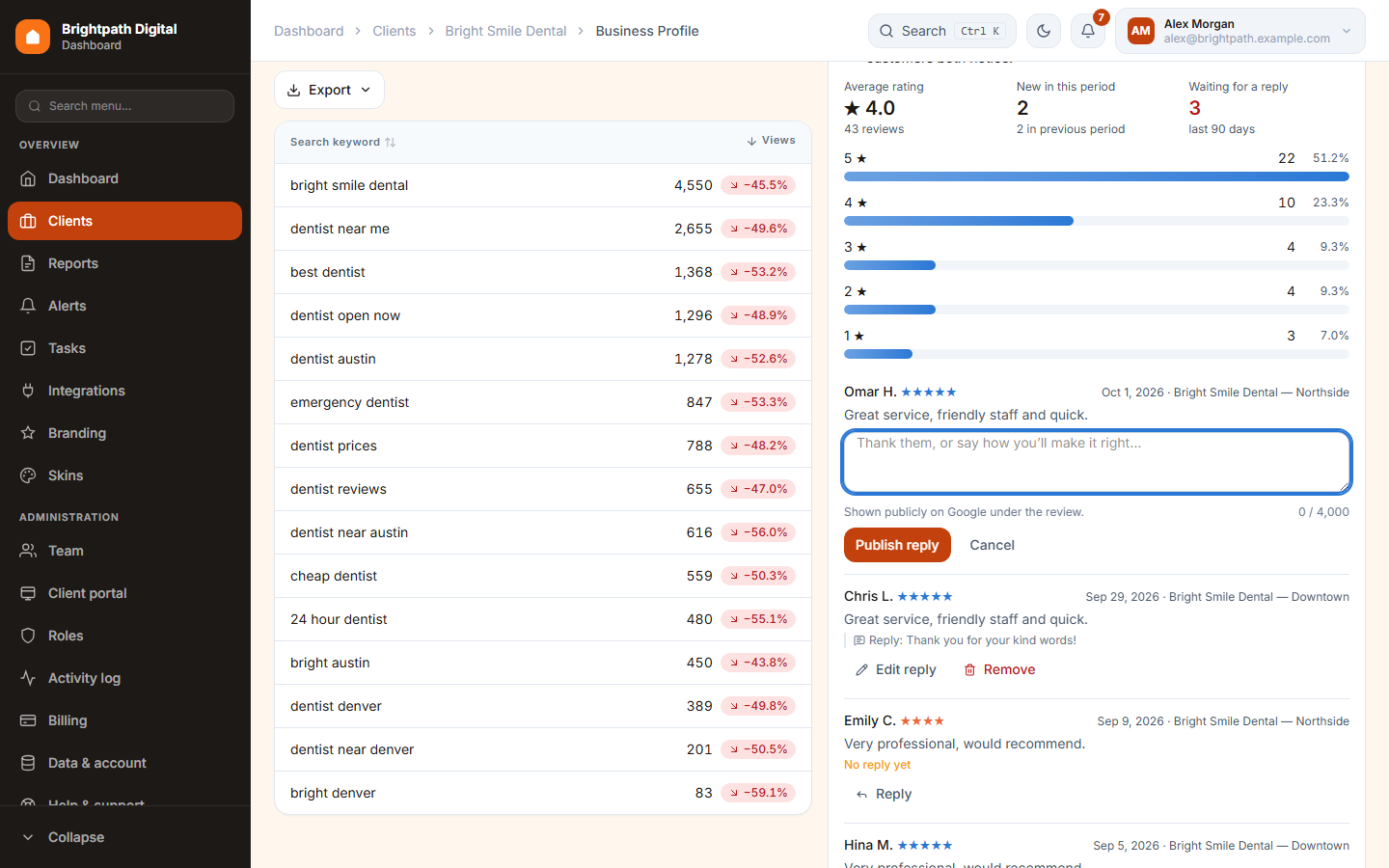
Press Reply under a review, write your answer and send it. It goes to Google straight away. Edit reply and Remove change or delete it later.
Replying needs the Reply to Business Profile reviews permission, and posting needs Publish Business Profile posts. Managers have both. We never change the listing itself (name, address, hours, categories).
7 Website health
We watch every client website for you: is it up, is it secure, can Google index it, is it fast, and is anything broken. You hear about it before the client does.
Uptime, SSL and domain
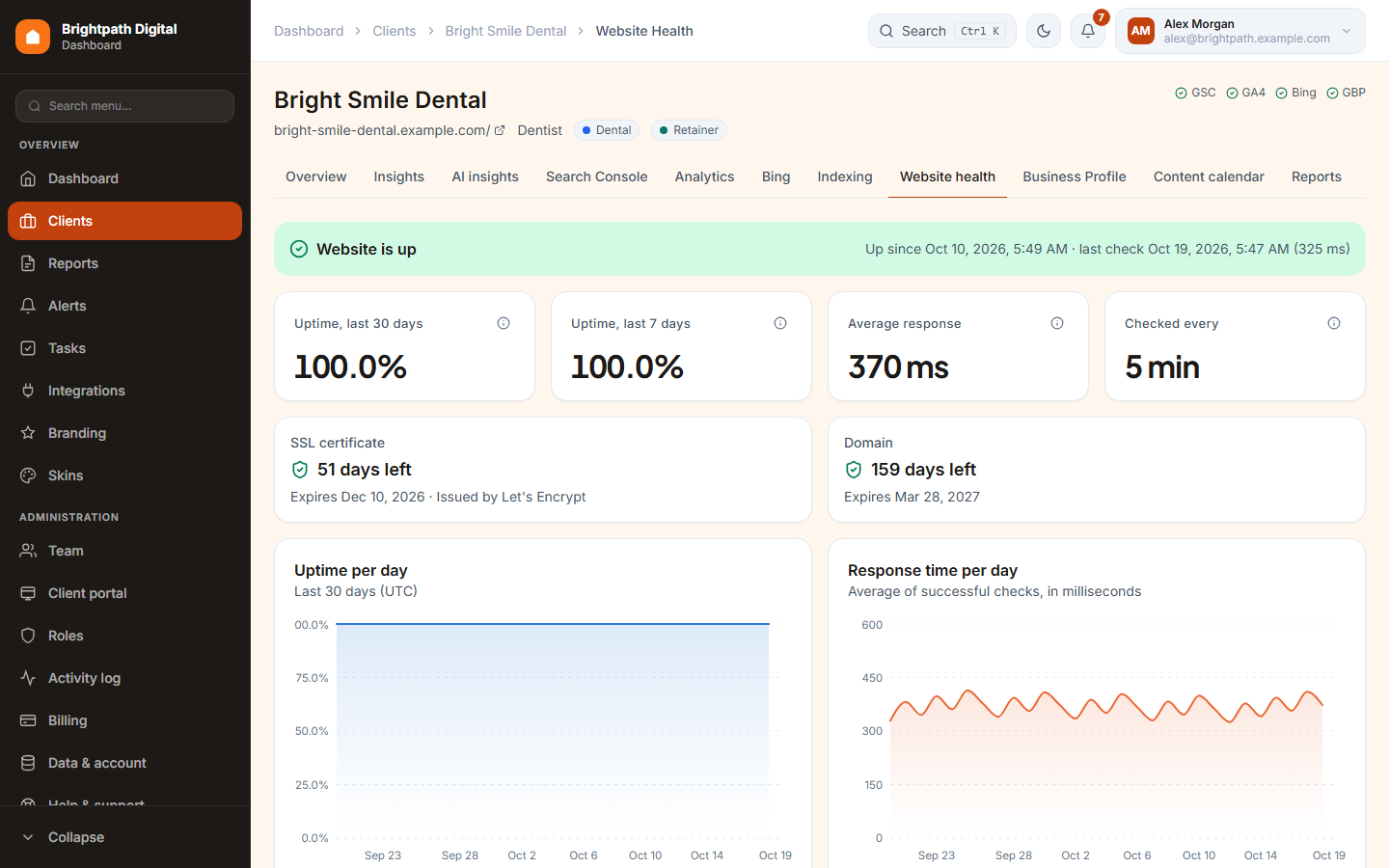
- We check the website every 5 or 15 minutes (depending on your plan). A failed check is checked again 30 seconds later. Only a second failure counts as down, and then you get an email and a notification, plus another when it is back.
- Down means: no answer within 15 seconds, a network / DNS / SSL error, a server error (5xx) or “page not found”. We also read the homepage regularly. A database error page, a “domain for sale” page or a blank page counts as down too.
- SSL certificate and domain expiry are checked once a day. You are warned 30, 7 and 1 day before.
- Outages of the last 90 days are listed with their reason and length.
Site checks
Every 12 hours we check the things that quietly hurt local SEO:
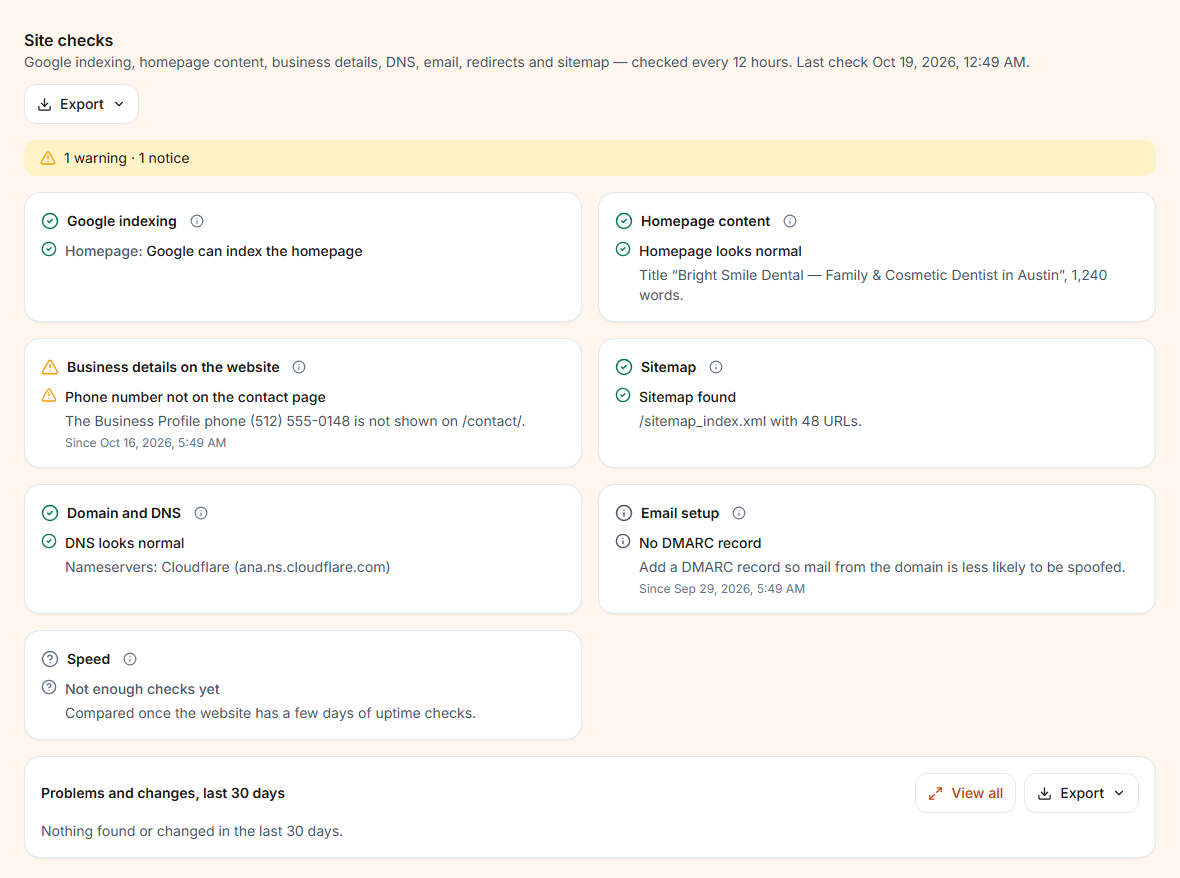
| Check | What it looks for |
|---|---|
| Google indexing | robots.txt, a noindex tag or header on the homepage and on the top 5 Search Console pages. |
| Homepage content | Title or main heading changed, text that suddenly shrank, and spam words (“possible hack”). It's expected accepts a change you made on purpose. |
| Business details | The phone number and postal code are on the website and in the LocalBusiness schema, and match the Business Profile. |
| Domain and DNS | Nameservers or the server moved, or the domain disappeared from DNS. |
| One address | http / https and www / non-www all end on the same address. |
| Sitemap | A sitemap exists and still works. |
| Email setup | MX, SPF and DMARC records of the domain. |
| Speed | The website is much slower than usual. |
A new critical problem always sends an alert. Warnings alert when they are new. Notices are only listed. When a problem is fixed, its alert closes by itself and you get a “Fixed:” notification.
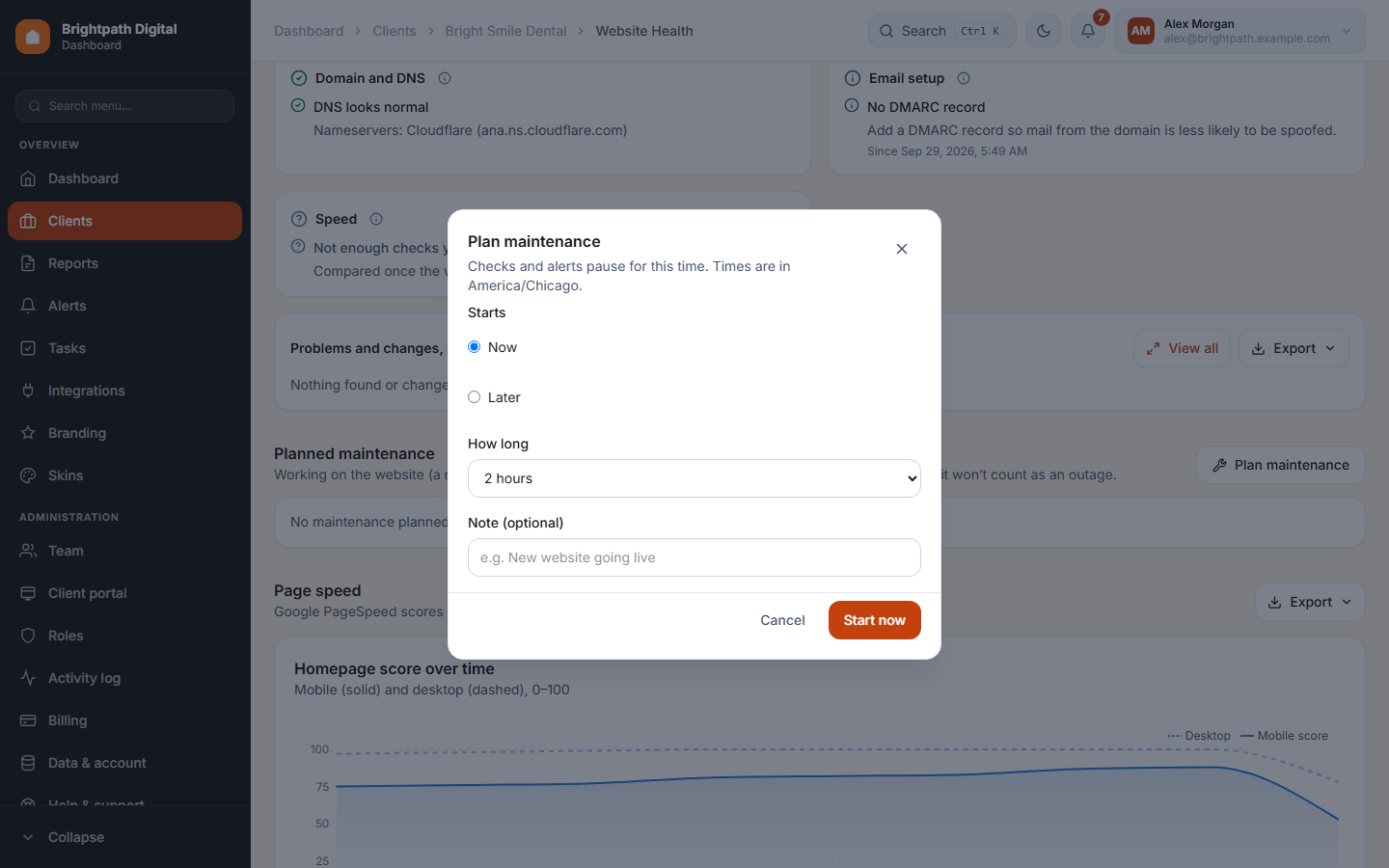
Planned maintenance
Working on the website, for example a redesign or a move to a new host? Press Plan maintenance and choose when (15 minutes to 7 days, up to 60 days ahead). During that time there are no checks and no alerts, and it doesn't count as an outage. End now finishes early and checks straight away.
Page speed
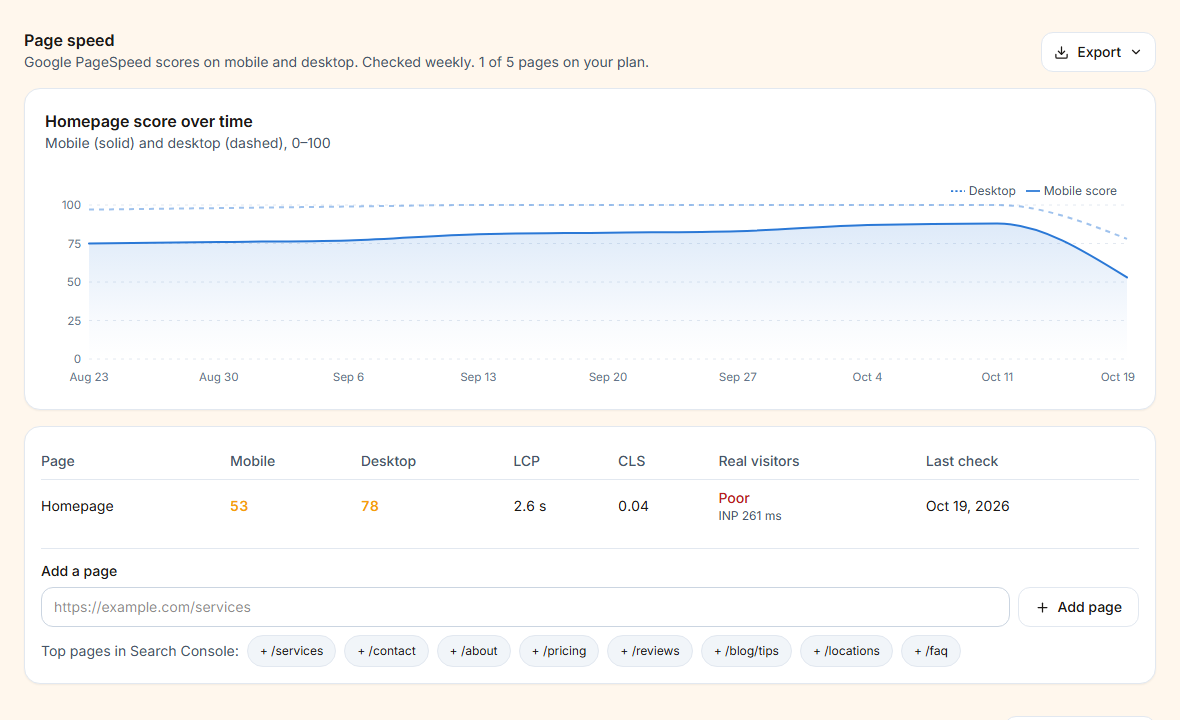
Google PageSpeed scores for mobile and desktop, the Core Web Vitals (LCP, CLS), and how real visitors experience the page. The homepage is always checked. Add page adds more pages, up to your plan's limit, with suggestions from the client's most-clicked pages. You get an alert when the mobile score drops 15 points or real visitors' experience turns Poor.
Site audit
The website is crawled every 1–4 weeks (depending on your plan) and checked for SEO problems, each with advice:
- Critical: robots.txt blocks the site, homepage noindex, broken pages, redirect loops.
- Warning: redirect chains, noindex pages, canonical problems, wrong sitemap URLs, missing or duplicate titles, H1s and meta descriptions.
- Notice: duplicate descriptions or H1s, several H1s, images without alt text, heavy or slow pages, no sitemap.
Each audit is compared with the one before: new issues are marked “new”, fixed ones are counted. Run audit now starts one straight away (a few per month, depending on your plan). New critical issues send an alert.
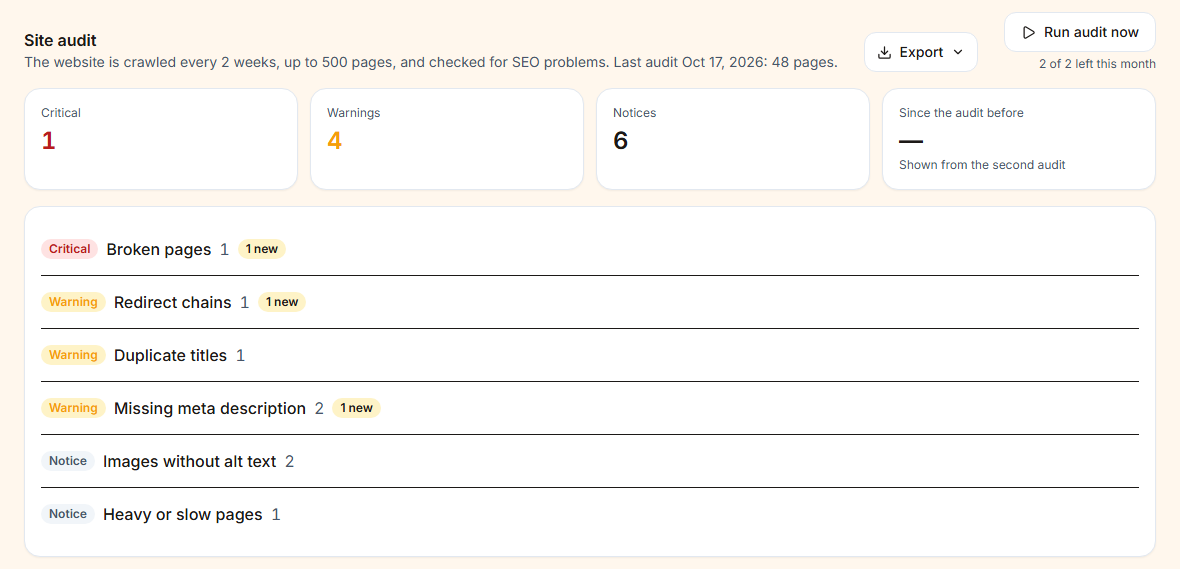
Every section of this tab has View all and Export, so you can send the developer the exact list of broken pages.
8 AI insights
An in-depth monthly review and strategy for one client, written by AI from that client's own data. Use it to prepare a client call or plan the next month.
- Open a client, then AI insights.
- Pick the month (this month or one of the 15 before). Months that already have an insight have a ✓.
- Press Generate insight. It takes a minute or two. You can leave the page; the bell rings when it's ready.
- Read it, turn actions into tasks, and print it or save it as PDF.
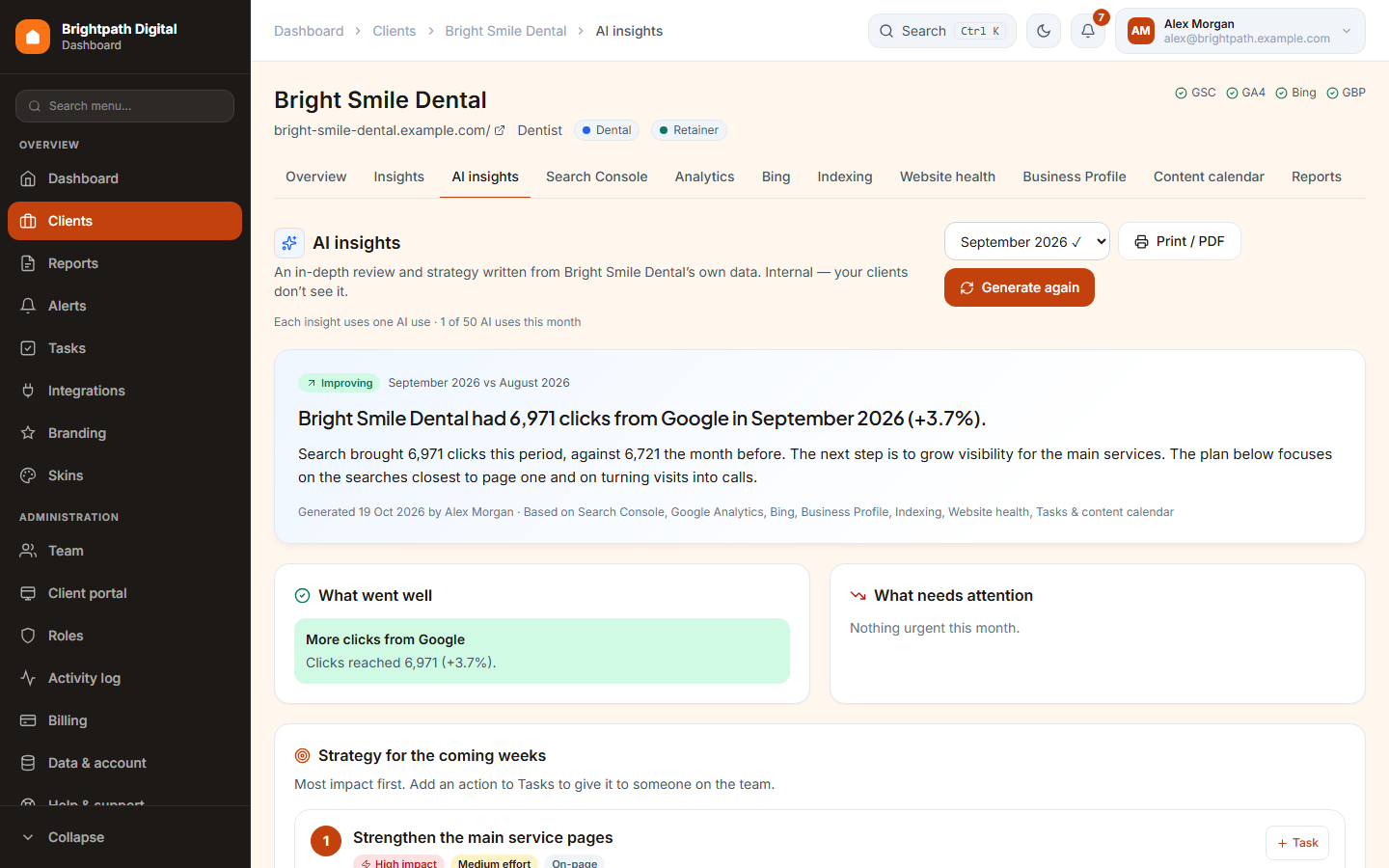
The AI reads Search Console, Analytics, Bing, the Business Profile (including posts and keywords), indexing, website health, the month's alerts and your team's finished tasks and published content. It writes:
- What went well and What needs attention (with severity), and Why it happened with the evidence.
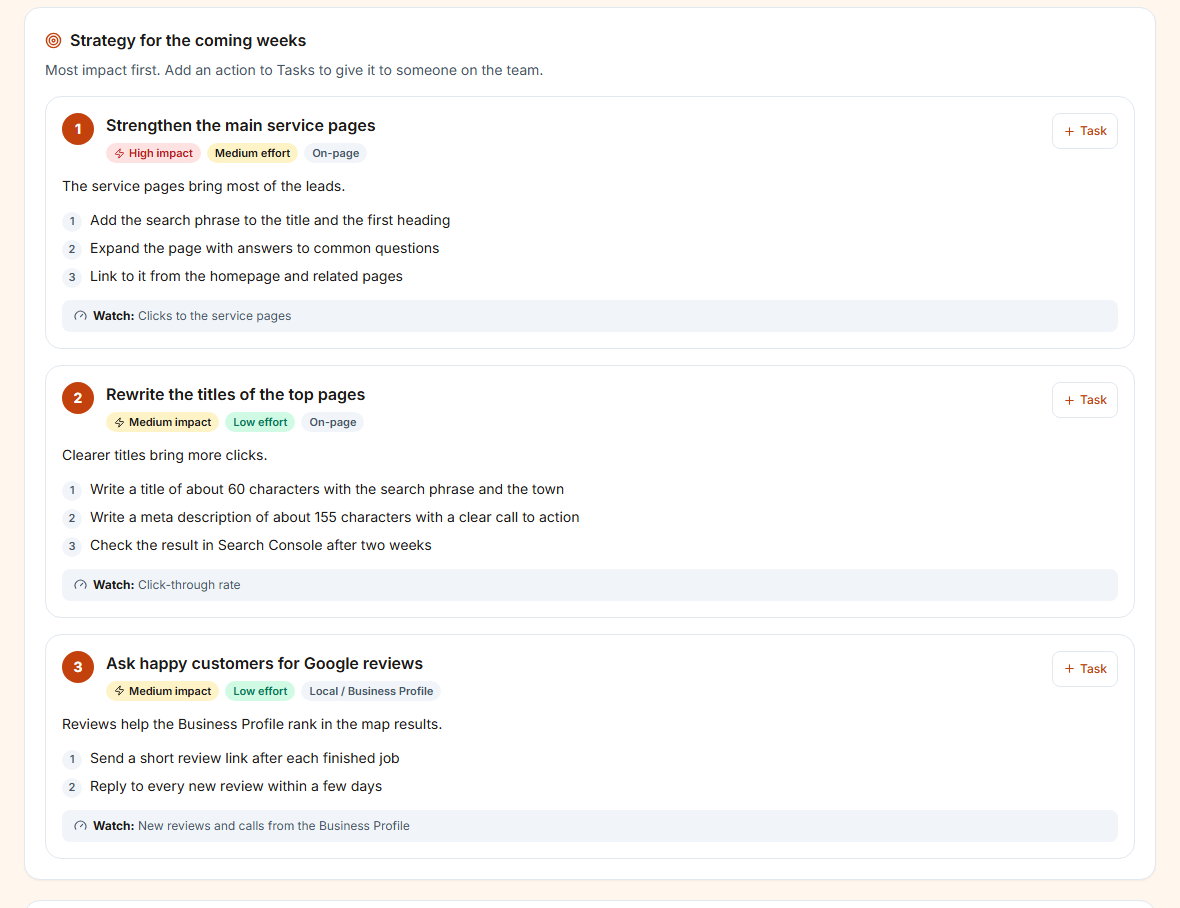
- A Strategy for the coming weeks: 5–8 actions, most impact first, each with why, the steps, impact, effort, category and the number to watch.
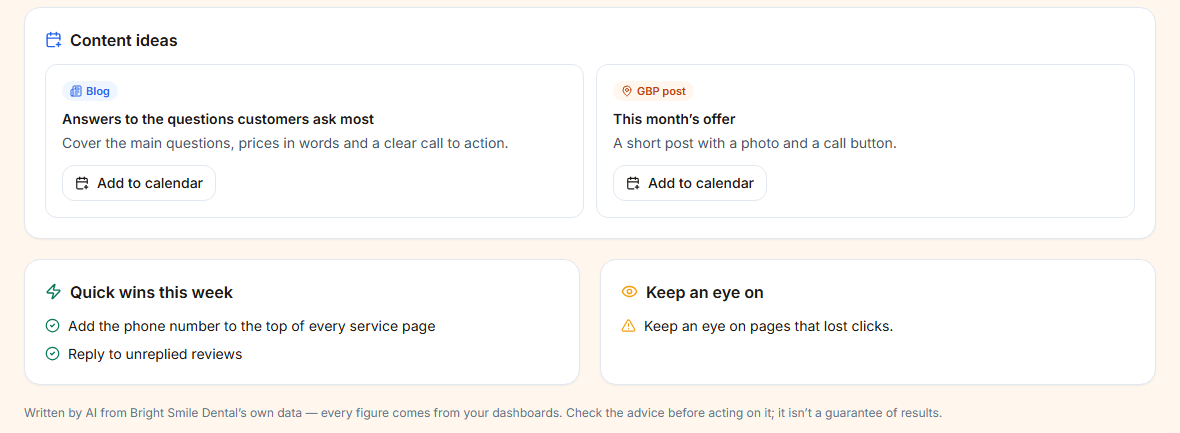
- Content ideas per channel, Quick wins this week and things to Keep an eye on.
Every figure comes from your data. An insight that invents a number is refused and doesn't use up your allowance. No forecasts are made. Each insight uses one AI use of your plan's monthly allowance, shared with report summaries (“1 of 50 AI uses this month”). Generate again writes a new version. If that fails, the last good one stays.
AI insights are internal. Your clients never see them. Only the owner, and members whose role has View AI insights / Generate AI insights, can open the tab. No role has these by default, so the owner turns them on in Roles.
Print / PDF prints the insight on clean A4 pages (without the menu) or saves it as a PDF named after the client and month.
9 Reports
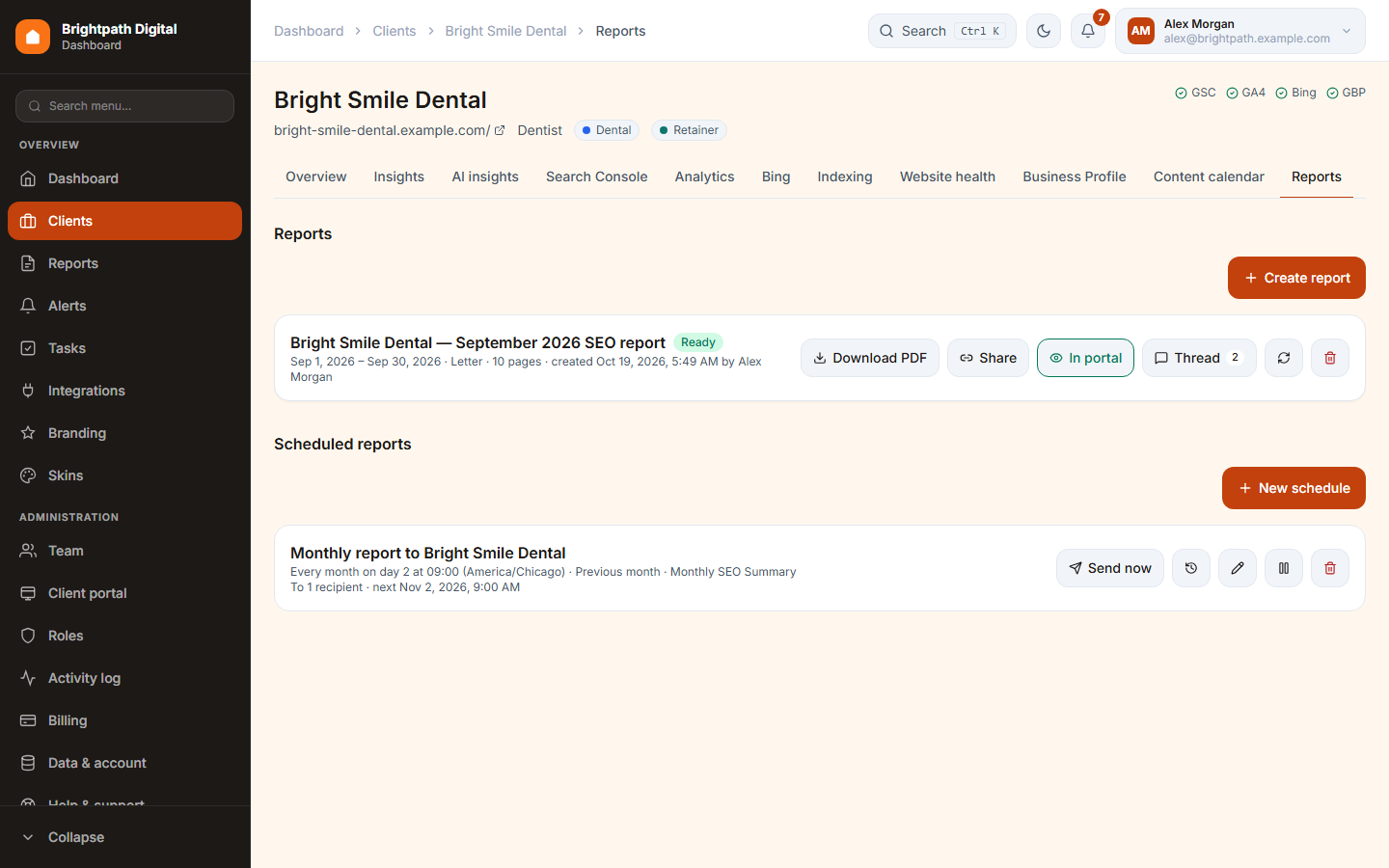
Branded PDF reports in your logo and colours. Make one by hand in a few clicks, or let a schedule make and email it every month.
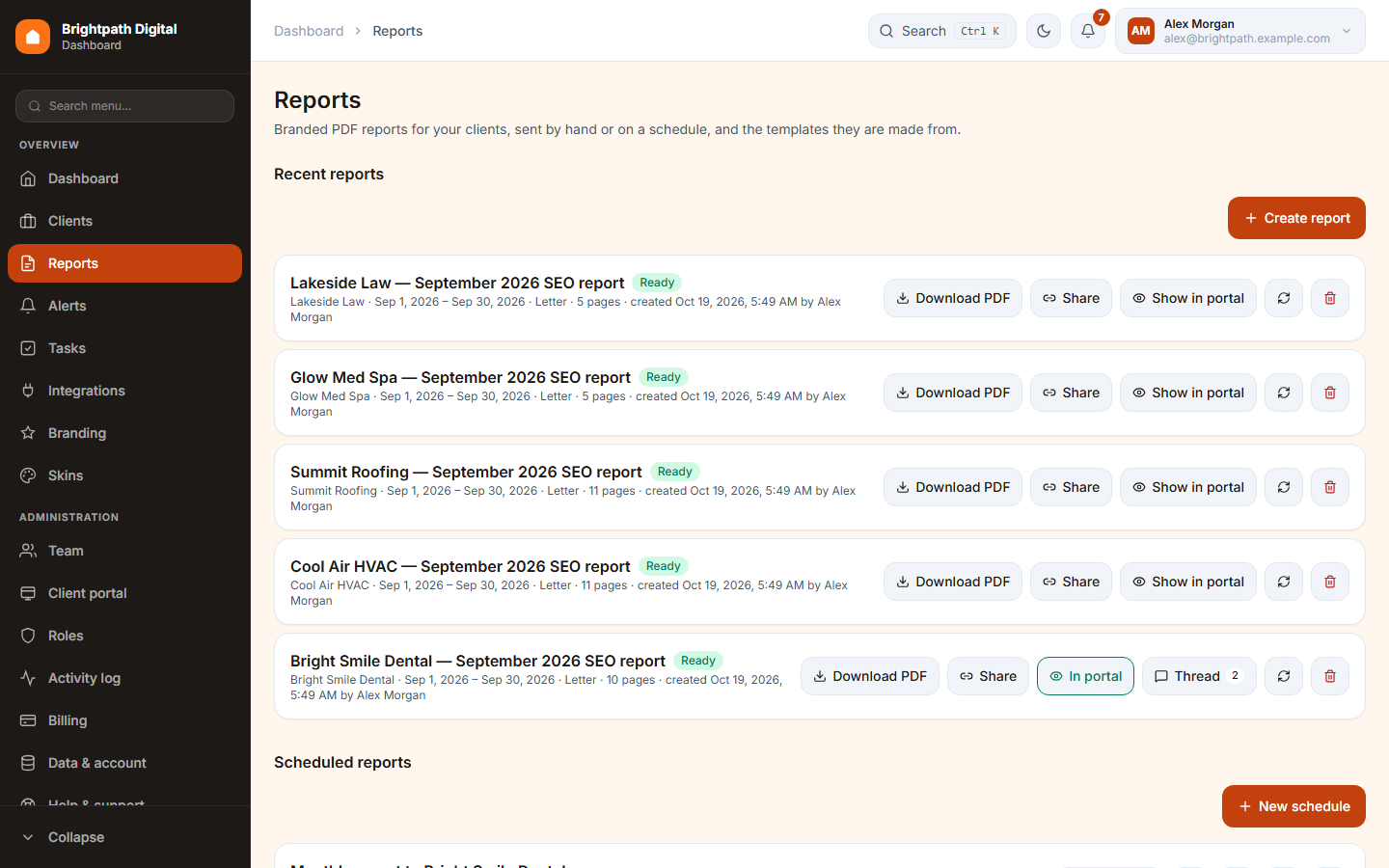
Create a report
- Press Create report (on Reports, or on a client's Reports tab).
- Pick the client and a template.
- Pick the period (last month, this month, last 28 / 90 days or your own dates) and the comparison.
- Optional: the title, the paper size (A4 or US Letter) and, for clients with several branches, one Business Profile location.
- Press Create report. The list shows waiting → making PDF → Ready.
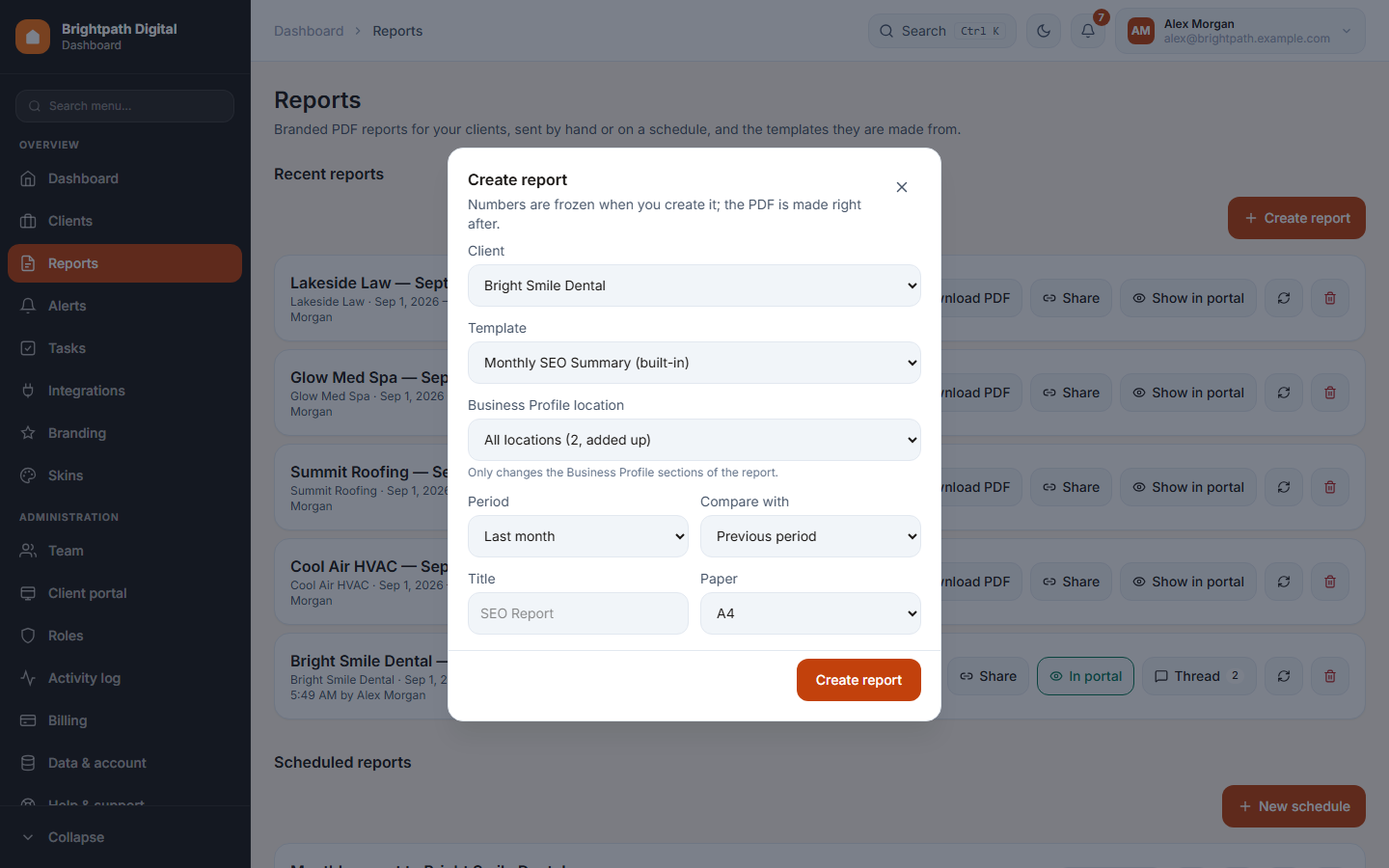
The numbers and your logo are frozen when the report is made. A report never changes later, even if data or branding change. Make a new one to get the latest numbers.
| Button | What it does |
|---|---|
| Download PDF | Downloads the PDF (cover, contents for long reports, page numbers). |
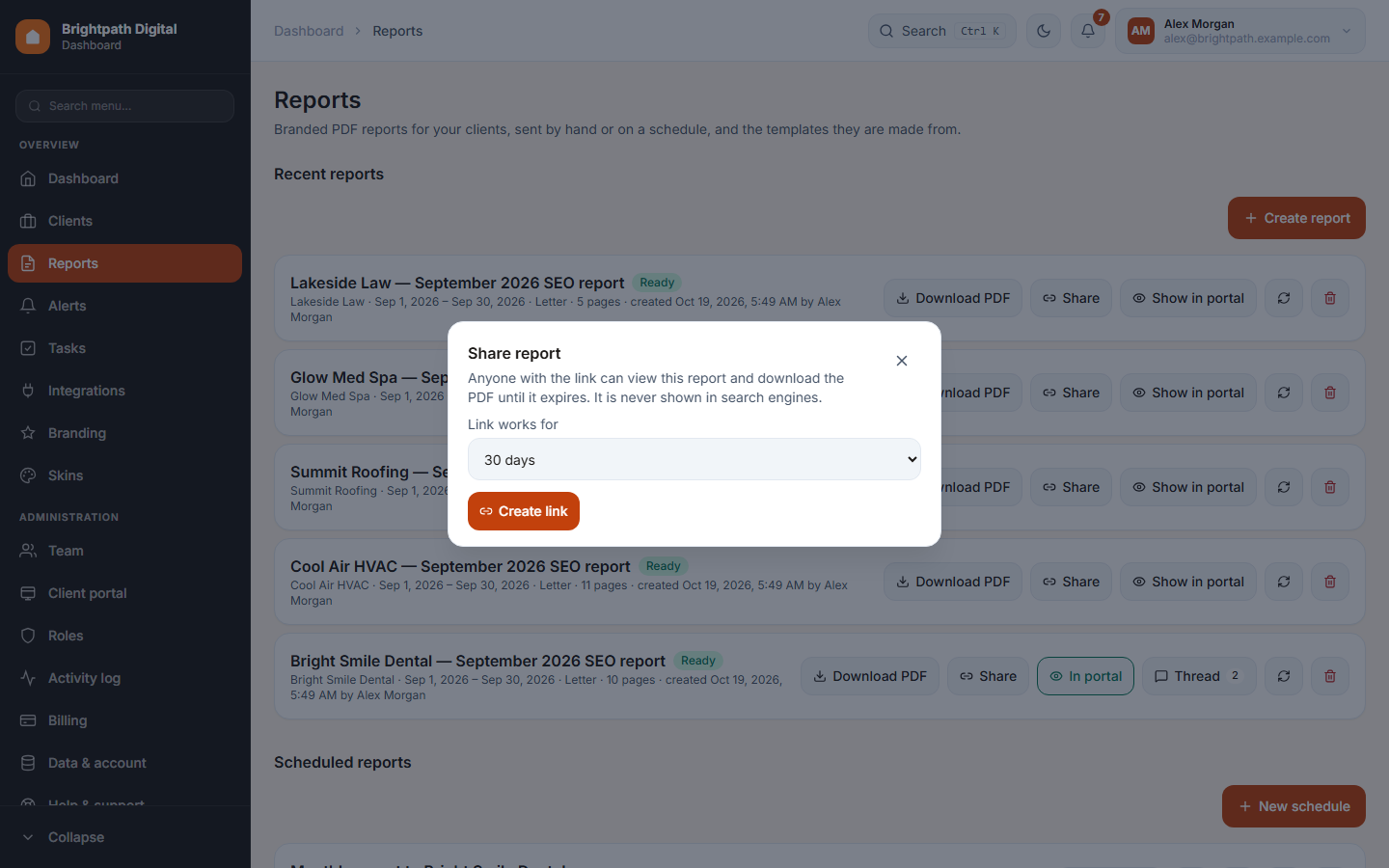
| Share | Makes a link on your own address (7, 30 or 90 days) where the client sees the report and can download the PDF. Stop sharing ends it at once. Search engines never index it. |
| Show in portal / In portal | Shows the report to the client's contacts in the client portal. |
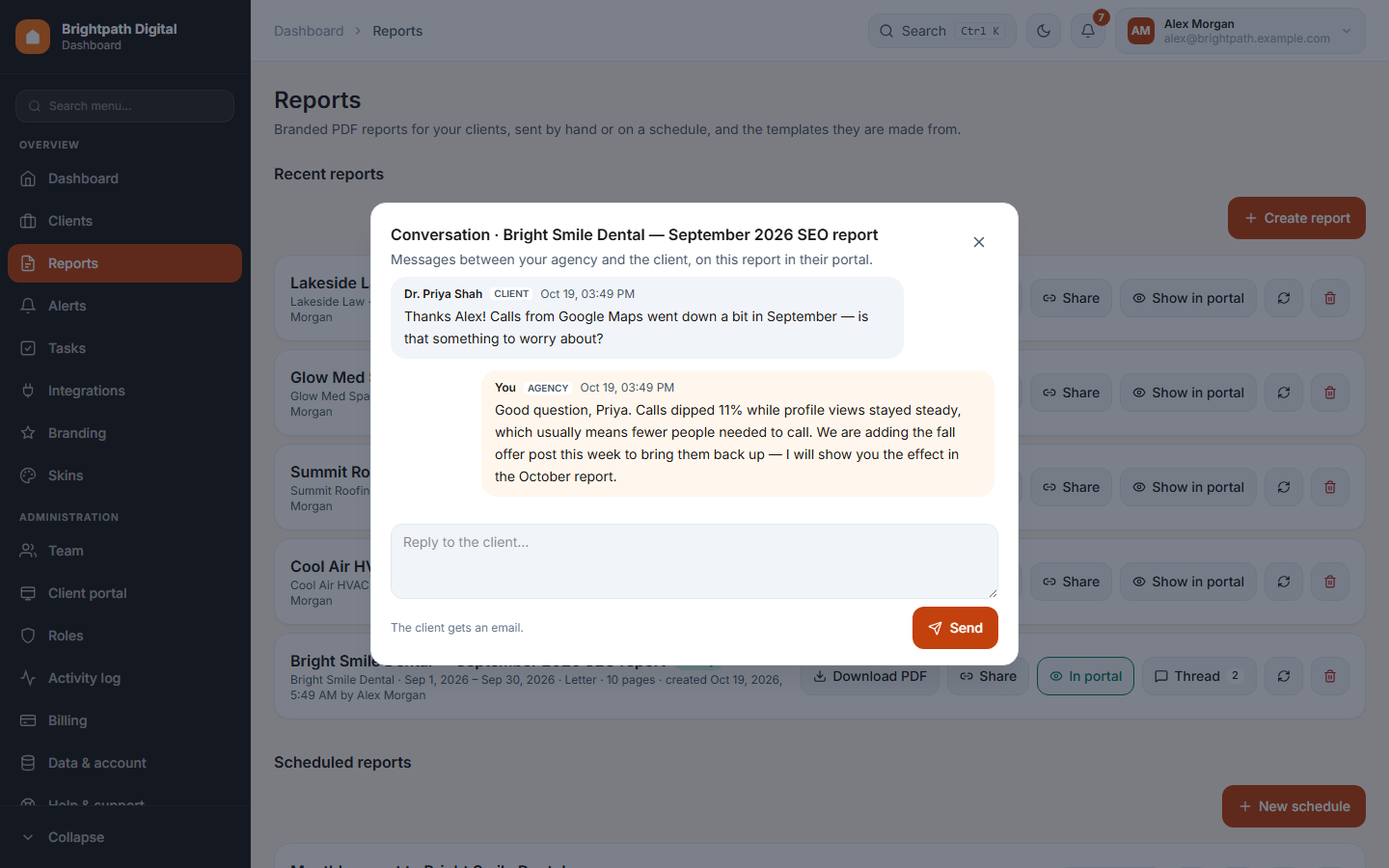
| Thread | The client's questions about a report shown in the portal, and your answers. |
| ↻ Make again | Makes the PDF again with the same frozen numbers, for example after a failure. |
| 🗑 Delete | Deletes the report and its PDF. |
Scheduled reports
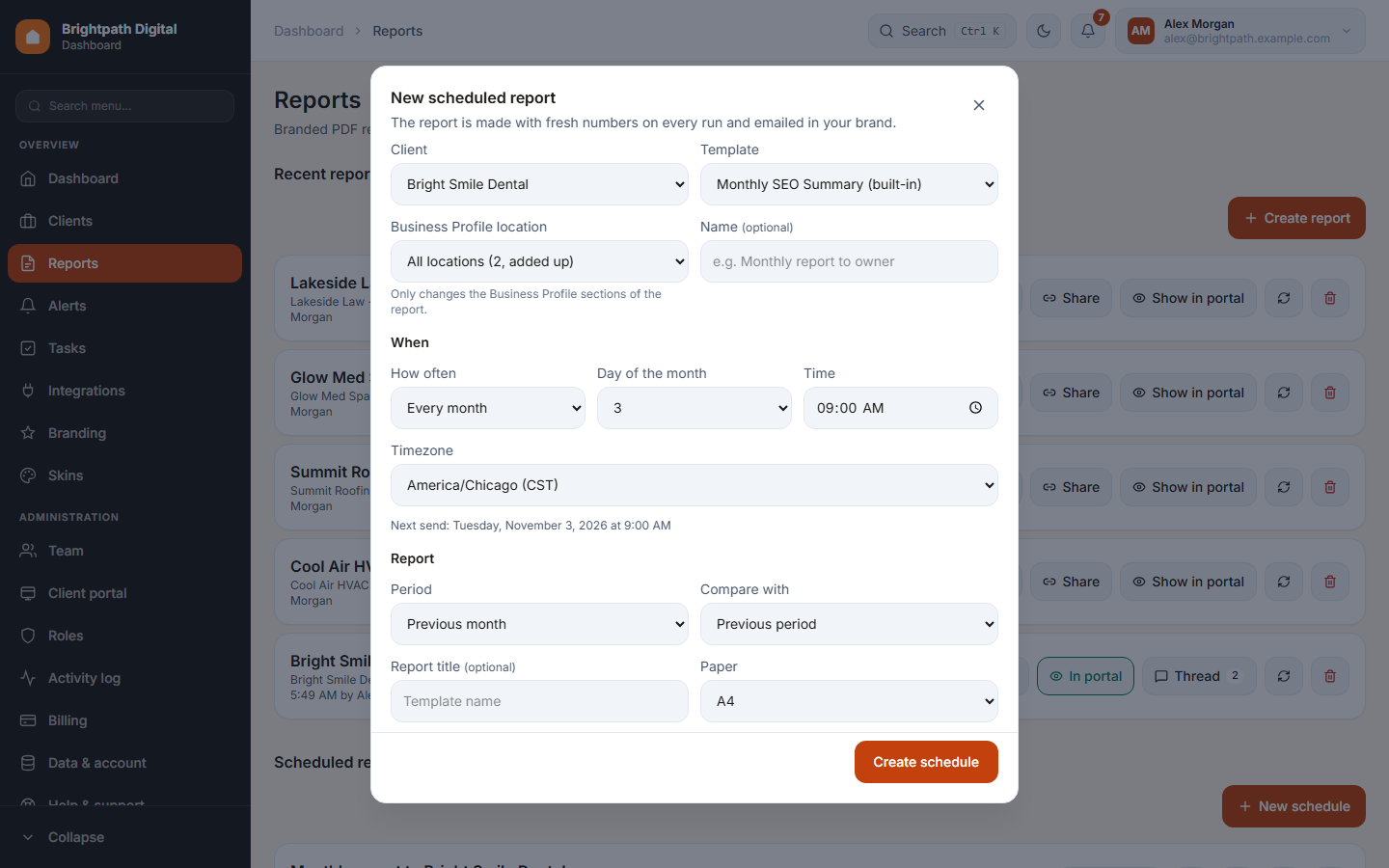
A schedule makes a report and emails it to the client by itself.
- Press New schedule.
- Pick the client, the template and how often: every week, month or quarter, with the day, time and time zone. The form shows the next send date before you save.
- Pick the period (last 7 / 28 days, previous month or quarter) and the comparison.
- Add up to 20 recipients, and the email subject and message. You can use
{{client_name}},{{period}},{{agency_name}}and{{report_title}}. Choose whether to attach the PDF. - Press Create schedule.
Each recipient gets their own email in your brand, with a View report button and the PDF. Your support email is the reply-to address. On each schedule: Send now, ⟲ delivery history (sent / opened / failed per address), ✎ edit, ⏸ pause / resume and 🗑 delete. Every email has an unsubscribe link. A run is skipped, with the reason, when the client is paused or archived.
A client's own Reports tab shows only that client's reports and schedules, with the same buttons.
Templates and the report builder
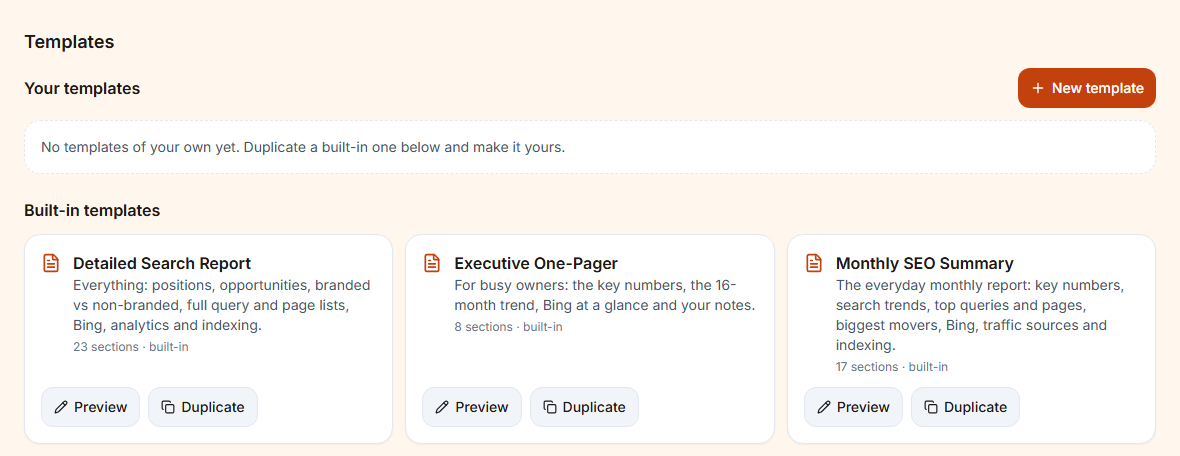
Three built-in templates are ready to use: Monthly SEO Summary, Executive One-Pager and Detailed Search Report. To change one, press Duplicate. That makes your own copy, which opens in the builder.
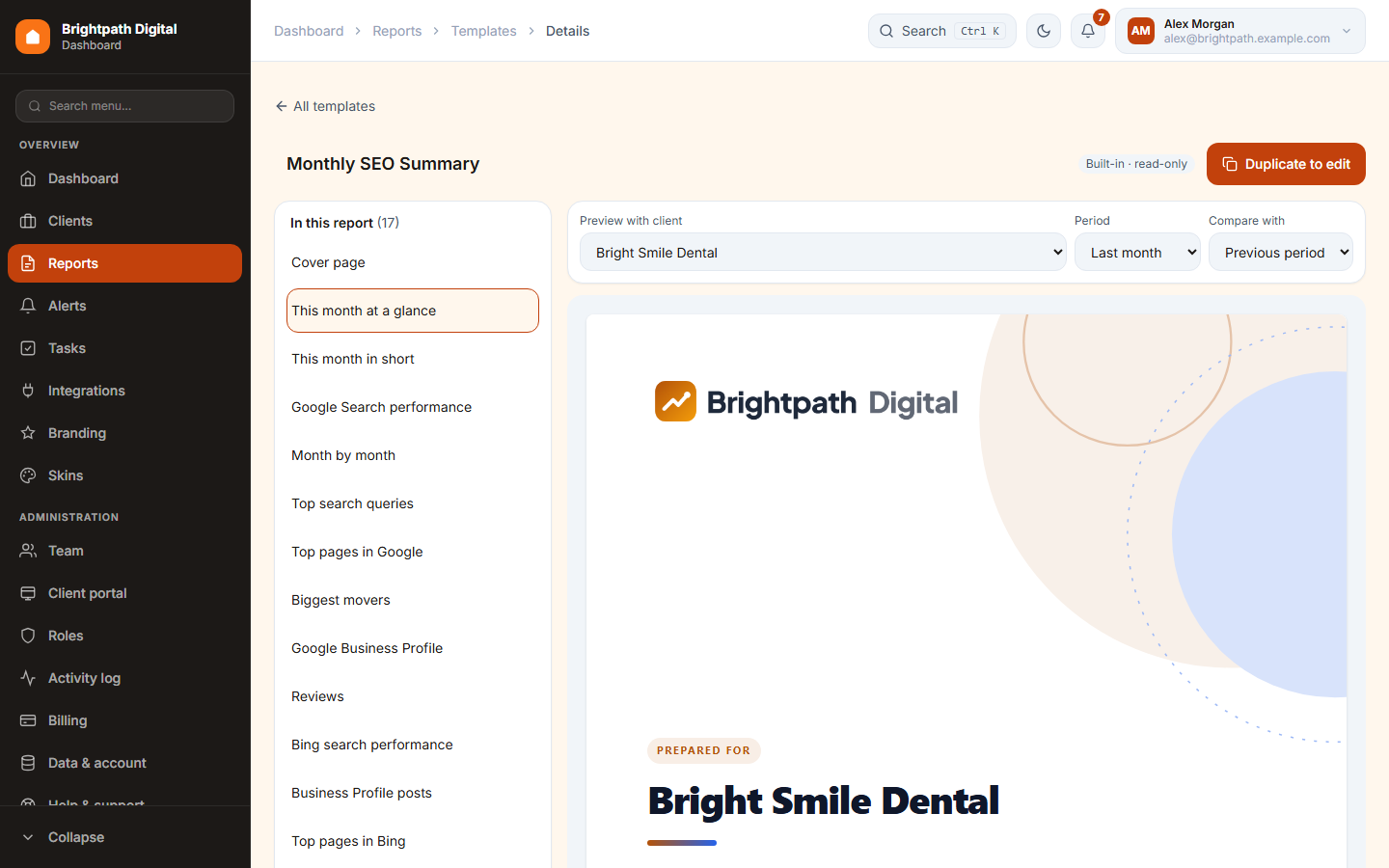
- The report's sections are on the left. Drag them, or use ↑ / ↓, to change the order. Remove the ones you don't need.
- The section library adds more: cover, executive summary, key numbers, search trend, top queries / pages, keyword positions, opportunity keywords, biggest movers, branded vs non-branded, website visits, traffic sources, key events, month by month, indexing, Bing, Business Profile (+ keywords, reviews, posts), website health, AI summary, glossary, your notes, page break.
- The live preview uses a real client and period. The selected section's settings (title, rows, numbers, notes) are on the side.
- Everything saves by itself (“Saved”).
Executive summary writes up to 3 wins, 3 things to watch and 3 next steps from the report's own numbers, with no AI. AI summary writes a short paragraph with AI (choose length, tone and language). It uses only the numbers in the report and one AI use, and you can edit the text before sending.
10 Alerts and notifications
Rules that watch every client's numbers after each nightly sync, plus one bell for everything that needs you.
Alerts
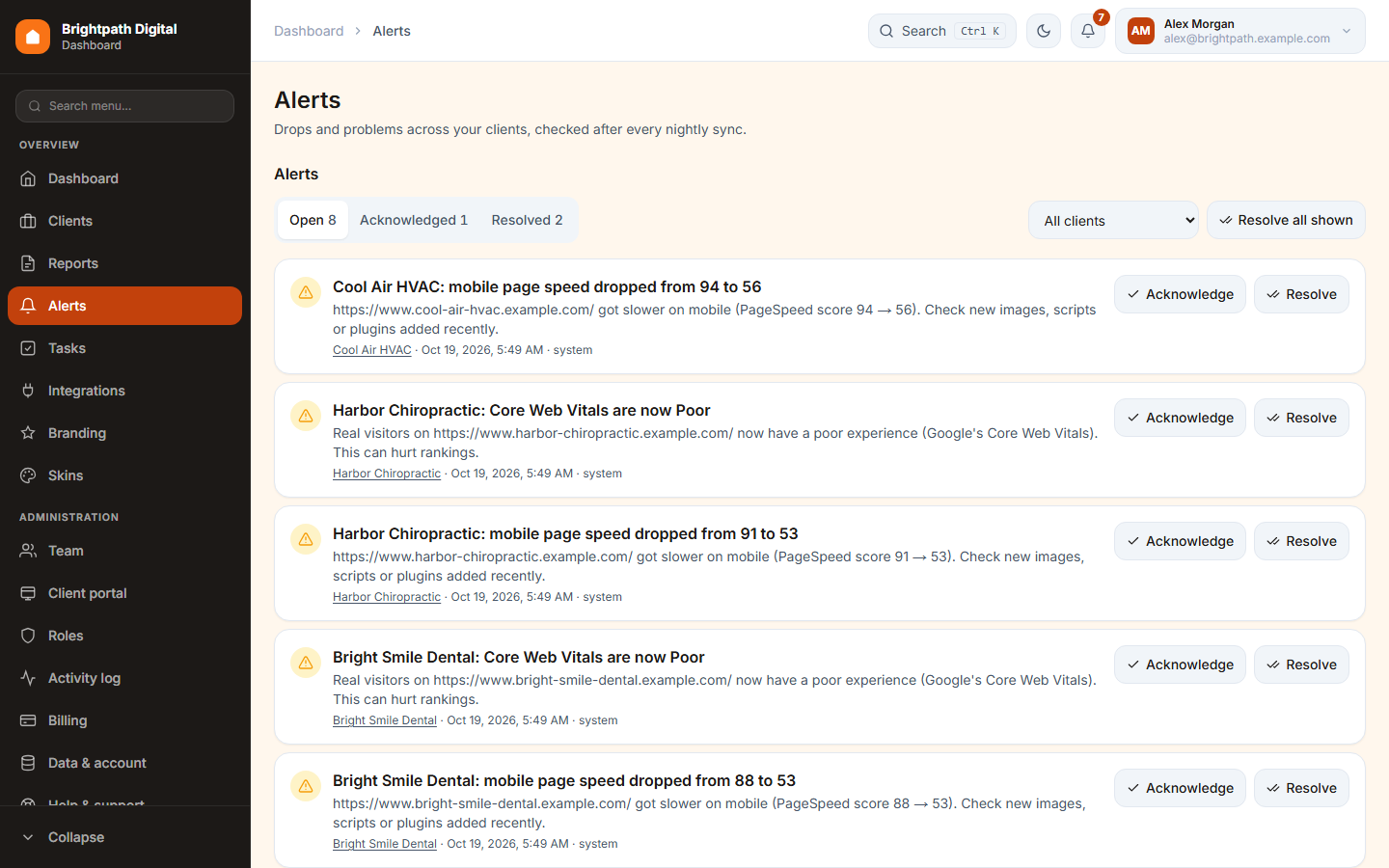
- Open / Acknowledged / Resolved tabs with counts, and a client filter.
- Acknowledge: “I've seen it, I'm on it”. Resolve: done. Resolve all shown resolves the whole list.
- Alerts close by themselves when the numbers are back to normal (“back to normal”) or a website problem is fixed.
- Website, connection and report problems are alerts too (marked system).
Alert rules
A new workspace can press Add suggested rules to get four sensible rules at once. To make your own:
- Press New rule.
- Choose one client or all clients, the metric (Search Console clicks, impressions or position; GA4 sessions, organic sessions or key events) and the condition (drops / rises by %, below / above a value).
- Choose the period (last 7 / 14 / 28 days) and the comparison (the days before, or the same days last year).
- Choose the severity, “don't repeat for” (1 day / 3 days / 1 week), and in the app and / or by email.
- Check now shows what the rule would say for every client today, without saving. Then Create rule.
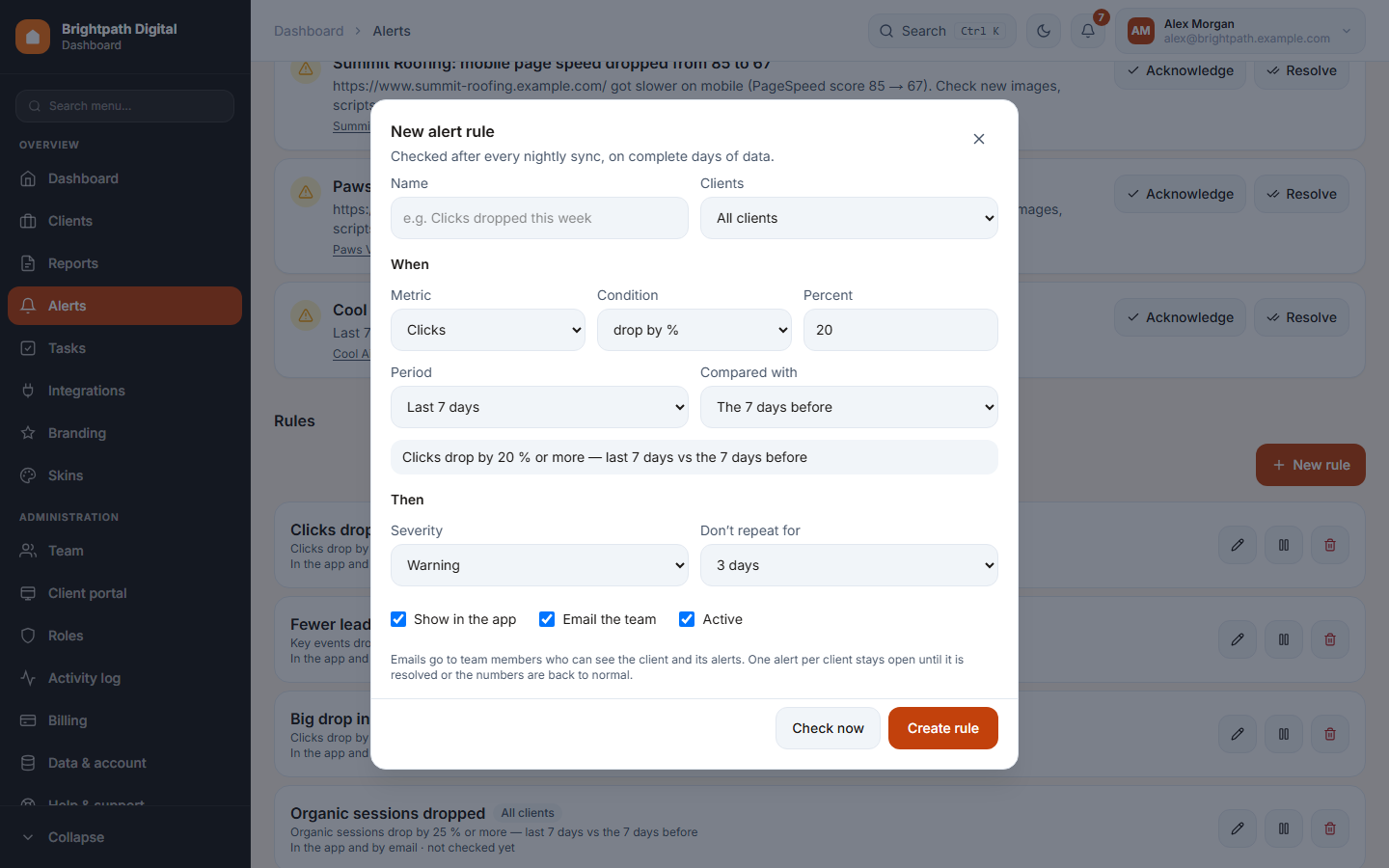
Alerts are honest. They use only days that have data (Search Console is 2–3 days behind). Both periods must be nearly complete. Small numbers (“3 → 1 click”) never fire a percentage alert.
Notifications
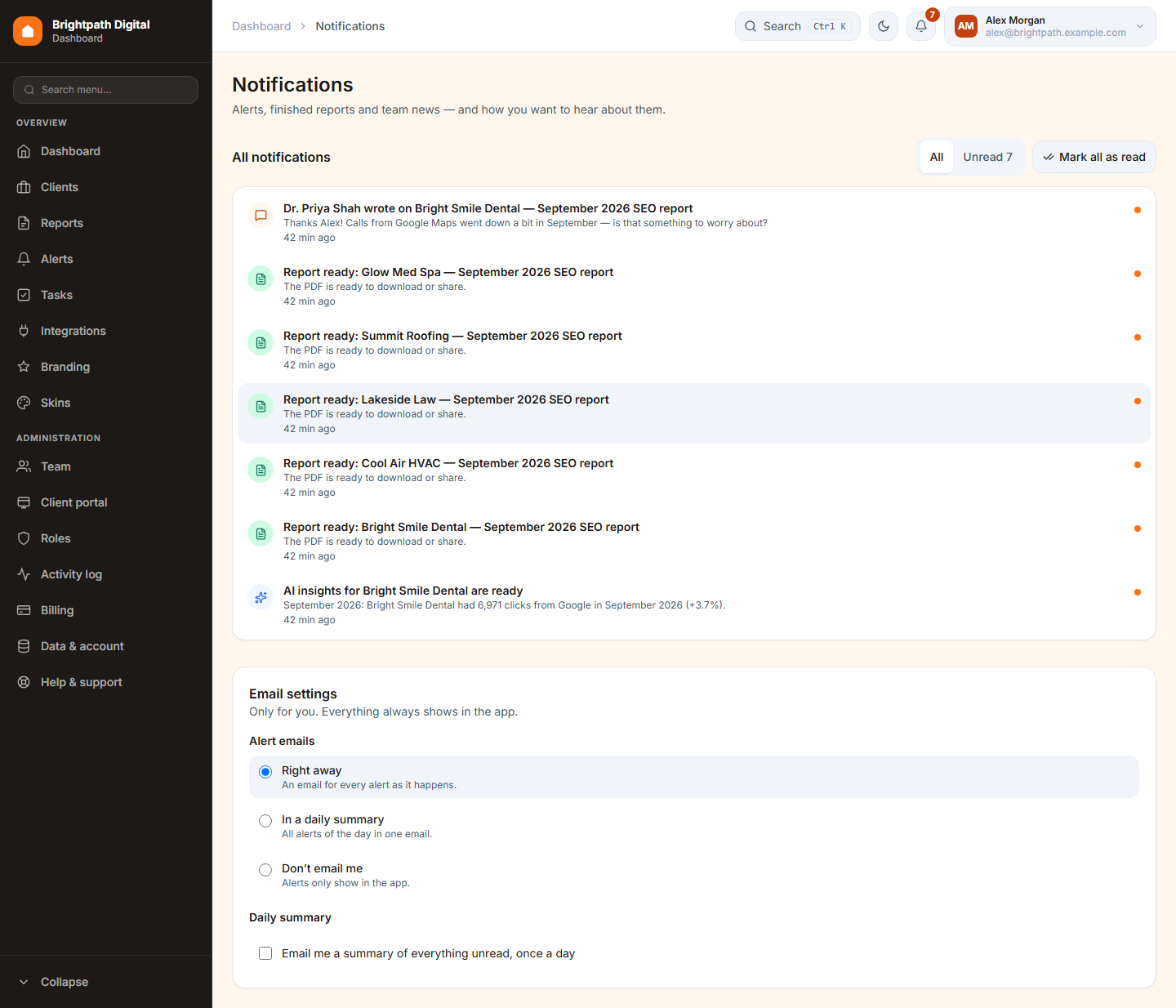
The bell in the header shows your unread count. Click it to see the latest 10. Click one to open it and mark it read. You get notifications for new alerts on clients you can see, reports that are ready or failed, AI insights that are ready, tasks given to you and their changes, client approvals and client messages, and invitations that were accepted.
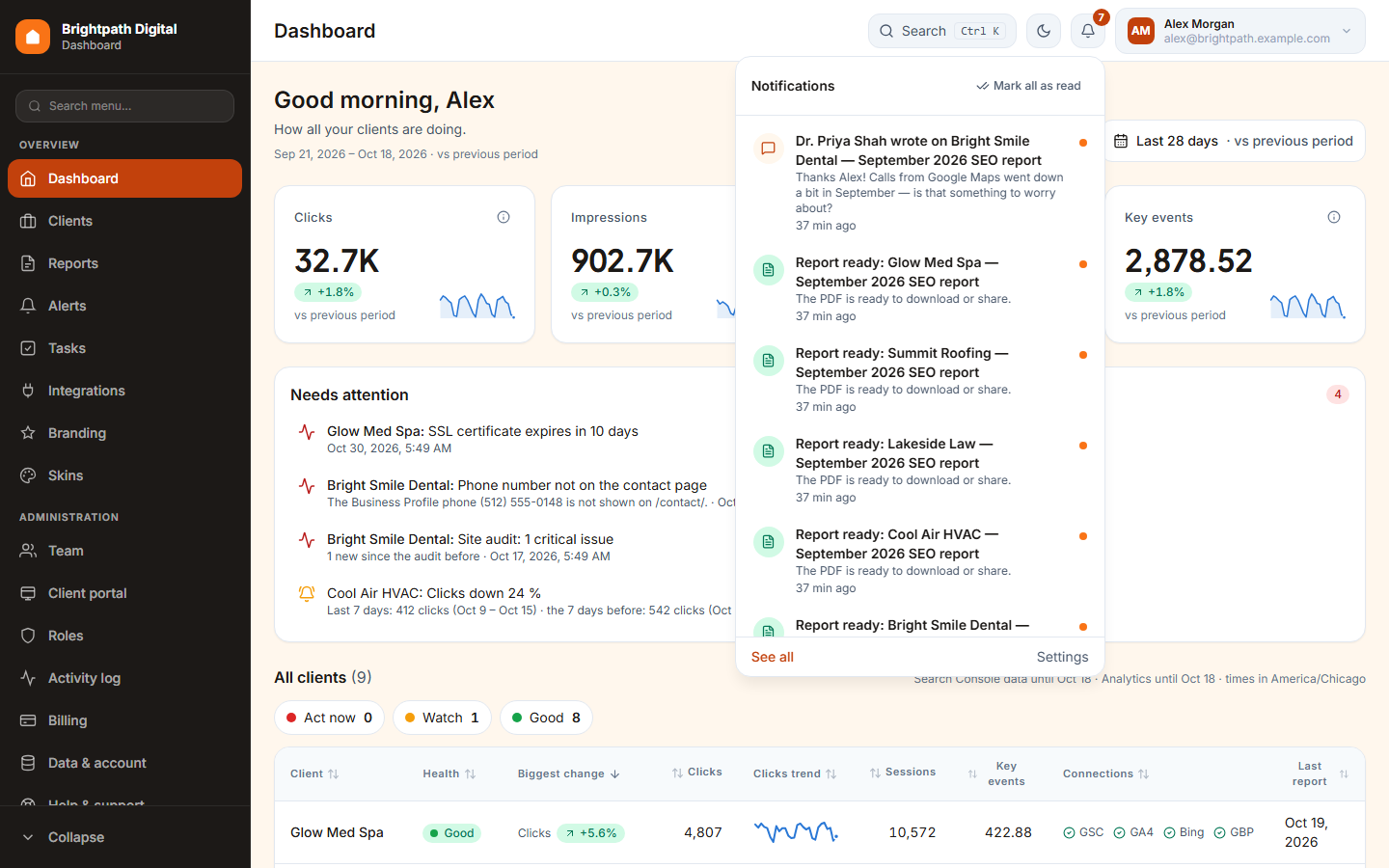
See all opens the Notifications page with All / Unread and your email settings: alert emails right away, in a daily summary or not at all, and an optional daily summary of everything unread at an hour you choose.
11 Tasks and the content calendar
Your team's to-do board and each client's content plan. They are internal: your clients never see tasks, and they only see content you send them for approval.
The task board
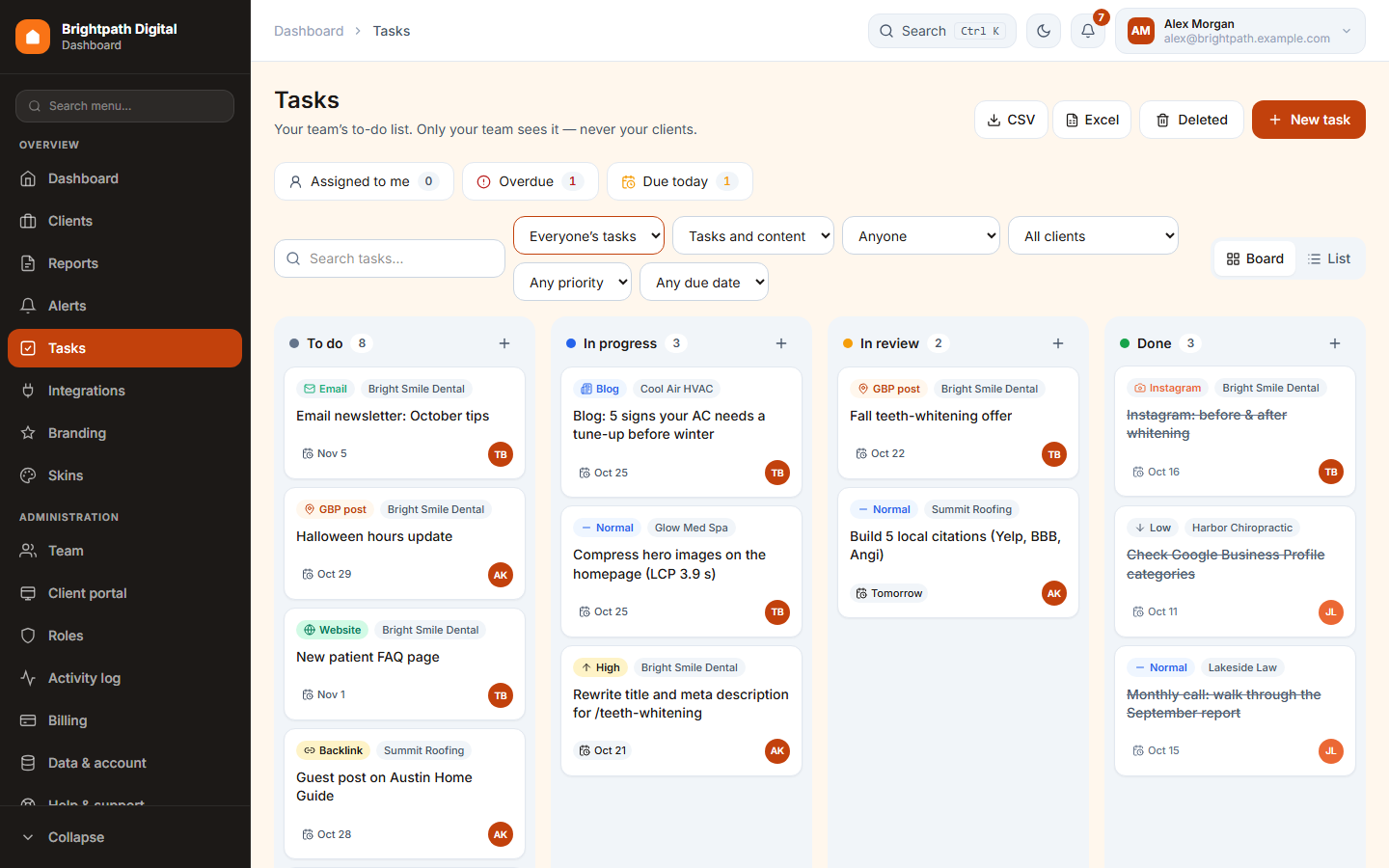
- Drag cards between and within columns. On a phone, one column at a time.
- The chips Assigned to me, Overdue and Due today are quick filters. Also search, type (tasks / content), assignee, client, priority and due date.
- Board / List switches the view. CSV and Excel export the filtered tasks. Deleted shows deleted tasks so you can restore them.
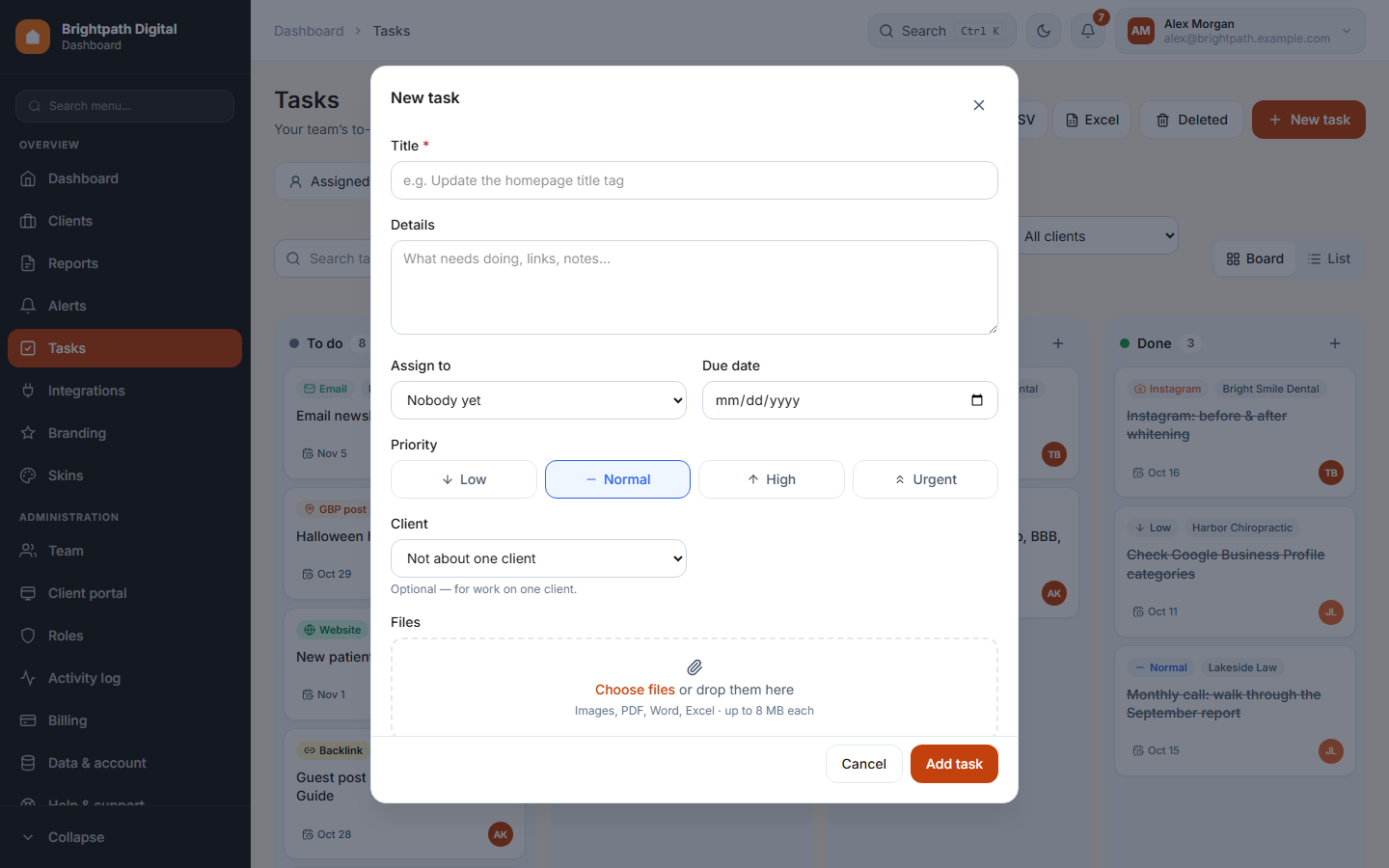
- Press New task (or the + on a column).
- Write a title and the details. Pick the assignee, the due date, the priority and, optionally, the client and location.
- Press Add task. The assignee gets a notification.
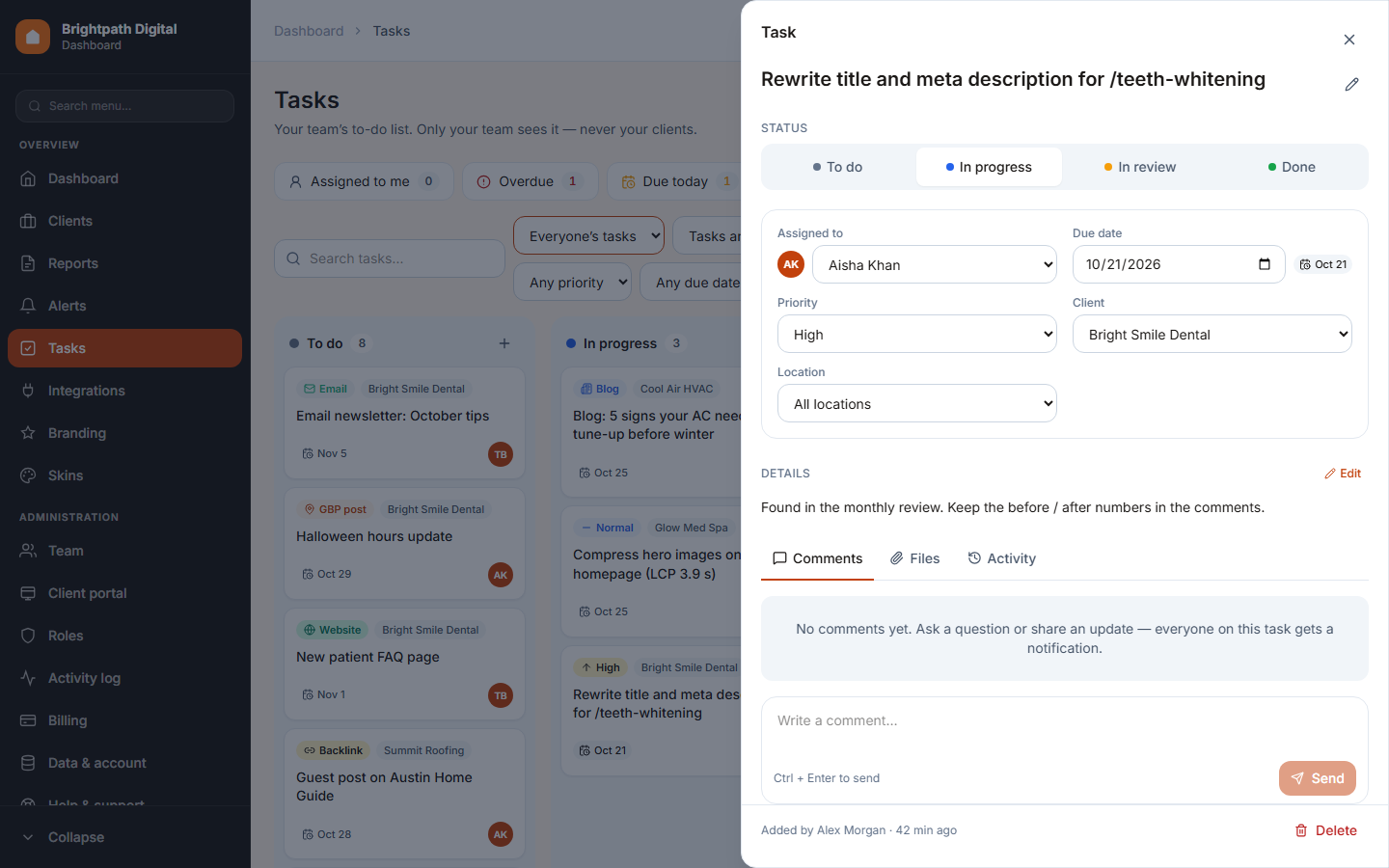
Click a card to open the task panel. There you can change the status, edit the details, add comments and files (images, PDF, Word, Excel; up to 8 MB each), and see the timeline of every change.
+ Task also appears on opportunity keywords, quick wins, pages losing clicks and AI insight actions. The task is filled in for you and keeps the numbers of that moment, so you can compare later. A row that already has an open task shows In tasks instead.
Who sees what: the owner and members with View every task see all tasks. Everybody else sees the tasks they created or are assigned to.
The content calendar
Each client has a Content calendar tab: the month as a grid, with Google Business Profile posts, blog articles, website pages, backlinks, Facebook, Instagram, email and other items. The statuses read Planned → Writing → Review → Published.
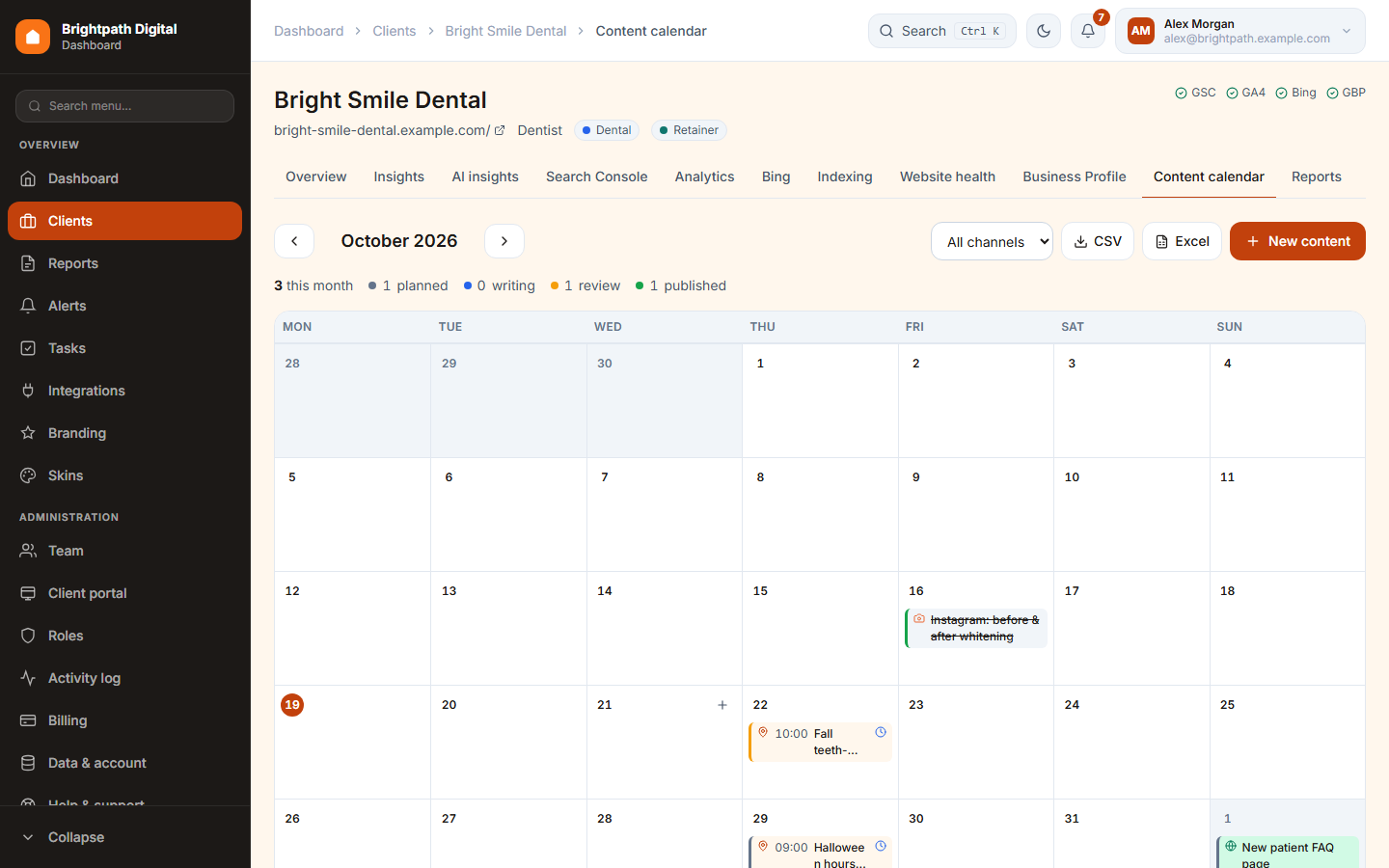
- ‹ › and Today move between months. Filter by channel. Export the month to CSV or Excel.
- Press + on a day, or New content, to add an item. Drag an item to another day to move it.
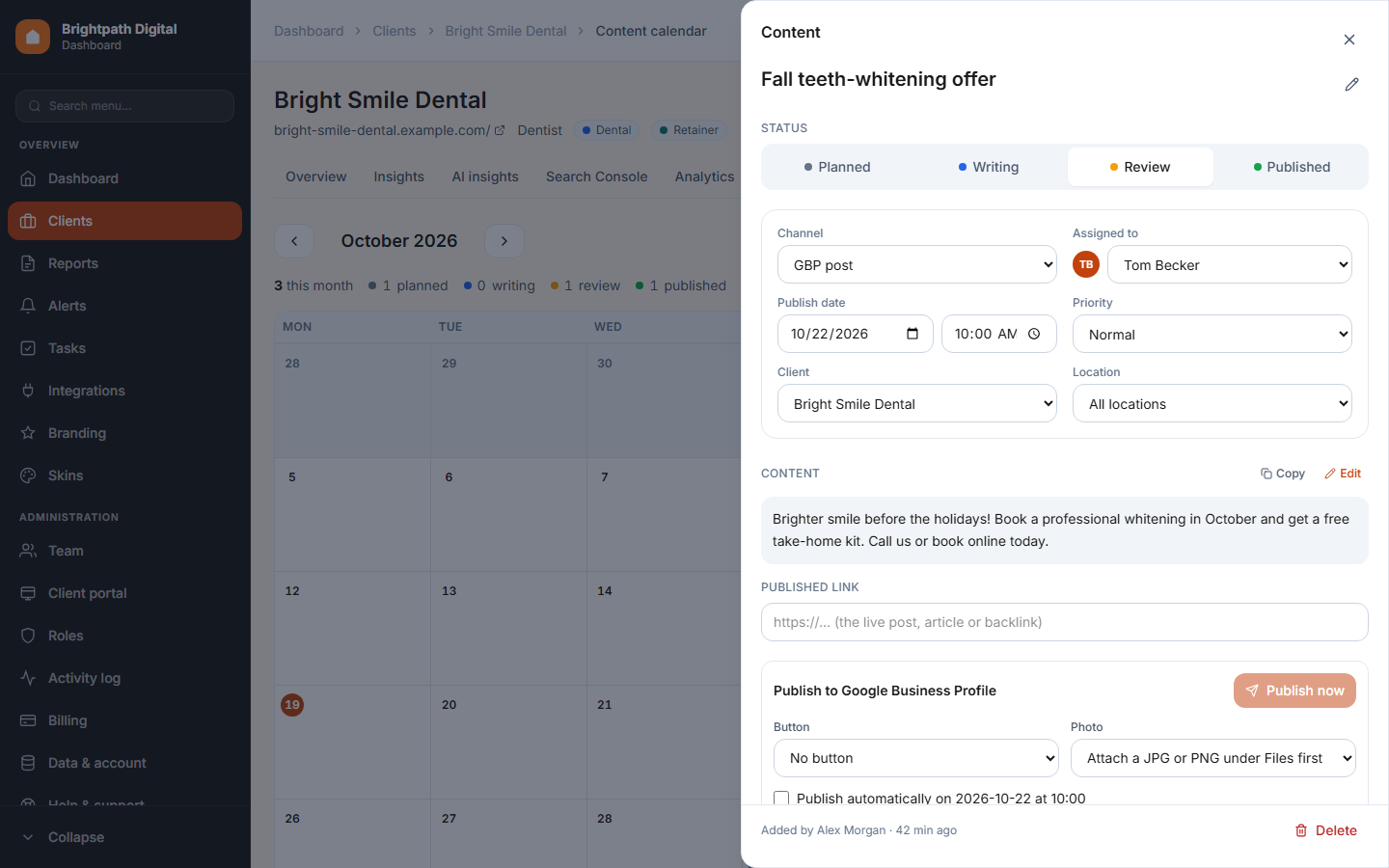
- Open an item to write the text (with Copy), add files, add the published link and comment, like a task.
Client approval
In the item's Client approval block, press Send to client. The client's contacts get an email and see the item in the portal. They can Approve it or Ask for changes with a note. Managers can also Approve for the client, so work never waits on a client who is offline. Take back makes it internal again. Files are sent along only when they are marked Client sees it.
Publish to Google Business Profile
An item with the channel GBP post gets Publish to Google Business Profile: a button and link, a photo, and either Publish now or Publish automatically at its date and time. An item that waits for approval goes out only once it is approved.
12 Client portal
A branded login on your own address where your clients see their results and the reports you share. It is read-only, and there are no passwords.
Set it up
- Open Client portal in the sidebar. Your portal address is at the top (Copy, Open).
- Switch the portal on for a client.
- Press Invite contacts (it opens the client's Settings), enter their email and name and press Invite. They get an email in your branding with a sign-in link.
- On Reports, press Show in portal on each report the client may see.
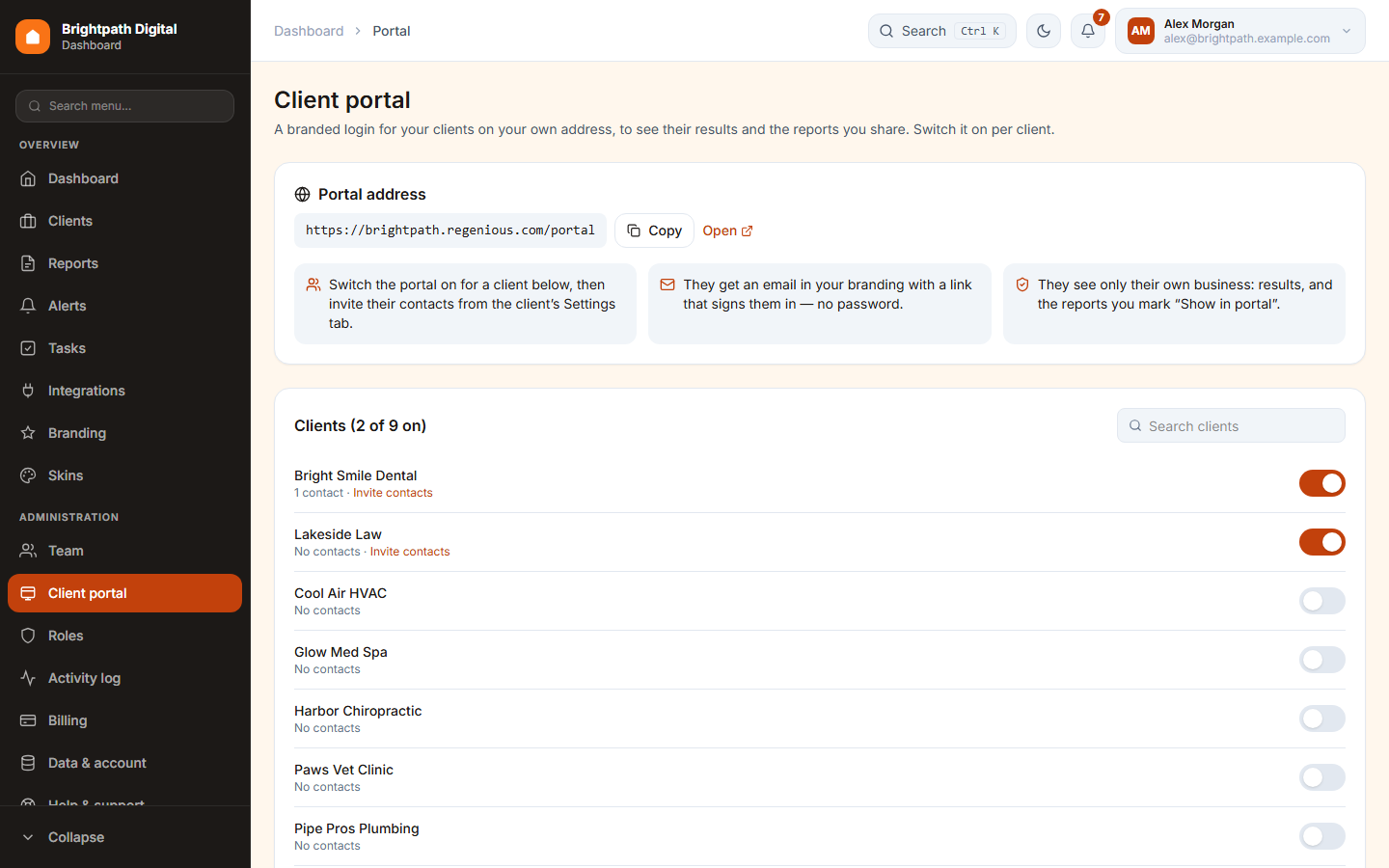
One contact can see several clients. Removing a contact's last client signs them out everywhere. Send again sends a new invitation.
What your client sees
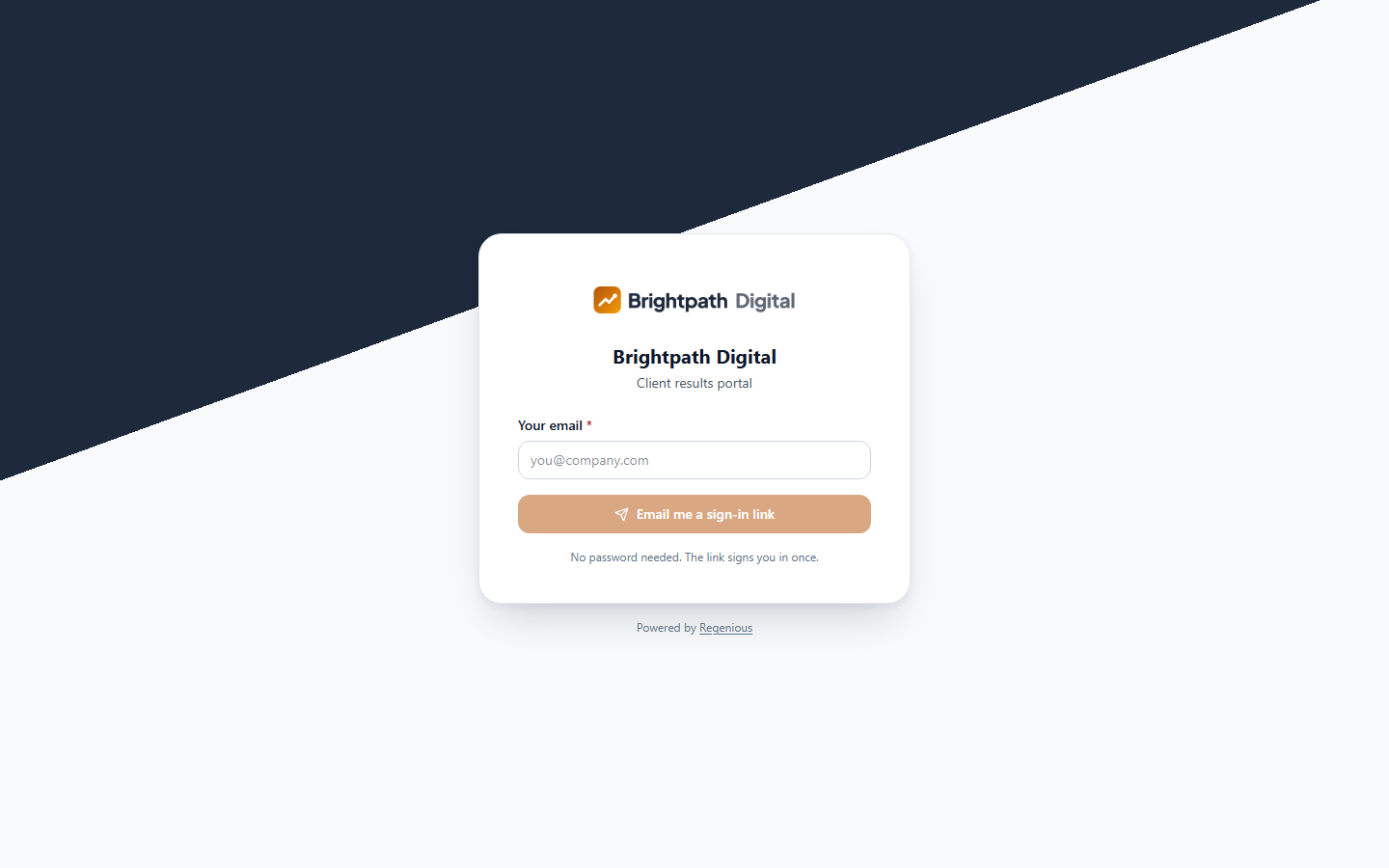
The client enters their email on the portal login page and gets a sign-in link that works once, for 20 minutes. They never need a password.
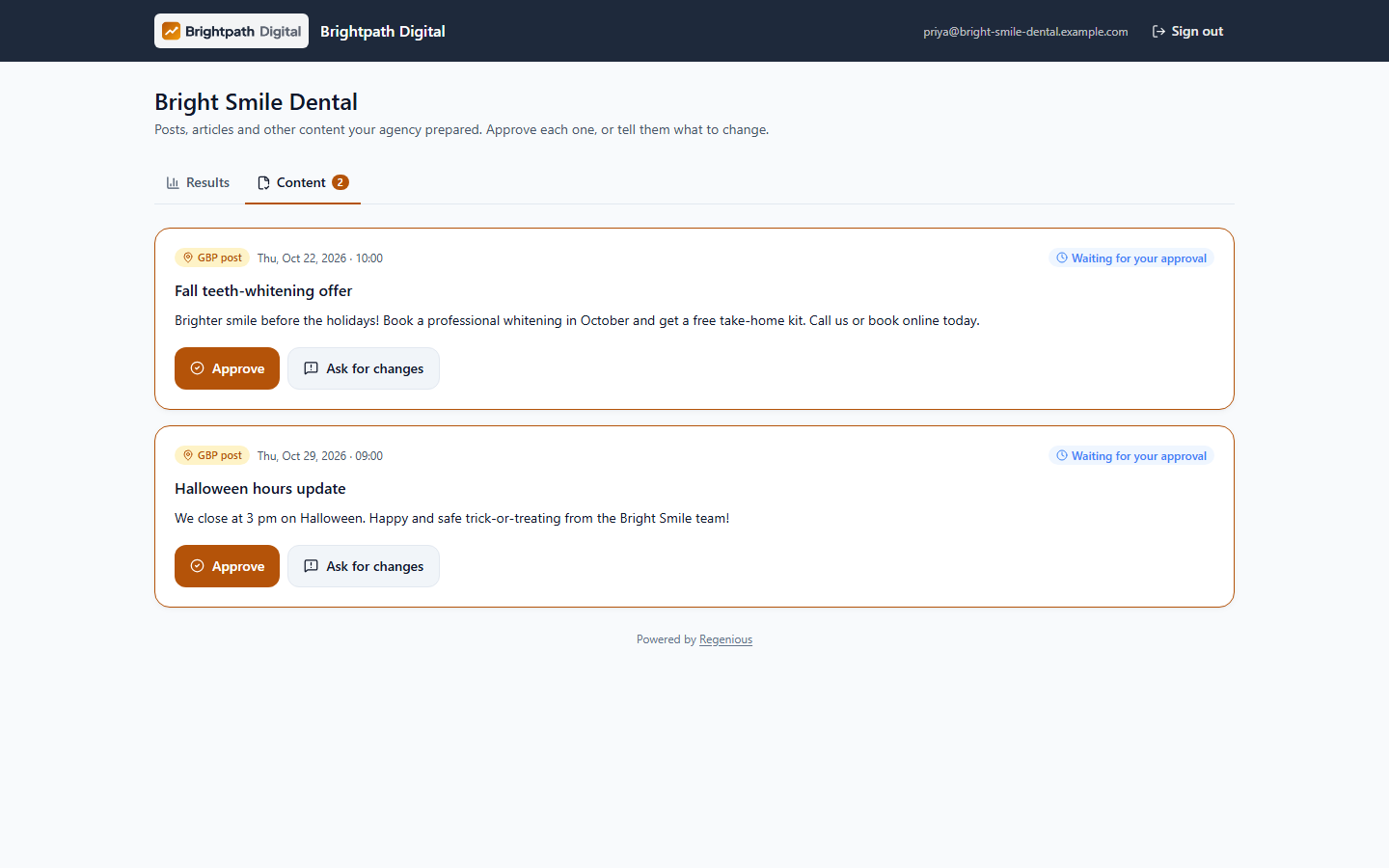
The Content tab lists the items waiting for their approval, with the text and the files you marked for them. They press Approve or Ask for changes. Under a shared report they can write a question. You answer in the report's Thread.
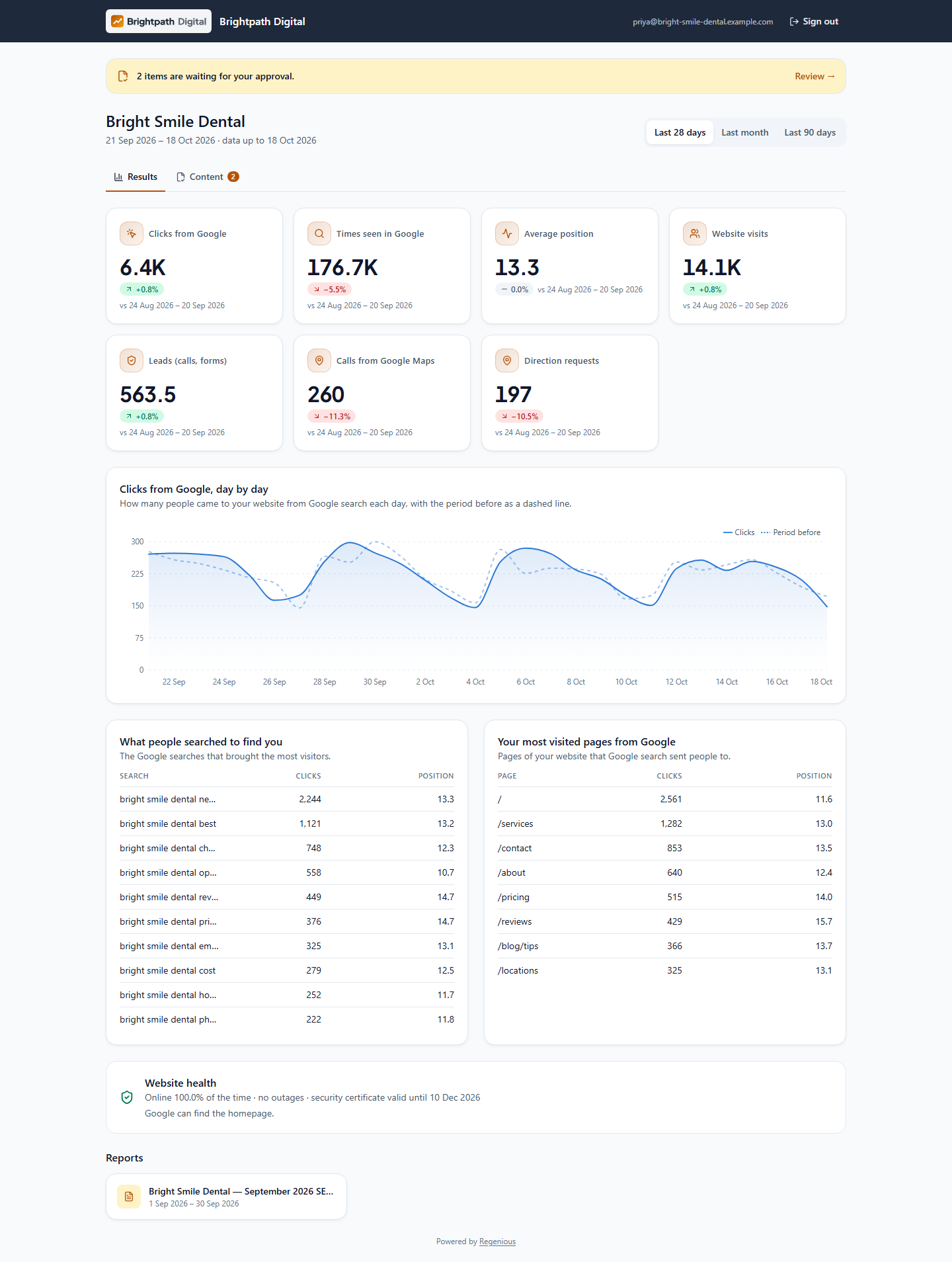
Clients only ever see their own business. Tasks, comments, files you didn't mark, AI insights, alerts, your team and your settings are never shown in the portal.
13 Team and roles
Invite your team, decide which clients each person sees, and what they may do.
Invite a team member
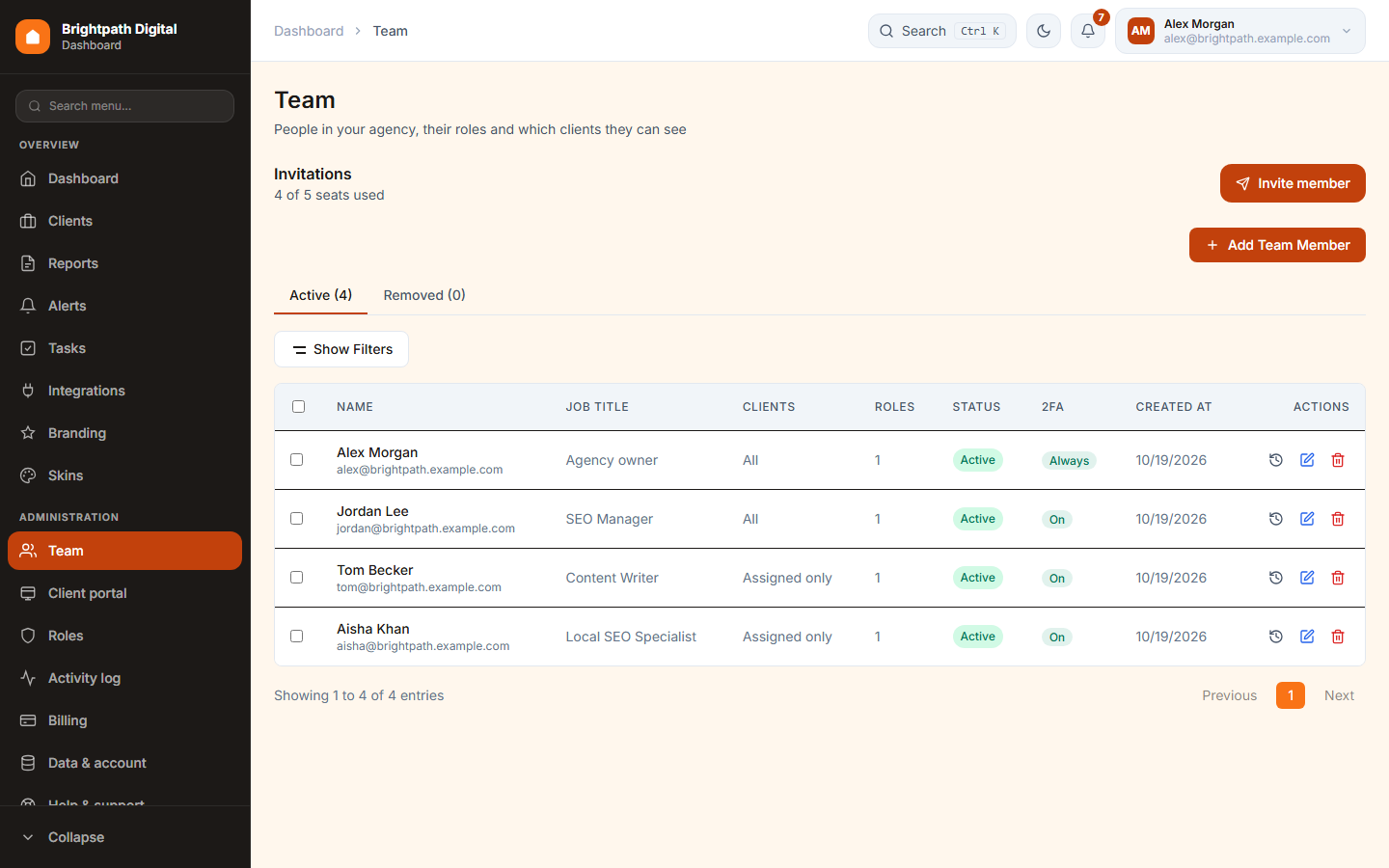
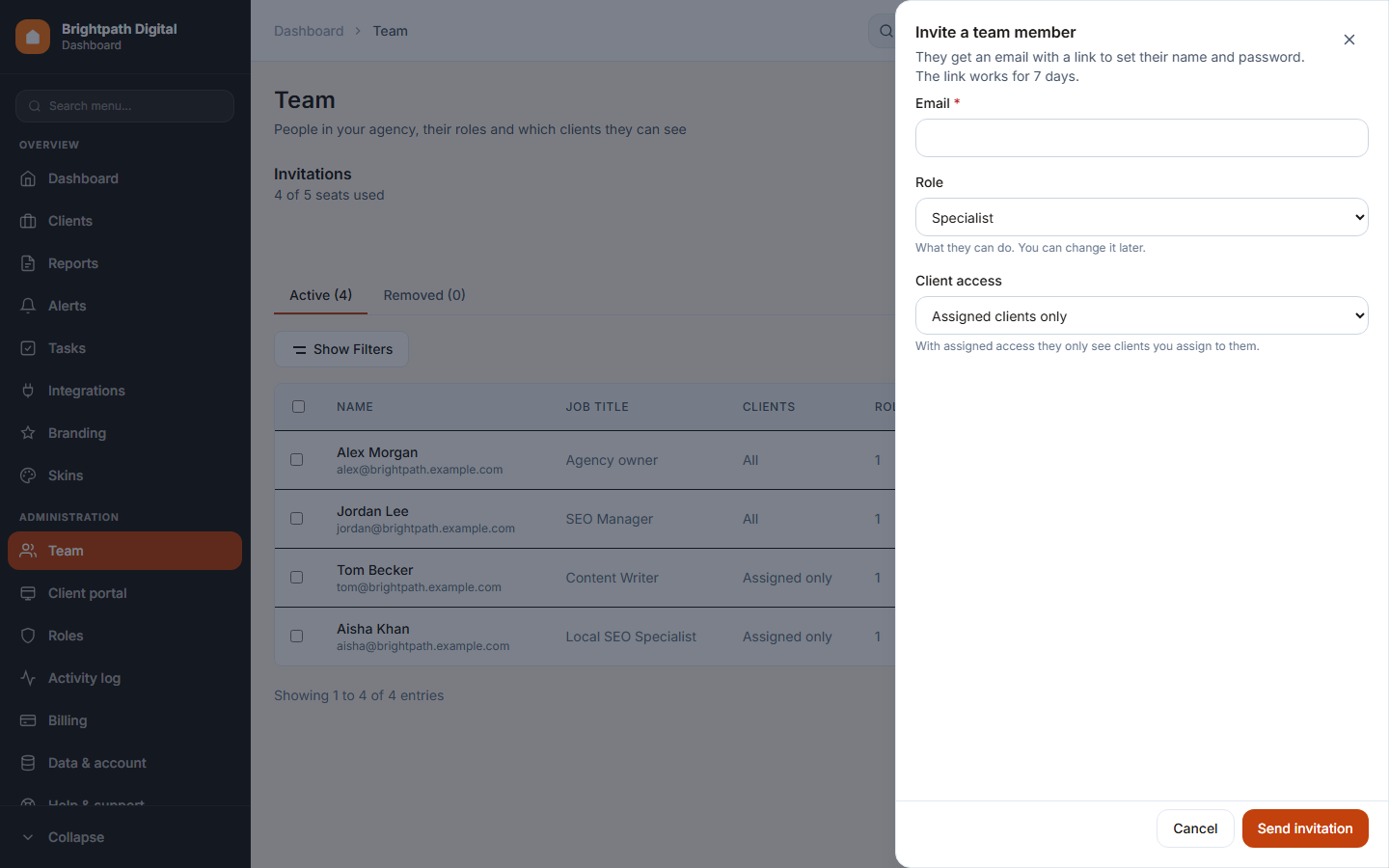
- Open Team and press Invite member.
- Enter their email, pick a role and the client access: All clients, or Assigned clients only.
- Send. They get a link that works once, for 7 days, where they set their name and password. A pending invitation uses a seat. You can resend or revoke it.
Edit a member
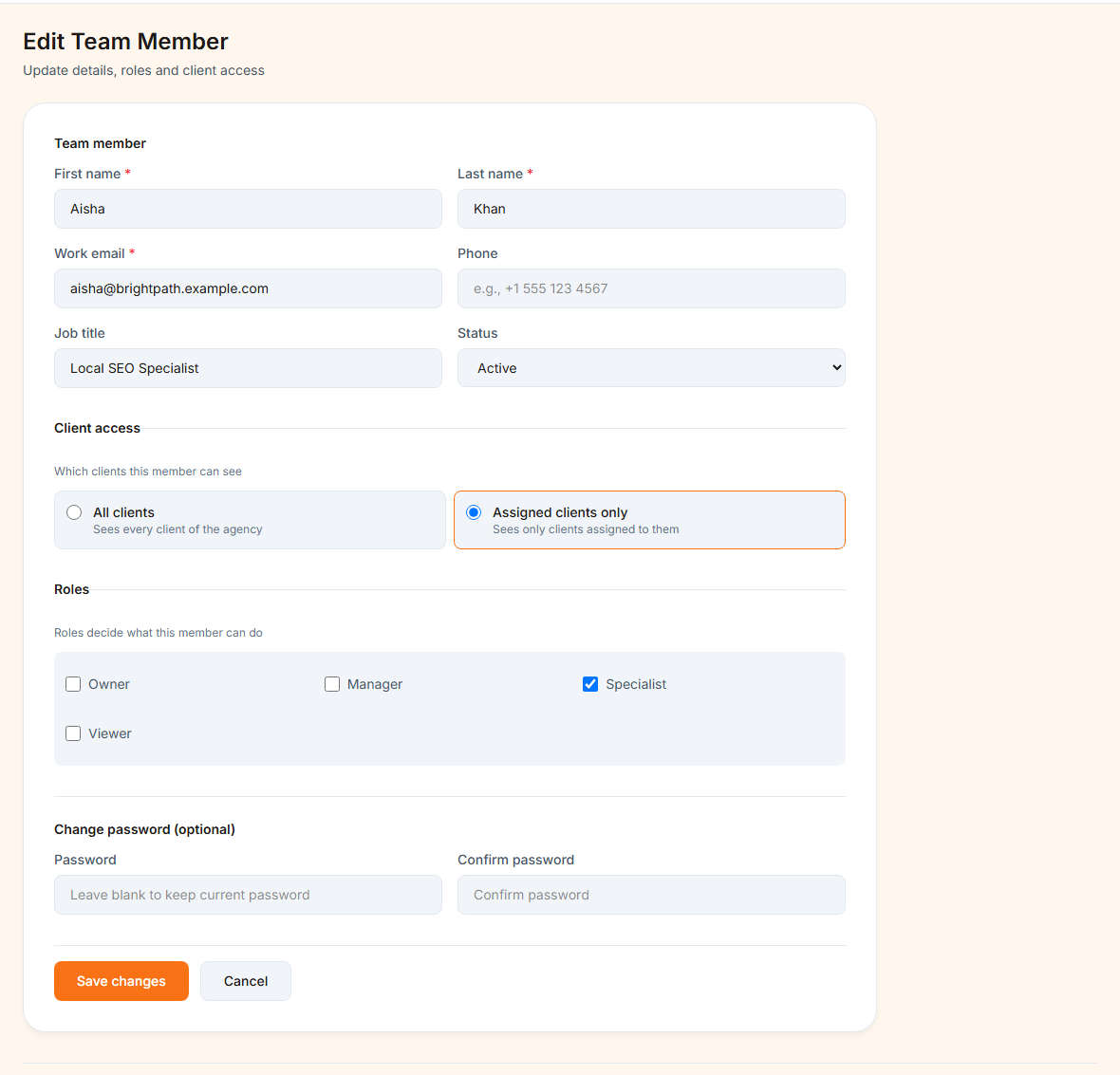
The 2FA column (owner only) switches two-step sign-in on or off for a member. Click a member to change their details, status (Active / Inactive; an inactive member frees their seat), client access and roles. Under Permission overrides you can give one person an extra permission, or take one away, without changing their role.
Roles
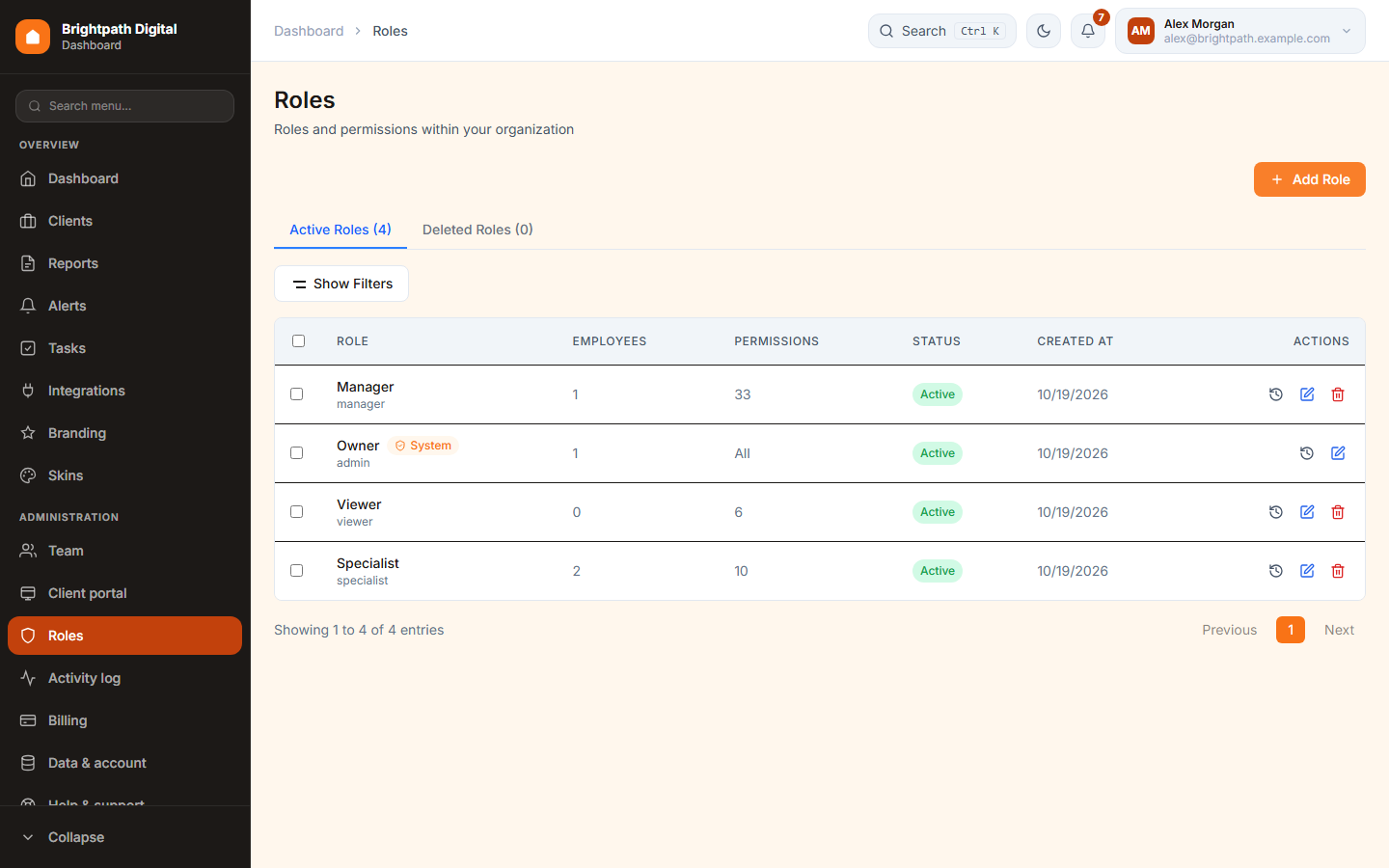
Every workspace starts with four roles. You can edit them or make your own in Roles.
| Role | Meant for |
|---|---|
| Owner | The account owner. Always has every permission your plan includes. Only the owner can delete the workspace or export all data. |
| Manager | Runs clients and the team: clients, reports, schedules, alerts, tasks (including “view every task” and approving content for clients), Business Profile replies and posts. |
| Specialist | Does the SEO work: sees clients, makes reports, exports data, creates tasks. |
| Viewer | Can look but not change anything. Can't export. |
“Confirm it's you”: dangerous actions ask for your password first, for example deleting a client, inviting or removing members, changing roles, disconnecting Google or changing the plan. After that, the same device isn't asked again for 10 minutes.
14 Branding and skins
Your agency's look on every report, email, share page and the client portal, and your own colours inside the app.
Branding
- Open Branding.
- Enter the Brand name, then upload your Logo, a Logo for dark backgrounds and a Favicon (PNG, JPG or WebP, up to 2 MB).
- Pick the Primary, Secondary and Accent colours and the font. You get a warning when white text on your colour would be hard to read.
- Add your support email, website and a Report footer line.
- Watch the Live preview of the report cover and the portal header, then press Save branding.
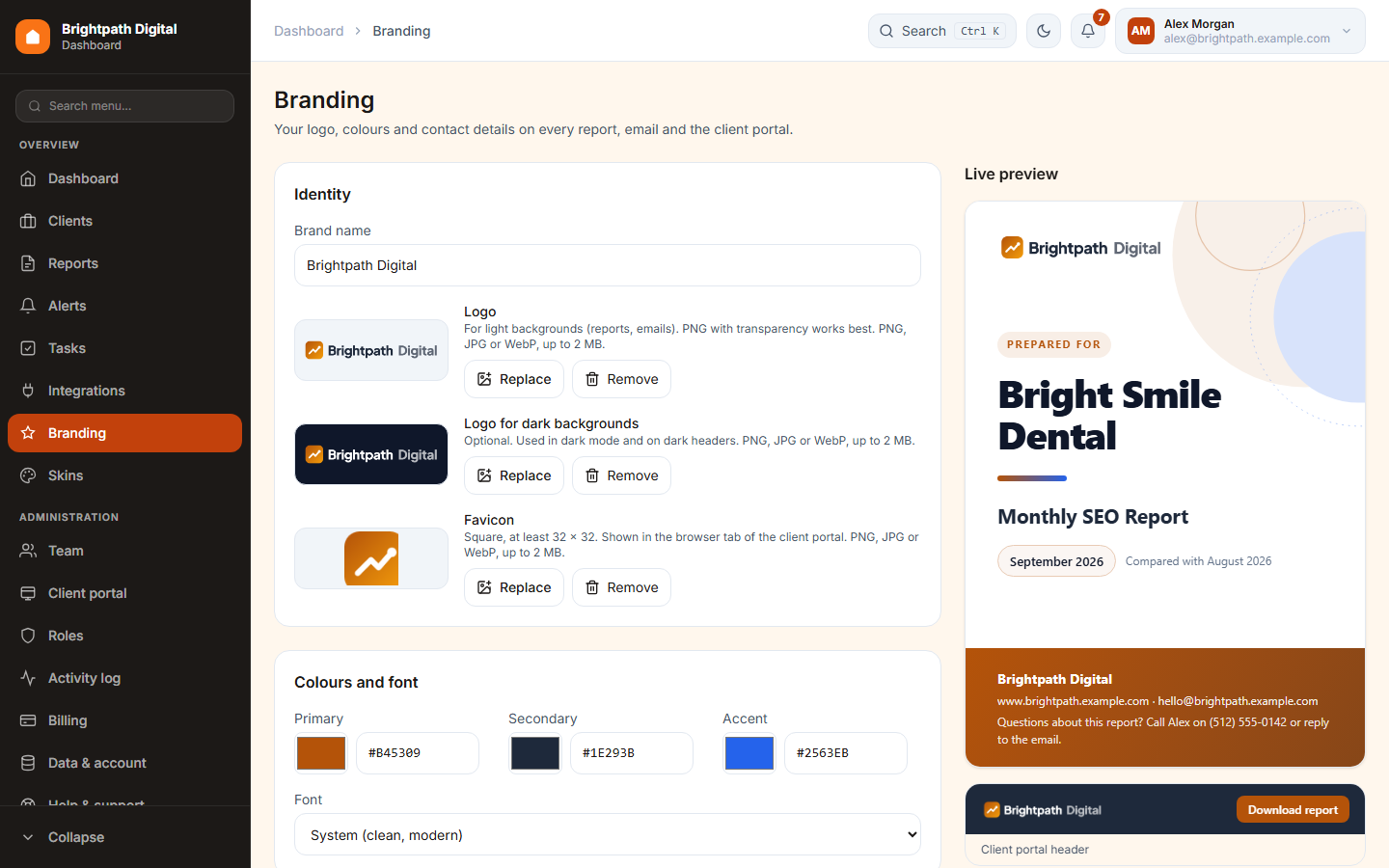
Hide the platform's name everywhere your clients look (plans with white-label) removes “Regenious” from reports, emails and the client portal, so clients see only your brand.
Skins
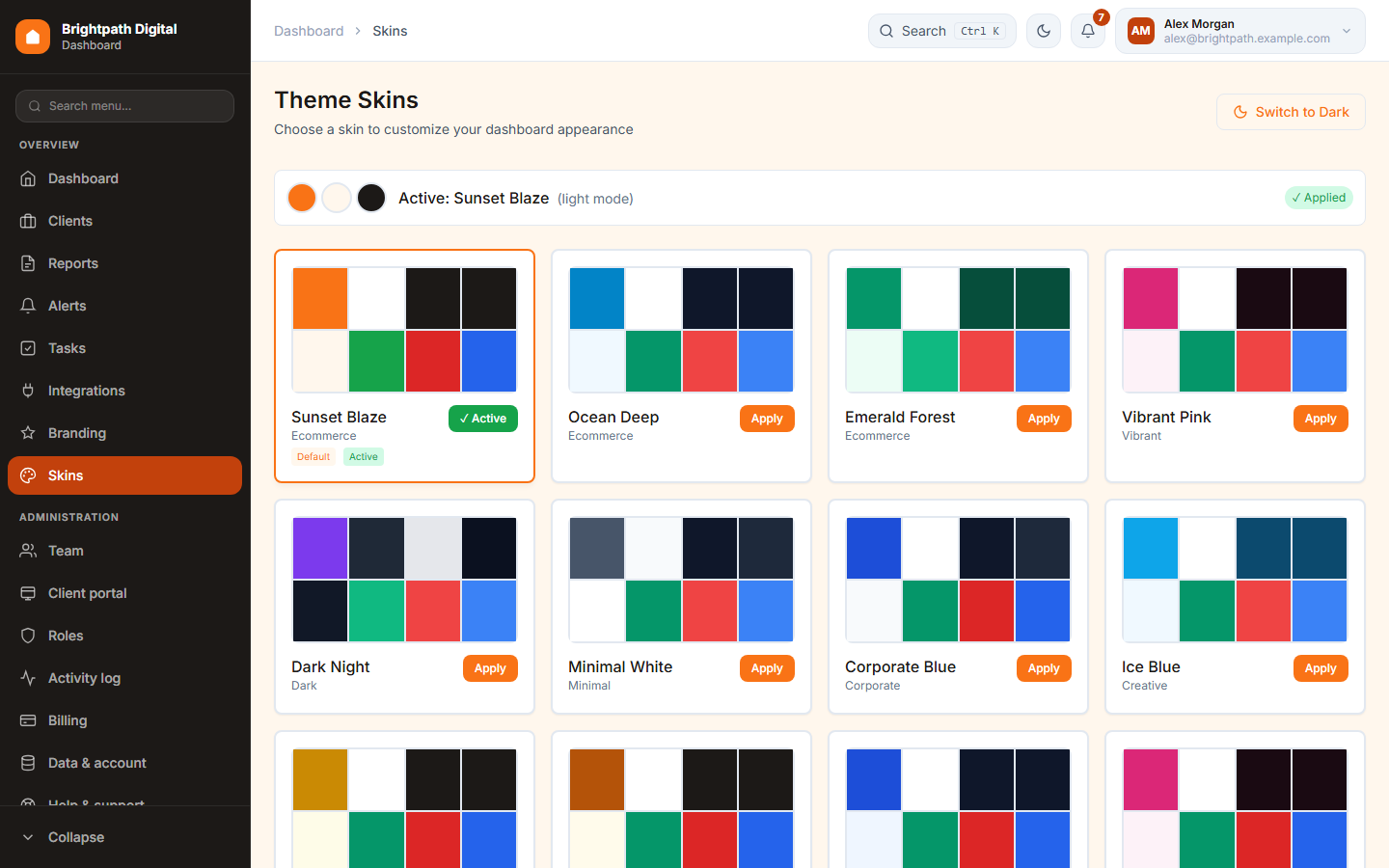
A skin is your own colour theme for the app: colours, shadows, corner radius and light or dark mode. It is personal, so each member picks their own and it doesn't change what clients see.
15 Billing
Your plan, what you use, and how you pay.
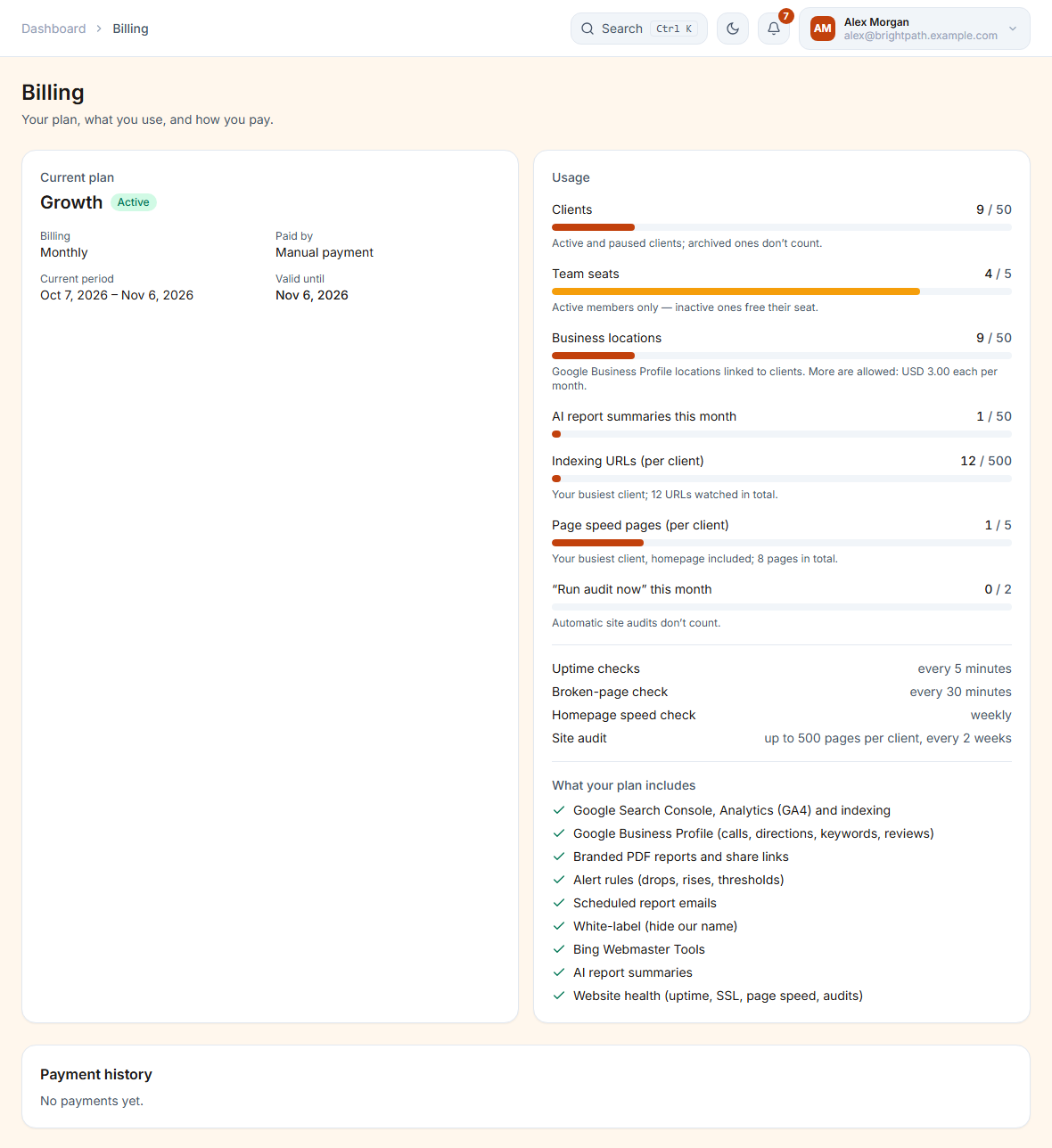
- Usage: clients, team seats (including pending invitations), Business Profile locations, AI uses this month, watched indexing URLs, page-speed pages and “Run audit now” presses. Below that, what your plan includes.
- Pay by card: secure checkout by Paddle, our reseller, who also handles sales tax / VAT and sends your receipts. Manage billing changes the card and downloads invoices.
- Pay manually: JazzCash, Easypaisa or bank transfer. Upload the proof and we check it within one working day.
- Change plan: you see what you pay today (only the difference) or the credit before confirming. Moving from manual to card keeps the days you already paid for.
- Cancel: access stays until the end of the paid period. Keep my subscription undoes it.
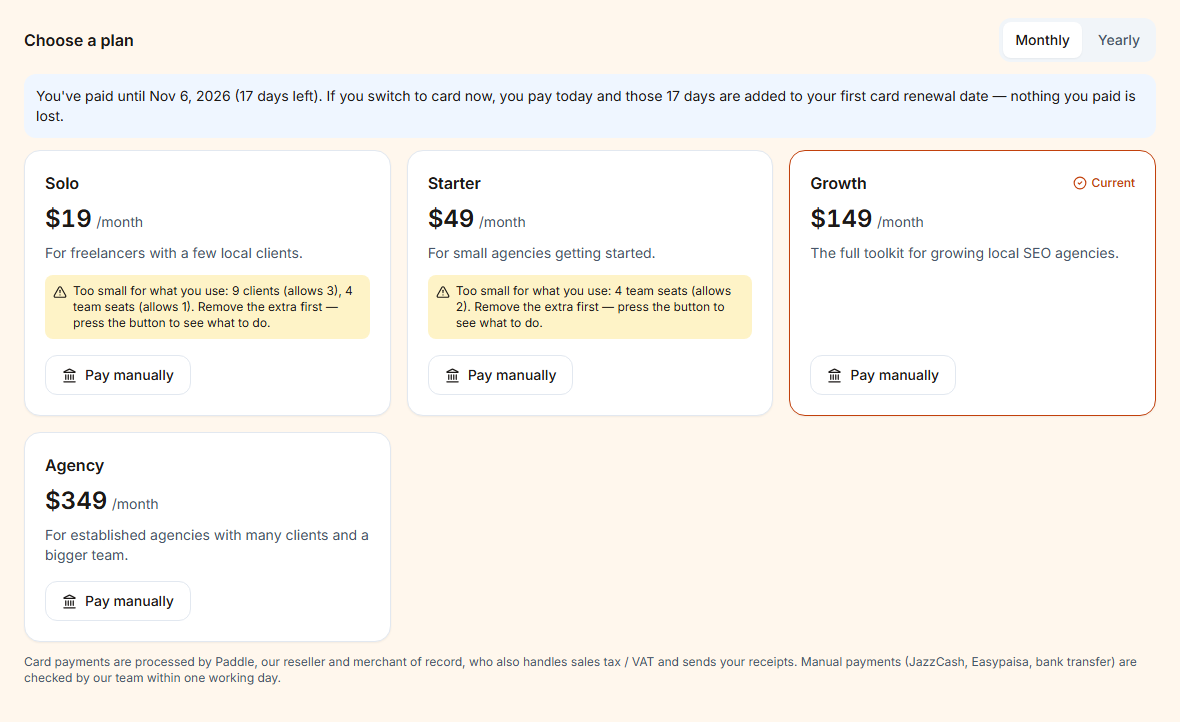
Moving to a smaller plan never deletes anything. If you are over its limits, you can't add more until you are under them. You get a reminder email 3 days before a trial or a manually paid period ends.
16 Security, data and activity
Security & sessions
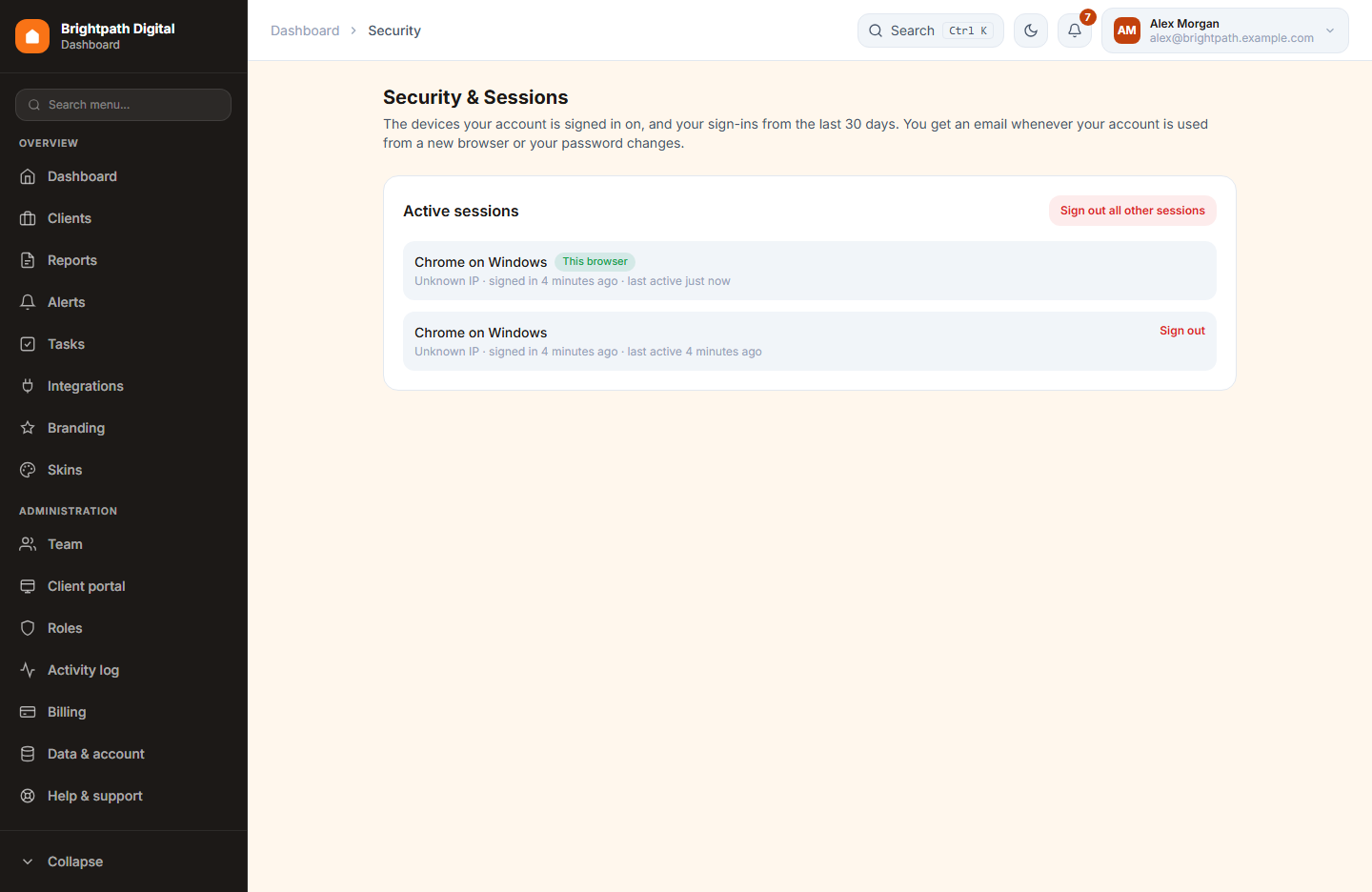
Open your name at the top right → Security. It lists every device and browser you are signed in on, with when you signed in and when it was last active. Sign out ends one session. Sign out all other sessions ends every session except this browser, for example after using a shared computer. You also get an email whenever your account is used from a new browser or your password changes.
Two-step sign-in (the emailed 6-digit code) is switched on or off per member by the owner, in the 2FA column of the Team table. The owner always signs in with it.
Data & account (owner only)
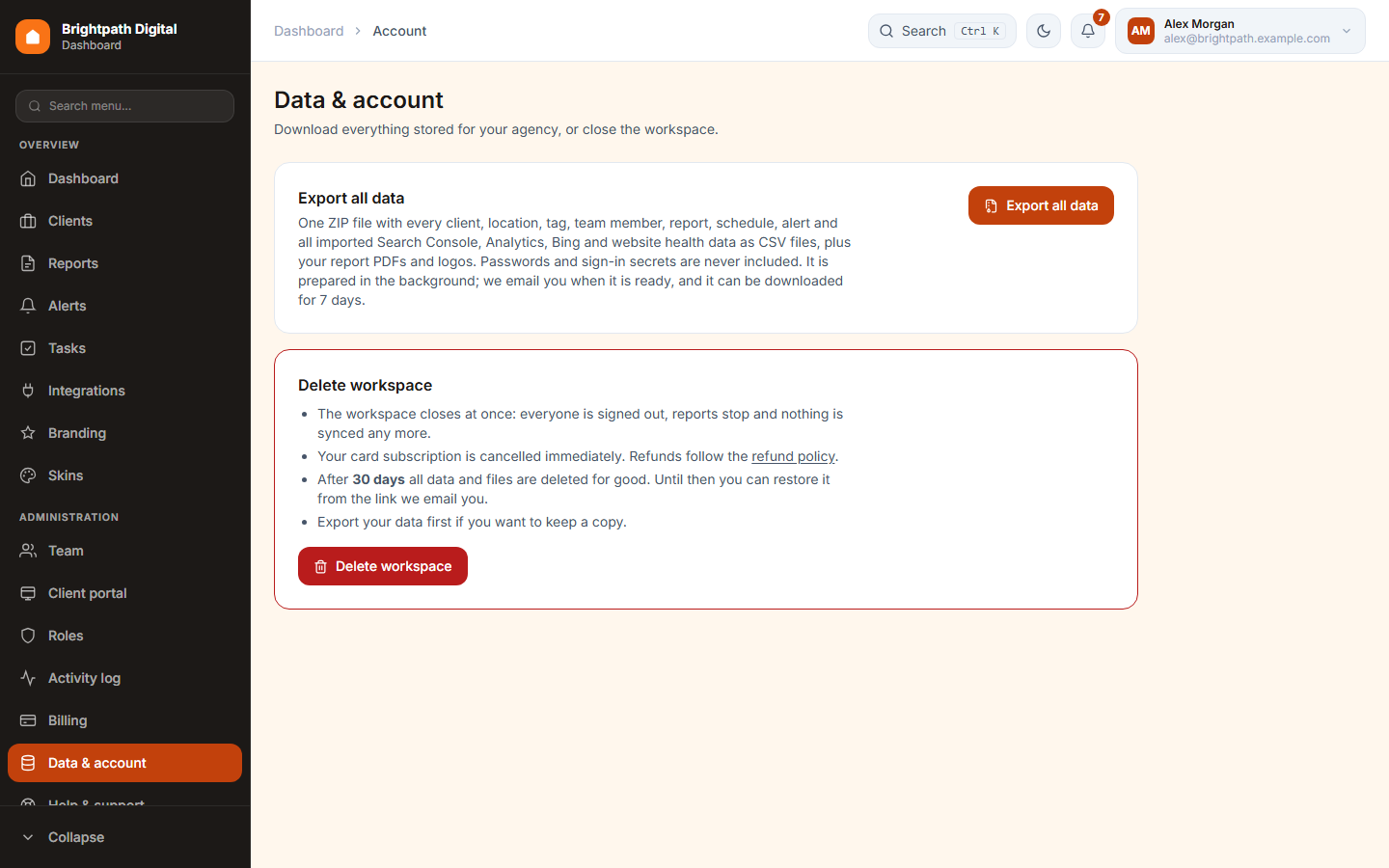
- Export all data makes a ZIP with every client, report, setting and all imported data as CSV files, plus your report PDFs and logos. You get an email when it's ready. The download works for 7 days. You can make 3 exports a day.
- Delete workspace closes it at once (everyone is signed out, syncing stops, a card subscription is cancelled) and emails a restore link. After 30 days everything is removed for good.
Activity log
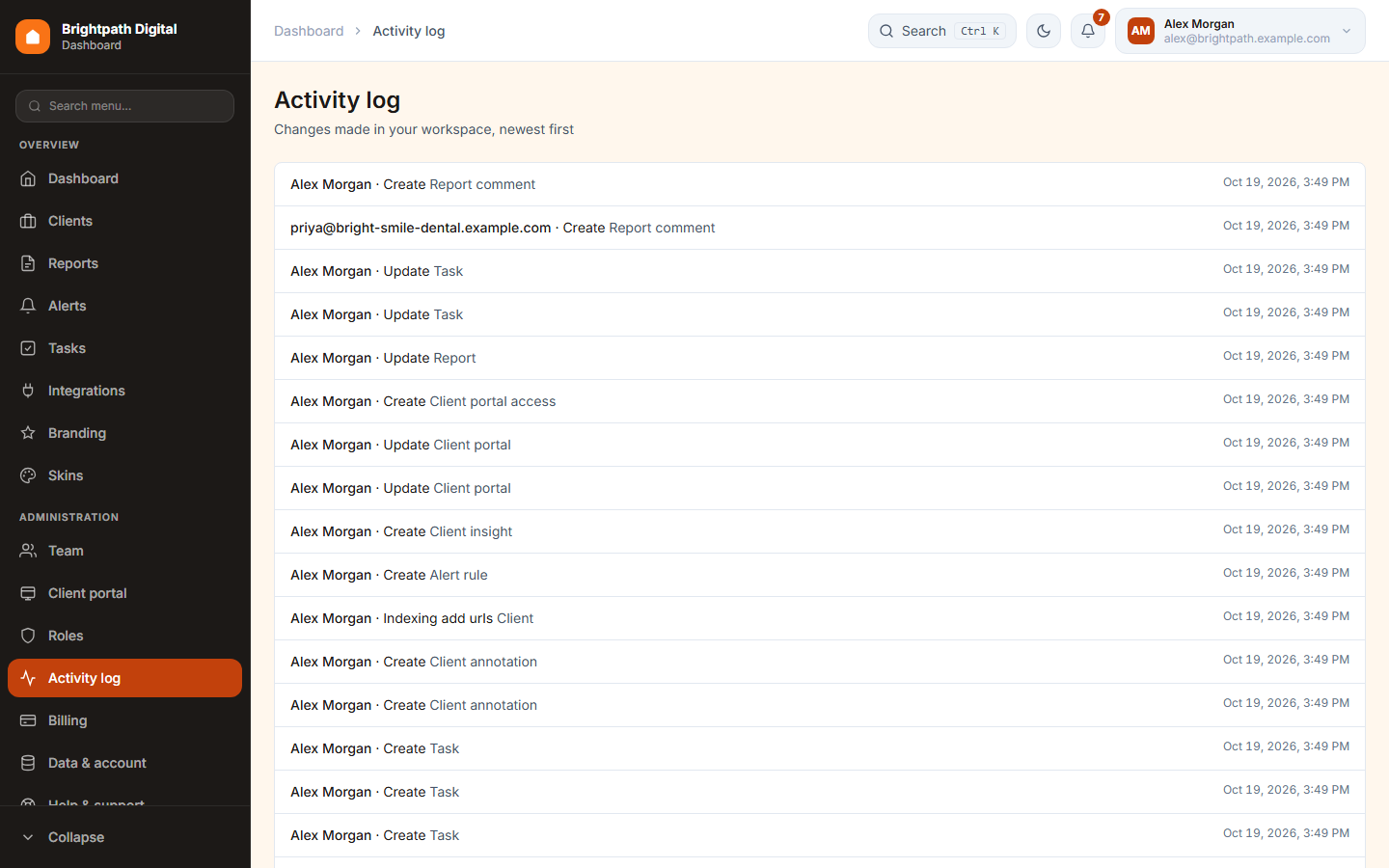
Who did what and when: sign-ins, clients added or deleted, reports made, exports, permission changes and more. Filter by person, action or date.
17 Help and support
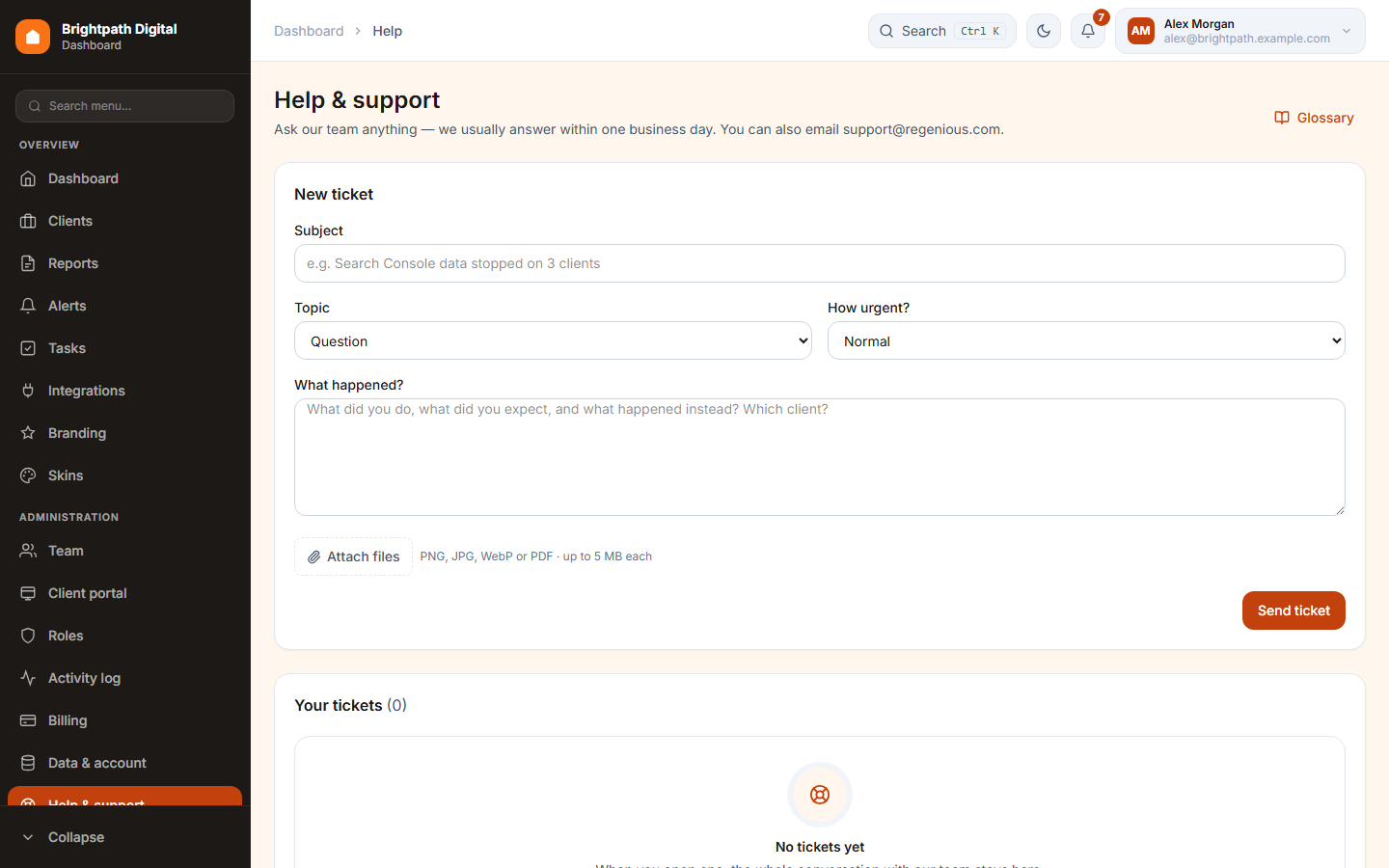
Help & support in the sidebar lists your tickets with our team. New ticket opens one. You can also email support@regenious.com. It works even after a plan has ended.
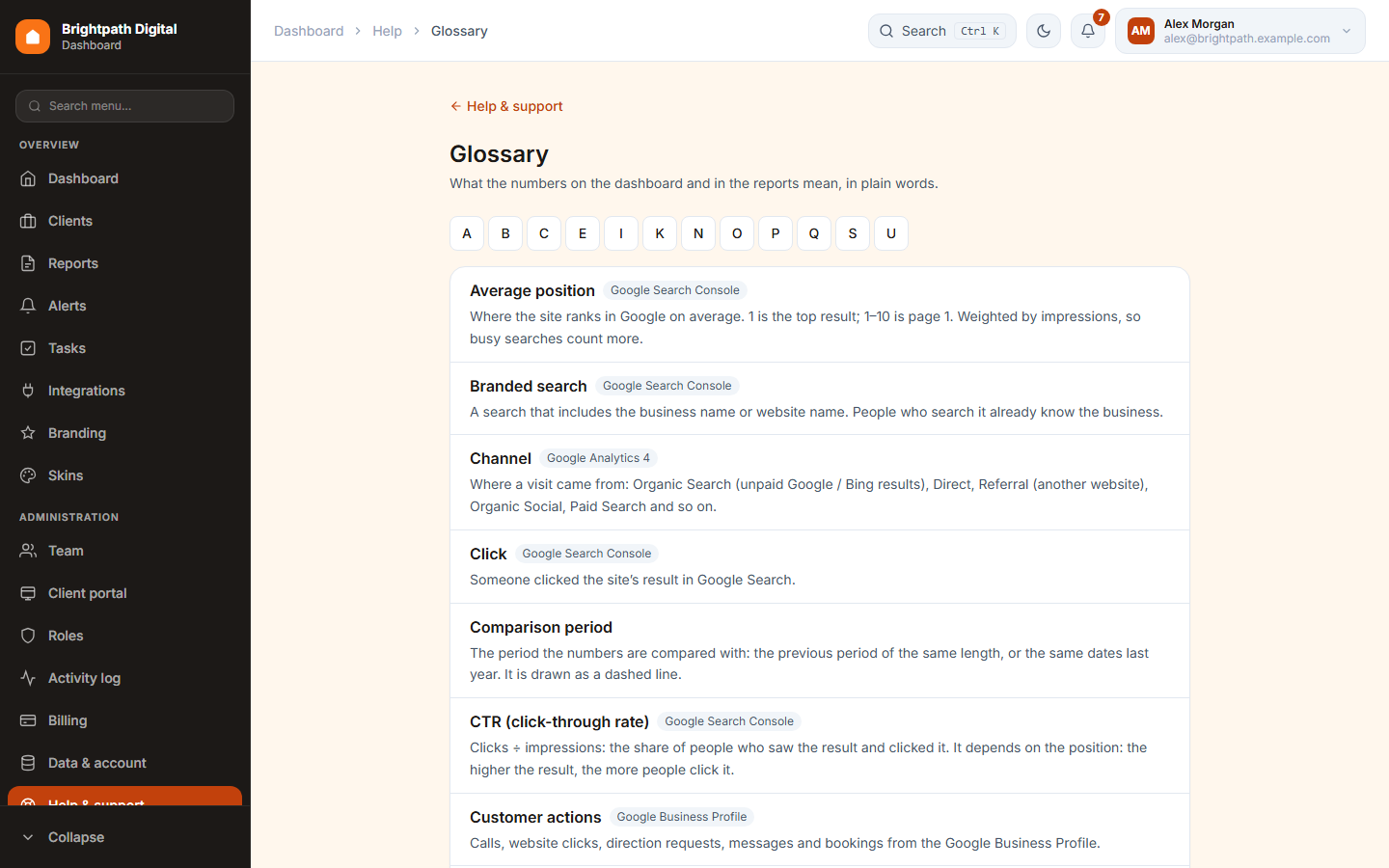
The Glossary explains every number in the app and in reports: what it is, how it is calculated, what good looks like and where it comes from.
18 Troubleshooting
The messages you may see, what they mean, and what to do.
| You see | What it means and what to do |
|---|---|
| Needs reconnect | Google, Bing or Business Profile stopped accepting our access, for example after a password change or because access was removed. Press Reconnect on Integrations and sign in with the same account. Syncing resumes and fills the gap. |
| Yesterday's numbers are missing | Normal. Search Console is 2–3 days behind and Business Profile 3–5 days. Each card says “data up to …”. |
| Importing 16 months… 7/16 | The history of a newly linked property is still coming in. It finishes by itself, usually within minutes. |
| Our numbers differ slightly from Google's | Google lists only its top 1,000 searches and pages per day and keeps rare searches private. Totals include everything; tables can add up to a bit less. |
| A property can't be linked | The client already has a property of that kind. Unlink the old one first, or swap both in one save on Map properties. |
| Not included in your plan | That feature (for example Bing, AI or the client portal) isn't in your plan. See Billing. |
| You've reached your plan's limit | Clients, seats, locations or AI uses are used up. Archive clients, remove members, wait for next month (AI) or move to a bigger plan. |
| Confirm it's you | A dangerous action needs your password. You won't be asked again on this device for 10 minutes. |
| Report: Failed | Press ↻ to make the PDF again with the same numbers. If the AI summary couldn't be written, the PDF is made without it and the reason is shown to you only. |
| Scheduled report: Skipped | The client was paused or archived, everyone unsubscribed, or the plan has no scheduled reports. The reason is in the delivery history. |
| Post: Not published | Google refused the post or the location isn't reachable. The reason is shown in plain words. Fix it and send again. |
| I can't see a client / a tab | Your access is “Assigned clients only” and you aren't assigned, or your role lacks the permission. Ask the owner. |
Still stuck? Open a ticket in Help & support. Error screens show a reference number. Send it to us and we can find the exact problem.